Let’s Make the Control Panel Easier to Find in Windows 11
In Windows 11, many important settings remain buried in the Control Panel, yet Microsoft has made the classic Control Panel a bit harder to find in favor of the newer “Settings” app. However, you can still easily pin the Control Panel to your desktop or taskbar to make it easier to open.
Here are two easy ways to put a shortcut to the Control Panel on your desktop:
Method 1: The Official Way
This method uses the built-in Windows settings to add the official system icon to your desktop.
Right-click on any empty space on your desktop and select Personalize.
In the menu that opens, click on Themes.
Scroll down to the “Related settings” section and click on Desktop icon settings.
A small window will pop up. Check the box next to Control Panel.
Click Apply, then click OK. The classic Control Panel icon will now appear on your desktop.
Method 2: The Fastest Way
If you prefer to create a traditional shortcut file that you can move or rename, use this method.
Right-click an empty space on your desktop.
Select New > Shortcut.
In the box that says “Type the location of the item,” type the following exactly:
control.exe
Click Next.
Type “Control Panel” as the name for the shortcut.
Click Finish.
Or even better — pin it to your Taskbar (The best way!)
If your desktop is often cluttered with shortcuts and/or open windows, it might be even more convenient to pin the Control Panel to your Taskbar.
Here’s how to do it.
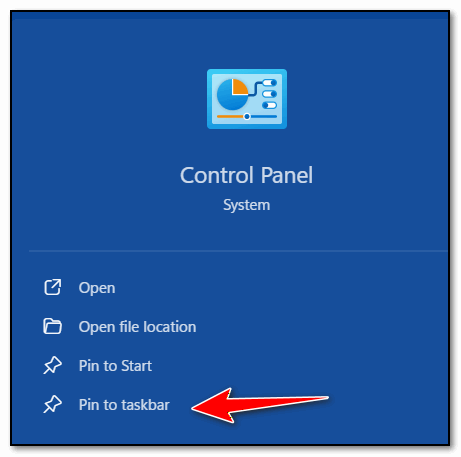
Type “Control Panel.” (no quotes) in the taskbar search and press Enter.
In the search results, Right-click on Control Panel and select Pin to taskbar.