

All About Windows 11’s Efficiency Mode
Windows 11 introduced “Efficiency Mode” as a way to give users more control over how apps use system resources. It is like a “throttle” you can manually apply to greedy background apps to ensure your computer continues to run fast and, if you’re using a laptop, your battery lasts longer. Keep on reading to learn what it does, how to use it, and potential pitfalls to watch out for.
What is Efficiency Mode?
When you enable Efficiency Mode for an app/program, Windows 11 performs two specific actions:
#1: It tells the CPU that this app is no longer a priority. If another app (like the game you’re playing or the video you’re editing) needs power, Windows will give it to that app first, leaving the “Efficient” app to wait in line.
#3: It triggers “Eco Quality of Service,” which instructs the processor to run the task on its most energy-efficient cores at lower clock speeds. This reduces heat, fan noise, and power consumption.
In the Task Manager, you may see a green leaf icon next to certain processes. This indicates that Efficiency Mode is active. Some apps, like Microsoft Edge or Google Chrome, may trigger “Efficiency Mode” automatically for background tabs to save resources.
How to Use Efficiency Mode
You can manually turn on Efficiency Mode using the Task Manager.
Open Task Manager: Press Ctrl + Shift + Esc.
Look through the Processes tab.
If an app has multiple sub-processes (like a browser), click the small arrow to expand the group.
Right-click on a specific process and select Efficiency Mode.
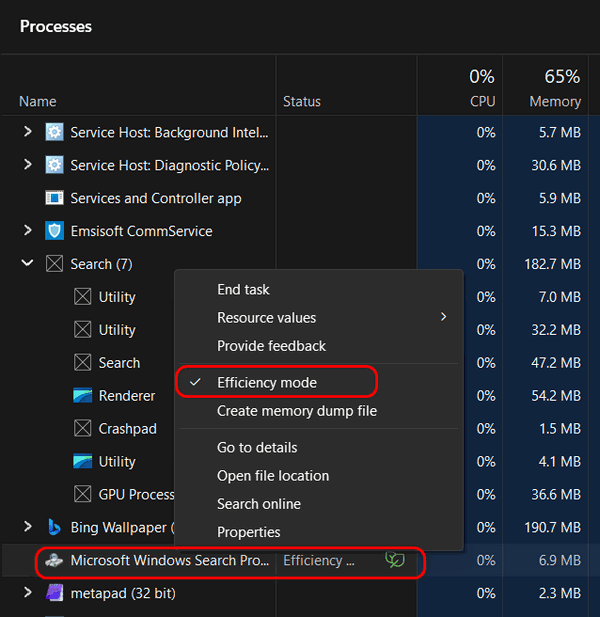
A dialog box will appear, warning you that this may cause instability for that specific app. Click “Efficiency Mode.”
You’ll see a green leaf icon and “Efficiency mode” appear next to the process/app.
Note: If the option is greyed out, it is likely a core Windows system process. Windows prevents you from throttling these to ensure the operating system doesn’t crash.
When Should You Use It?
Efficiency Mode is a powerful tool that can be helpful when taming “Resource Hogs”. If you notice a background app (like a cloud sync tool or a secondary browser) is using 20–30% of your CPU for no reason, turn on Efficiency Mode to force it to behave.
If you are using a laptop that’s not plugged into an outlet, putting non-essential background apps into Efficiency Mode can give you extra minutes of battery life.
If a background update, scan, or a chat app is causing high CPU or high RAM (Memory) usage, throttling those background tasks using Efficiency Mode can free up the resources.
When Should You NOT Use It?
Efficiency Mode is not a “set it and forget it” feature for every app. If you turn it on and notice any problems, you can turn it off the same way you turned it on.
Also, it’s best avoid it in these cases:
Never enable it for the app you are currently using for “heavy lifting”—such as video rendering, 3D modeling, or compiling code. It will significantly slow down the completion time.
Throttling a media player or a browser tab playing music can cause “stuttering,” “popping” audio, or dropped frames in videos.
If you are in the middle of uploading a large file to OneDrive or Dropbox, or doing a system backup, Efficiency Mode may cause the upload to crawl or even time out.
Some users report that communication apps (like Zoom or Teams) may delay notifications if they are throttled too aggressively.
So now you know all about Windows 11’s Efficiency mode. Will your PC be more “efficient”?