

More Windows Run Box Tricks
These tricks work in Windows 10 and Windows 11
The Windows Run dialog, which in our vernacular is called the Run Box, is still a very useful tool, even in Windows 10 and Windows 11, where it has largely been supplanted by taskbar search. But some of these more “geeky” commands must be run from a Windows Run box… but then again, not all of them.
Let’s open a Run dialog (or Run box as we call it):
Right-click on the Windows 10 or Windows 11 start button and click “Run”. Or press the Windows key + R
Now that we have that out of the way, let’s do some geeky stuff!
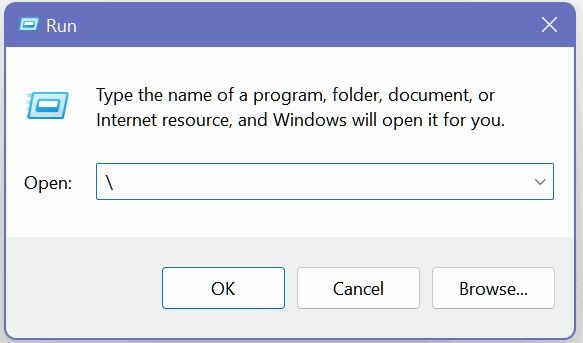
Open the C: Drive
1. Open a Run box (Windows key + R)
2. Type a backward slash – (that would be this: \ ) in the Run box
3. Press Enter
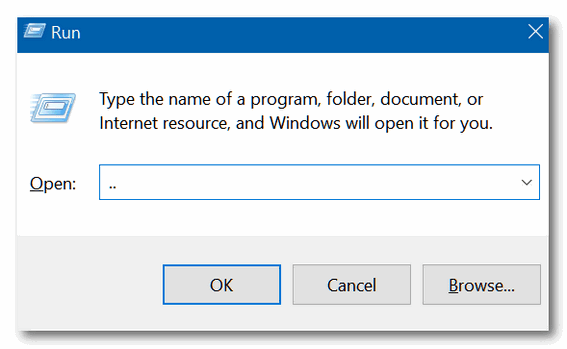
Open the Users folder
1. Open a Run box (Windows key + R)
2. Type two dots in the Run box
3. Press Enter
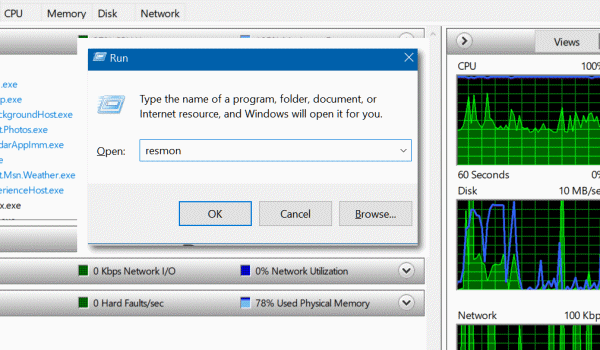
Check your PC for performance issues
1. Open a Run box (Windows Key + R)
2. Type RESMON in the Run box
3. Press Enter
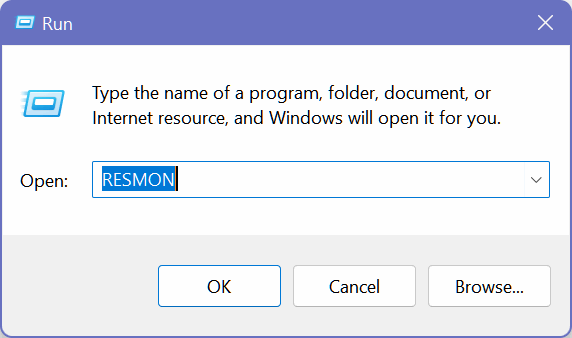
(Hey, you’re right! You can also type this in the taskbar search and run it.)
Search directly from a Run box using Chrome
1. Open a Run box (Windows Key + R)
2. Type CHROME “?Search” in the Run box – replacing the word Search with whatever you’re searching for
3. Press Enter
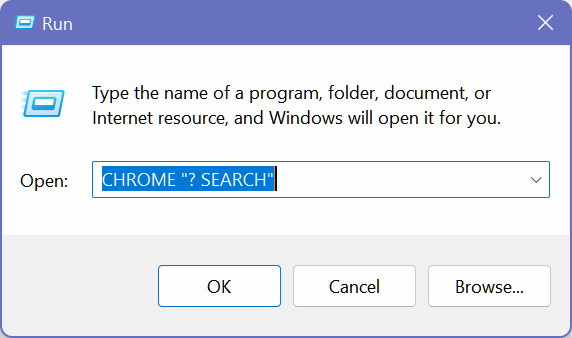

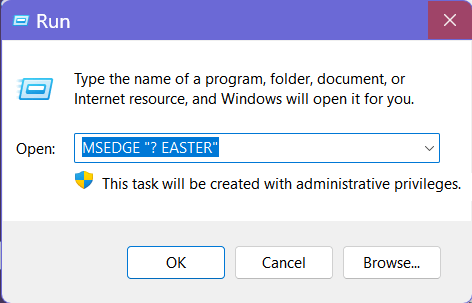
You can also use Microsoft Edge and its default search engine, Bing, to search from a Run Box. Just type MSEDGE “? and whatever you’re searching for in the Run Box. In this case, we’re searching for the date of Easter this year (2024).
We’re not sure how useful these are, but you can dazzle your friends, confound your enemies, or have fun playing around with these tricks. Who knows? You might even discover your own geeky Run Box trick.
One more geeky trick for Windows 11 only…
Did you know you can open Windows 11’s volume control by using the keyboard shortcut CTRL + Windows Key + V?