

How to Stop Windows From Automatically Updating Drivers and Why You Might Want to Do That
Did you know that Windows 10 and Windows 11 automatically update device drivers? That sounds like a good thing, right? Not so fast!
We have been advocates against using any kind of automatic driver update software for a long time, but we’ve been more tolerant of Windows automatic driver updates. You might think that Microsoft would always provide you with the latest, most up-to-date software drivers for your device and download them. Even if it worked as well as it sounds, there are a couple of things wrong with that:
1. If your hardware devices are working well, then you don’t need to update your drivers.
2. Windows sometimes downloads the wrong (or outdated) drivers for your hardware causing you heaps of problems.
3. Sometimes Microsoft issues botched updates.
Some of the most common problems that occur when Windows automatically downloads and installs drivers are with graphics drivers. I can’t tell you how many times we’ve received emails from people who had problems with their computer’s display properties after a Windows update.
The best course of action is what we’ve always suggested: The only time you ever need to update your drivers is if a hardware device is not working correctly. Your printer, your display, and your sound are all examples of devices that use drivers.
If you do need to update a driver, the device manufacturer’s website is the best place to go for new drivers. Not only are you assured you’ll get the correct driver(s), but you’ll also get the newest driver(s), including the ones with unique interfaces to interact with your device… touchpads and printers are good examples of this.
So, how do you keep Windows from automatically updating drivers? You might think Windows Update would be the place to go to stop automatic driver updates…but it’s not. Here’s how to disable automatic driver updates in Windows 10 and Windows 11.
Here’s the short way to do it (this saves you several steps):
If this does not work for you, see the second way further down in this article.
1. Type Device Installation in the Taskbar search and press Enter when you see “Change device installation settings” appear at the top.
2. When the “Device Installation settings” window appears, select “No (your device might not work as expected) & click “Save Changes”. See the screenshot below.
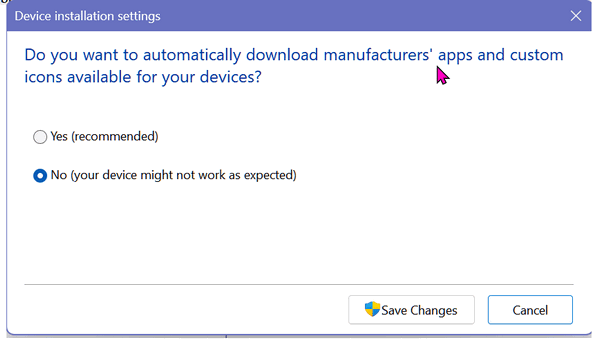
And that’s it. And don’t forget to click “Save Changes” before you close this dialog.
If that way does not work for you – for example, when you type Device Installation in the taskbar search, you don’t see “Change device installation settings” appear, then try this.
Type CONTROL in the taskbar search.
When the Control Panel opens, type Device Installation Settings in the Control Panel search box.
Then click on “Change device installation settings”.
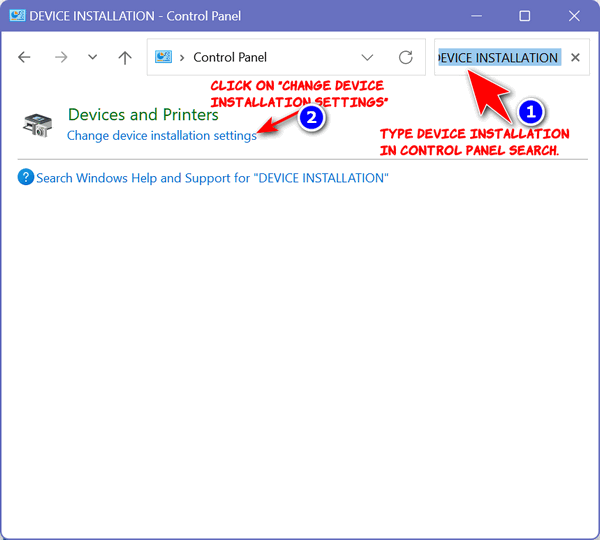
And you’ll see this:
Yes…you will. And don’t forget to click “Save Changes” before you close this dialog.
IMPORTANT: If you change your driver update settings this way, you are responsible for updating device drivers if a hardware device stops working correctly. Always get drivers from the device manufacturer’s website; never do a general search for drivers. Doing a general search for drivers may not end well for you. It is very likely to end with you installing useless driver updaters, which are at best worthless and at worst loaded with malware.
IF YOU CHANGE YOUR MIND: If you decide to let Windows automatically update drivers in the future, repeat the steps above, but this time select “Yes (Recommended)” in the Device Installation Settings dialog and click “Save changes”.
Hi TC,
I hope this reply finds you and Darcy well.
I also hope my question remains in line with the topic of this article/info tip. In it you stated “Some of the most common problems that occur when Windows automatically downloads and installs drivers are with graphics drivers.”
–I purchased a new Dell Desktop this past summer (which you helped set up for me) – and I’ve been noticing that the Dell Software called “Support Assist” also notifies you of “driver updates” for graphics. I know your article specifically mentioned the “Windows Update” avenue of getting new graphic drivers, and why you might want to avoid that – but I wanted to get your opinion when a “Graphics Driver Update” comes through that Dell Support Assist App – and whether the same rules, “If it ain’t broke, don’t fix it”, still apply here.
–Specifically I got a notification of 5 software updates yesterday through that App, and the one that rang a bell was “Intel Graphics Driver and Intel Graphics Software Application – A04 – 1,532.64 MB” which is showing a status of “Critical”. It first appeared on Saturday, Jan. 24, 2026 – but I’ve been holding off because of this article and similar ones I believe you wrote before.
–Since Dell is a pretty common and popular brand of PC, and many of your readers might own one that has that Support Assist App – your feelings and feedback on whether it’s safe to update or not would be much appreciated.
–I know your article was specifically about Windows Update, and not a Dell App, but I was hoping there was enough of a similarity in “content” that you would give us your invaluable opinion.
Thank you again – a million times, for all the help you’ve given me and so many others who depend on you and Darcy to keep us on the “straight and narrow”.
Sincerely,
Marty
Marty, you have a way of making everything more complex than it is. We did not tell everyone to turn off automatic driver updates. It’s for those who have constant problems with Windows updates. I have not owned a Dell in years, but I genrally uninstall the manufacturer’s bloatware because it is just another way to keep tabs on you. So generally, if Dell Acer, HP, etc. installed it, I usually uninstall it on my computer but I’m not sure what that has to do with Windows automatically updating drivers.
Hi TC,
I apologize that my question may have bothered you a bit.
As for what it all has to do with “Windows Updates”, it’s just that the article did start out saying “We have been advocates against using any kind of automatic driver update software for a long time,” – it was that statement that prompted my question.
While the Dell App isn’t spontaneously automatic in doing a graphics driver update – “if” I was having a problem, I wondered if using” Dell’s own app” would be OK – it seemed to be another way to follow your suggestion to “get the updates from the manufacturer’s website”.
You pretty much answered my question (which I sincerely appreciate), by telling me this Dell Support Assist is more like bloatware than useful software – and that, if it were you, you’d uninstall it. So that is my error in thinking it had some redeeming value.
Again TC, please don’t be upset with me, and please accept my apology for asking the question. I know I seem to make things more complicated than they need to be.
Humbly, and in my own defense, I love computers, an enjoy learning what makes them tick. Like a car enthusiast who likes to look under the hood to learn how things work – as opposed to those who just want to enjoy driving it.
I’ll try harder not to ask questions that drift off topic and cause you to become a bit disappointed with me. It’s just that your knowledge is so vast, and I know I can rely on it being “spot on” accurate, that I sadly let myself get carried away. Please forgive me, I do feel badly about this.
With much respect from a loyal and longtime follower,
Marty
Your question didn’t bother me, but people who make things more complicated than necessary are kind of a let down since we try to get everyone to look at thing simply and not look too deep. It’s only a computer, not a human body. When we say “driver updaters’ we mean 3rd-party driver updaters, 95% of which (or more) are scams to distribute malware. Windows Update is neither a scam nor a 3rd-party driver updater. Windows Update gets the updates from the manufacturer of the hardware, not from some off the wall distributor. I didn’t realiize that anyone would mistake Windows Update for a driver updater program. I’m sorry I didn’t make it clear enough.
The basis for that tip was a question from a lady who had video driver problems. She had to keep reverting to her old drivers every time Windows updated. Her’s is not a common problem so we showed her howto turn off the driver update function of Widnows Updates. Again it’s not a third-party driver updater, virtually all of which are scams.
With computers or any kind of technology it’s much better to take a simplistic view than trying to read things into tips or informative articles and making thing harder to understand. Computers are really not that complicated. It’s the scammers and the tricksters that try to make you believe there’s a dark hidden scary side to everything. We have tried hard to simplify things and make things easier.