

Now, That’s What You Call “Refreshing!”
To understand why refreshing a webpage ensures you’re seeing the current version, it’s essential to grasp the concept of “caching.”
Caching does speed things up, but sometimes it can cause problems. When you visit a website, your browser saves copies of certain elements (like images, style sheets, and other files) on your device (cache). This is called “caching.”
The next time you visit that website, your browser loads these saved files from your device instead of downloading them again from the web. Caching significantly speeds up page loading, but sometimes you see the page as it was, not the way it actually is. Refreshing a page ensures you’re seeing the most updated version of it.

Every browser has a refresh function on its toolbar. Here are samples of the refresh function and its icon on four popular browsers…
Above: Refresh icon – Google Chrome

Above: Refresh icon – Microsoft Edge

Above: Refresh icon – Mozilla Firefox

Above: Refresh icon – Brave browser
Are you seeing a pattern here? Every browser has a refresh icon (or refresh button) on its toolbar. It’s usually located to the left of the address bar. When you click the refresh icon, the page you’re viewing will be refreshed, and you’ll see the page as it really is on the web, not the page stored in your browser’s cache.
Another way to refresh a web page
You can use the F5 function key to refresh any web page you’re viewing. The F5 function key is usually located on the top row of your computer’s keyboard.
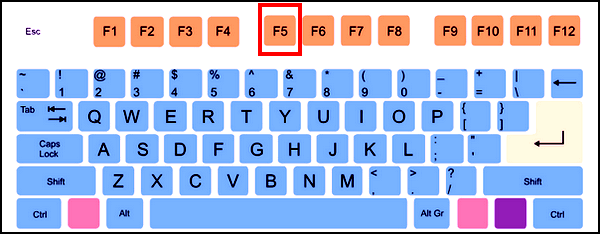

When viewing any web page, regardless of the browser you use, tapping the F5 key while viewing the page will refresh it instantly.
F5 Key BONUS TIP
Here are some other functions you can perform with the F5 key:
Reload a document in a word processing program
Restart a slideshow in a presentation program
Open the “Find and Replace” window in a spreadsheet program
Back to refreshing a web page…
You can also refresh the page you’re viewing by putting your cursor at the end of the website URL (address) in the address bar and pressing the Enter key to refresh the page. But using the browser’s refresh button (icon) or using the F5 key on your keyboard are easier and faster ways to refresh the page you’re viewing.
When you refresh a webpage, you’ll always be sure you’re viewing the newest version of that page.