

Chrome’s New “Secret” PDF Power Tool: No Adobe Needed!
We all know Google Chrome and many of us use it every day, but did you know it’s quietly becoming one of the best PDF editors around?
For years, if you wanted to sign a document or highlight a passage, you had to download bulky software like Adobe Reader. Not anymore!
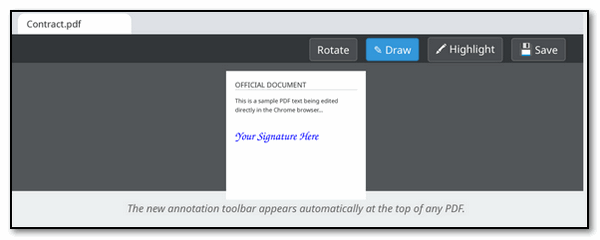
In the latest 2026 updates, Chrome has included a powerful suite of annotation tools right inside the browser window. It’s perfect for signing medical forms or contracts, marking up documents or maps, or highlighting important info in a manual.
How to Unlock the “Secret” Editor
You don’t need to install anything. If you have Chrome, you have this tool. Here is how to use it:
1. Open the PDF
Just drag any PDF file from your computer directly into an open Chrome tab. It will open instantly.
2. Find the Toolbar
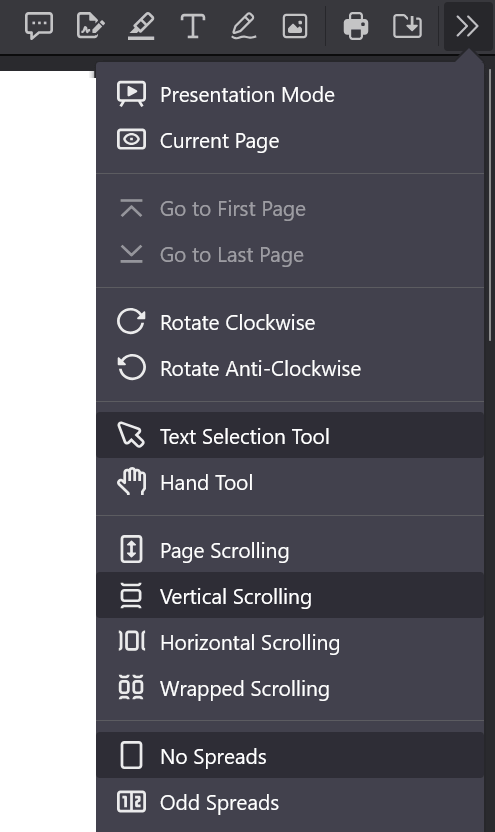
At the top of the PDF, you’ll see a new row of icons, including a pencil (Draw) and a highlighter. If you click the double arrows on the right edge, you’ll see a drop-down menu with more choices.
3. Mark it Up
Click the ‘Draw’ icon to sign your name with your mouse or stylus. You can even change the color and thickness of the “ink.”
4. Save with Changes
This is the important part: When you click the Download icon, Chrome will ask if you want the original or “With changes.” Choose “With changes” to keep your signature and notes!
Another tip: If you don’t see the “Draw” or “Highlight” icons, your Chrome might need a quick update. Go to the three dots in the top right corner, click Help, then About Google Chrome to ensure you have the latest version!
Love this. Where do you guys come up with all these tips? Keep them coming!
I’ve had to use Chrome as a PDF reader for a while now and I don’t believe this is a universal change. I use Windows 11 Home on this PC.
My Chrome is bang up-to-date – Version 147.0.7727.102 (Official Build) (64-bit) – and all I see are two icons at the top of an open PDF, one to rotate counter-clock and another to ‘draw’. For me, Chrome gets updates downloaded from the stable channel and I’m wondering if it’s possible you’re referring to something for Android? Or perhaps it’s based regionally?
The PDF editing icons only appear when you have a PDF document open. Otherwise they are hidden.
The official announcement for these features came out in February 2026 as part of Chrome’s productivity push.
Here’s a Google article referencing changes.
According to the official Google release notes, these tools were added specifically to reduce “tab fatigue” and eliminate the need for users to download third-party software just for simple tasks like signing a contract or highlighting a manual.
They also introduced OCR (Optical Character Recognition) in this update. This means if you open a grainy scan of an old manual in Chrome, Google’s AI “reads” the picture and turns it into searchable text automatically.
I am using 147.0.7727.102 (Official Build) (64-bit) and I have all the PDF OCR features mentioned. I cannot explain why you do not.
Hi and thanks for taking the time to reply.
I’ve now tried opening dozens of different PDF files in Chrome, from across the years, thinking that maybe – just maybe, issues like files created using an Apple-based device but being opened on a Windows PC, might give different results – but they don’t.
Like you, I don’t have a clue why I get the results I do but I’ve now found a ‘substitute’ for Reader and I’m using that. I suspect it’s regional, UK vs US!
Thanks for your input – as always, very much appreciated.