

How to Scan and Repair Your Hard Drive Without Adding Any 3rd-Party Software
Over time, computers can develop small file errors due to power flickers or improper shutdowns. Windows includes built-in tools to find and fix these errors before they cause bigger problems.
Method 1: The Simple “Error Checking” Tool
This is the easiest way to perform a basic check-up on your drive.
Open File Explorer: Look at the taskbar at the bottom of your screen and click the icon that looks like a yellow file folder.
Find “This PC”: In the list on the left-hand side of the window, scroll down and click on This PC.
Open Properties: Find your main hard drive (usually labeled Windows C:). Right-click the drive icon and select Properties at the very bottom of the menu.
Go to Tools: In the small window that opens, click the Tools tab at the top.
Check for Errors: Under the “Error checking” section, click the Check button.
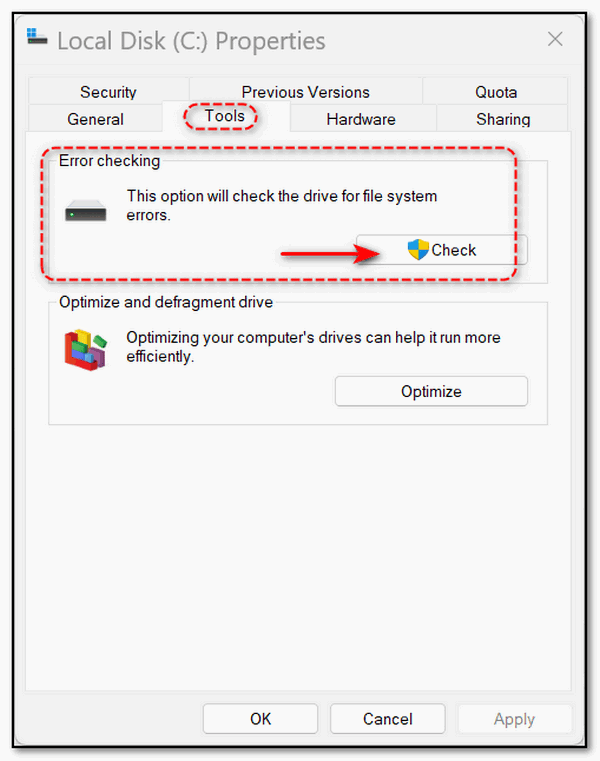
Scan the Drive: If Windows says you don’t need to scan, you can still click Scan drive to run a manual check. If no errors are found, click Close.
“The Fix” (Using Command Prompt)
If the first method didn’t resolve your issues or it found problems, you can use a direct command to tell Windows to repair the drive.
Open Command Prompt as Administrator:
Type CMD into the Taskbar search.
On the right side of the results, click Run as administrator. This is required to make repairs.
Enter the Repair Command: A black window will appear. Type the following command exactly as shown, including the spaces:
chkdsk c: /f
Understanding that Command:
chkdsk: Tells the computer to “Check Disk.”
c: Identifies your main hard drive.
/f: Tells the computer to “Fix” any errors it finds.
Schedule the Restart: Windows will say it cannot run the command because the drive is currently in use. It will ask if you want to schedule the scan for the next time you restart.
Type Y and press Enter.
Close your programs and restart your PC. Before Windows opens, you will see a screen showing the scanning and repairing process. Do not turn off your computer during this time.
Once the process reaches 100%, your computer will finish booting into Windows automatically.
I miss The 1990s and the 2000s when you had to run a disk defragment. Watching those squares march across a screen!