

Hidden Windows Magic: Extract Text from Any Image or Video
Have you ever stumbled across an old picture of a family recipe, a scan of a document, or a YouTube video showing a code or web address on screen, and wished you could just copy and paste the text instead of typing it out character by character?
For years, that meant uploading images to questionable conversion websites, buying expensive OCR (Optical Character Recognition) software, or taking a chance on a bundled freeware extractor that often came loaded with malware or didn’t work at all.
Most people don’t know Microsoft built high-speed text extraction software right into Windows 11—no extra purchases or downloads required. And if you’re using Windows 10, you can download Windows PowerToys (from Microsoft) and use it to extract text from images, PDF files, videos, or anything else on your screen.
Here is how to extract text from anything on your screen in Windows 11.
Method 1: The Built-In Snipping Tool
If you’re using Windows 11, the trusted Snipping Tool you already use for screenshots has a hidden superpower: Text Actions. It automatically scans whatever you capture and isolates the text for instant copying.
1. Capture the Region
Press Win + Shift + S on your keyboard, then click and drag a box over any text on your screen (inside an image, a PDF, or a video).
2. Open in Snipping Tool
Click the Snipping Tool notification pop-up that appears on your screen.
3. Run Text Actions
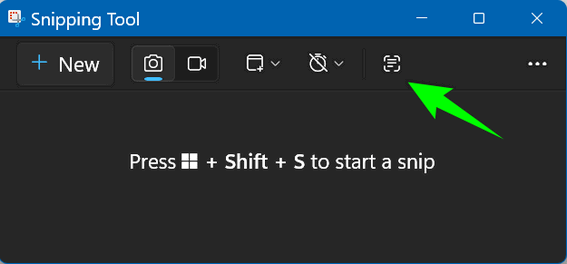
Click the Text Actions icon (the square with horizontal lines inside) in the top toolbar of the Snipping Tool. The tool highlights all detected text in blue.
3. Extract and Paste
Click Copy all text at the top, or highlight specific words and press Ctrl + C. You can now paste (Ctrl + V) the text straight into Notepad, Word, or email.
Method 2: Microsoft PowerToys Text Extractor for Windows 10 and Windows 11.
If you want an even faster single-shortcut method—or if you are still using Windows 10—Microsoft offers PowerToys, a free suite of official power-user utilities. Its Text Extractor tool lets you grab text off your screen instantly without opening a secondary window.
Install Microsoft PowerToys (Free from Microsoft)
1. Trigger the Extractor
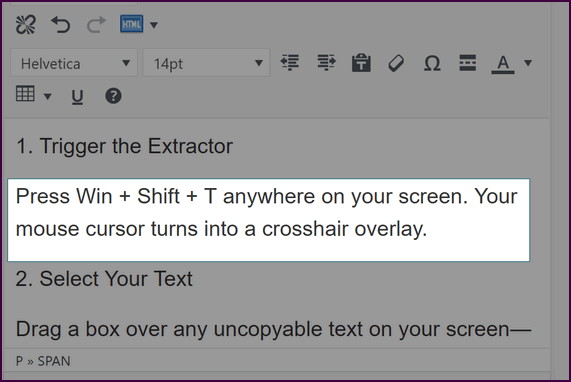
Press Win + Shift + T anywhere on your screen. Your mouse cursor turns into a crosshair overlay.
2. Select Your Text
Drag a box over any uncopyable text on your screen—whether it’s inside a non-selectable app, an image, or a playing video frame. As soon as you release the mouse button, the text is immediately copied straight to your Windows clipboard.
4. Paste Your Text
Open any text field or document and press Ctrl + V to paste your extracted text.
That’s it!
Now you know how to extract text from anything on your screen, whether you’re using Windows 10 or Windows 11.