

How to Block All Those Annoying Ads On Your Android Smartphone
We published this tip several months ago, and last night, as I was skimming through tech and news articles, I realized how nice it was to be able to do that without all the annoying ads I used to get. So, because I know firsthand how well this tip works and because it saves me so much aggravation and time, I decided to republish it for all our friends who have Android smartphones.
I have an Android Phone and I’ve been using Android smartphones and tablets for several years now, so I’m quite familiar with them. And yes, I’m quite sure that iPhones have a similar setting, but since I don’t have (can’t afford) an iPhone or any Apple stuff, I can only provide this tip for Android users.
I’ve tested this ad-blocking method using Ablock’s free standard filter (dns.adguard.com). I was surprised how well it works. I was getting increasingly frustrated with full-screen ads that wouldn’t close or ads that used a countdown timer before they could be closed. I finally reached my breaking point, and my frustration led me to this solution.
I’m going to show you how to use Android’s built-in Private DNS feature to block ads and trackers across most apps and web browsers on your phone. This method uses a free, reputable DNS service (like AdGuard DNS) that handles the filtering for you.
Best of all, this is an operating system setting and does not require installing any apps.
What is Private DNS?
Private DNS is a feature in modern Android versions (Android 9 Pie and newer) that routes all your network requests through a specific, secure server (a DNS server). By using a server that is pre-configured to block ad and tracking addresses, your phone prevents those ads from ever loading.
Here’s how to set up Ad-blocking via Android’s Private DNS feature
Step 1: Open Settings
Tap on the Settings app icon on your home screen or in your app drawer (it often looks like a gear).
Step 2: Navigate to Network/Connection Settings
Look for one of the following menu options, as the name varies slightly between phone manufacturers (Samsung, Google Pixel, etc.):
Connections (Samsung)
Network & internet (Google Pixel/Stock Android)
Wi-Fi & Network
Tap on the appropriate setting to proceed.
Step 3: Find the Private DNS Option
In the Network/Connection menu, look for a section called More connection settings, Advanced, or simply Private DNS.
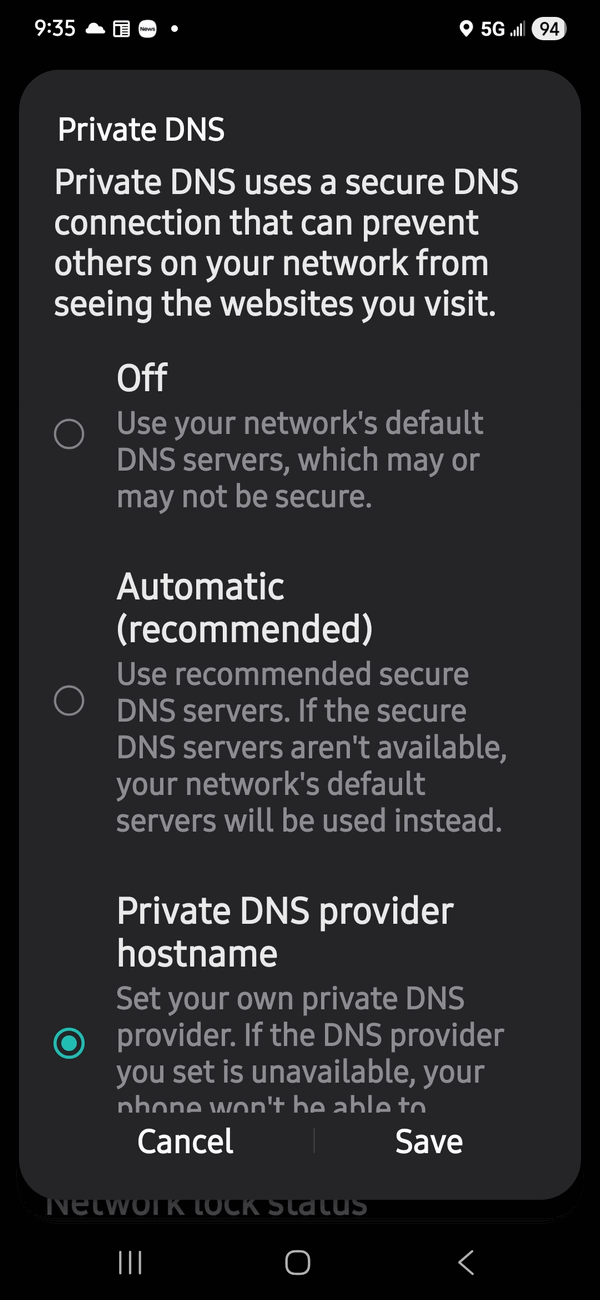
Tap on Private DNS.
Step 4: Enter the Ad-Blocking Hostname
The Private DNS menu usually has three options: Off, Automatic, and Private DNS provider hostname.
Select the option: Private DNS provider hostname.
In the text box that appears, you will enter the address for the ad-blocking DNS server. For most users, we recommend using AdGuard’s standard filter.
Type the following address exactly:
dns.adguard.com
Tap Save (or the checkmark/OK button).
Troubleshooting & Verification
Wait a few moments: It may take a few seconds for the new setting to apply across your phone’s network connections.
Test it out: Open your web browser (like Chrome or Firefox) and visit a popular news website. You should notice that spaces where ads previously loaded are now empty.
What if it doesn’t work? If you have trouble connecting or if ads still appear, try using a slightly more restrictive ad-blocking address (which may block more content, but is sometimes more robust):
dns-family.adguard.com (This blocks ads and adult content).
Warning: If you have any other VPN or firewall apps running, they may conflict with this setting. You may need to disable the other app’s VPN function for Private DNS to work correctly.
To Turn Ad Blocking Off
If you ever want to disable this feature:
Go back to Settings > (Network/Connections) > Private DNS.
Change the setting from “Private DNS provider hostname” back to “Automatic” or “Off”.
Tap Save.
Thanks. Worked great. Even on games
Thank you so very much. I can already notice a big difference.
Awesome. So many of the adds on my simple games just won’t let you out and take you to a website purchase page with the only option to cancel the game and start again. I really love this fix. Thanks.