

How to Bring Back the Old Notepad in Windows 11
For decades, Notepad was a distraction-free, plain-text editor. Then, Microsoft deprecated WordPad. Now, Microsoft is trying to turn Notepad into WordPad. If you miss the days when Notepad was a simple text editor that didn’t offer text formatting, didn’t remember your last session, or offer to rewrite your sentences with AI, you can easily restore the “old” Notepad.
It’s easy to turn the “new” Notepad back into its old self. You don’t need to download any third-party software or dig into the Windows Registry. You simply need to flip three specific toggles in Notepad’s Settings menu.
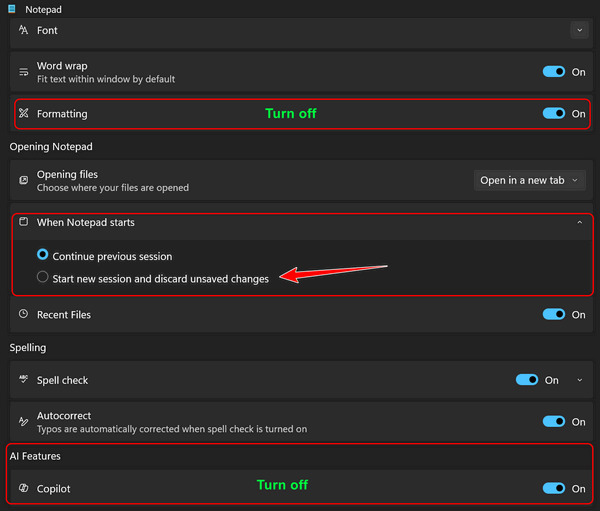
Step 1: Turn Off “Formatting”
The first section in the new Notepad Settings is Formatting. By default, the “nwe” Notepad tries to support rich-text elements like bolding, italics, and lists, which can interfere if you are using Notepad to strip formatting from web text, turn formatted text into plain text, or write clean code.
Open Notepad and click the Gear Icon in the top right corner.
Locate the Formatting toggle at the very top of the list.
Switch it to Off.
Result: The formatting toolbar disappears, and Notepad turns into a simple, plain text editor.
Step 2: Change “When Notepad starts”
The second section controls how the app launches. The “WordPad-style” behavior is to reopen every tab and file you had active when you last closed the app. To return to a clean start:
In Notepad Settings, find “When Notepad starts.”
Click the arrow to the far right of “When Notepad starts”. Change the setting from “Continue previous session” to “Start new session and discard unsaved changes.”
Now, every time you open Notepad, you get a single, empty document rather than a cluttered row of old tabs.
Step 3: Remove “Copilot” (AI Features)
The final section at the bottom of the settings menu is dedicated to Copilot and Generative AI. This integration adds “Rewrite” and “Explain” buttons to your toolbar and right-click menus, which may be a privacy concern or a visual distraction for many users.
Scroll to the bottom to find the Copilot (or “AI Features”) toggle.
Switch it to Off.
Result: All AI-assisted buttons and prompts are stripped from the interface, leaving you with only your text.
By following the steps above, you’ve effectively “downgraded” the Notepad. Your Notepad is now once again a fast, “dumb,” and reliable plain text editor.
Thank you for this tip.
All this new crap Microsoft is updating us to automatically has us elders so confused. Getting to not enjoy using my pc anymore cause of all the settings that I am not sure are being changed with their constant messed up updates. Should have you go through my laptop and make sure all settings are correct cause I don’t always know which thing is the good old Cloudeight correct way of settings versa what is always changing even with Chrome and Edge Browsers are always adding things onto them. New updated added features it always says.
You’ll love our site pick this week: The Helium browser. It’s a very basic browser with enough features to keep anyone happy. It’s like browsers used to be.
RE: Helium browser…Thank you for telling us about this.
I am getting an alert from Chrome that Postlight Reader is not safe to have as an ext. so I did remove it from Chrome but Edge is still allowing it.
Will download your new browser and give it a try.
Hope you both are doing okay. I don’t know how you keep up with all your work and getting back to our family with ?s as promptly as you both do. World is sure changing and it is getting harder to live with every turn the price of food, gas, heat and power is going up. I guess they will get us to lose weight ,but the cheaper food is what we shouldn’t be eating cause too many carbs and fat content. So all we can do is take one day at a time and for us elders remember when life was much simpler and not so fast paced. I really do appreciate the help you both have provided to me for quite a few years.