

How to Manage Your Browser Extensions
I think all of us get a little extension crazy sometimes. Sometimes you think you need an extension, and so you add it to your browser, and before you know it, you have 10-15 browser extensions. Most people can’t even remember the extension they’ve added. There’s nothing wrong with extensions – at least not the legitimate ones – but having too many extensions can slow down your browser. So, we recommend that you take a look at your browser extensions every so often and remove any that you don’t use or don’t need.
There’s an easy way to do it, too, regardless of which browser you use. And it’s all thanks to the puzzle-piece icon that almost all popular browsers, including Chrome, Firefox, and Edge, have adopted.
Manage your browser extensions the easy way.
1 > Open your browser and locate the “puzzle-piece” icon in the toolbar.

2 > Click on the puzzle-piece icon and click on “Manage extensions” in the drop-down menu.

And you’ll see this:

Above: Chrome extensions
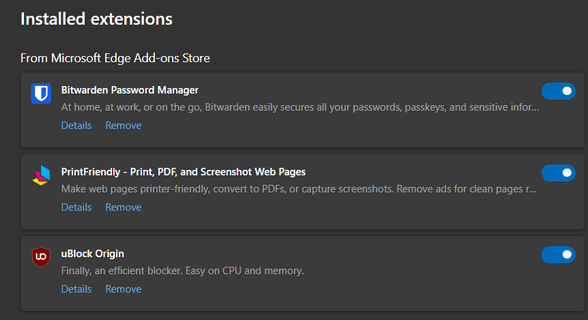
Above: Microsoft Edge extensions


Above: Mozilla Firefox extensions
All browsers give you the option to turn off extensions or remove them – either option has the same effect. The fewer extensions you have, the faster your browser will be.
So, take some time today to check out the extensions you’ve installed and turn off or remove any that you don’t use.
They might be useful for some but I’ve long given up on extensions. Even the presence of one causes such a massive hit to the performance of the browser – it becomes the tortoise, not the hare – I don’t bother. Life’s for living at your chosen speed, not that of a (AI generated?) chunk of programming!
Consequently, the ‘puzzle piece’ icon doesn’t appear on the toolbar.
You don’t use a password manager? Allowing a browser to save your password is not a very safe thing to do. Password managers are browser extensions as are ad blockers which also keep you safer. Just my opinion,