

How to Use Your Smartphone As a Scanner
Remember the clunky scanner hogging desk space and trying your patience? Forget it! Your Android smartphone and Google Drive make it quick and easy to scan documents. With just a few taps and this smartphone tip, you can transform any of your paper documents into digital copies
What you need…
An Android phone with the Google Drive app installed. You probably already have these, but double-check!
Most modern smartphones have a decent camera (or cameras) and are scan-ready. However, remember that good lighting is essential.
Now…scan like a pro!
Open the Google Drive app and tap the Plus button (+).

Select “Scan” from the menu. This triggers your camera to scan your document.
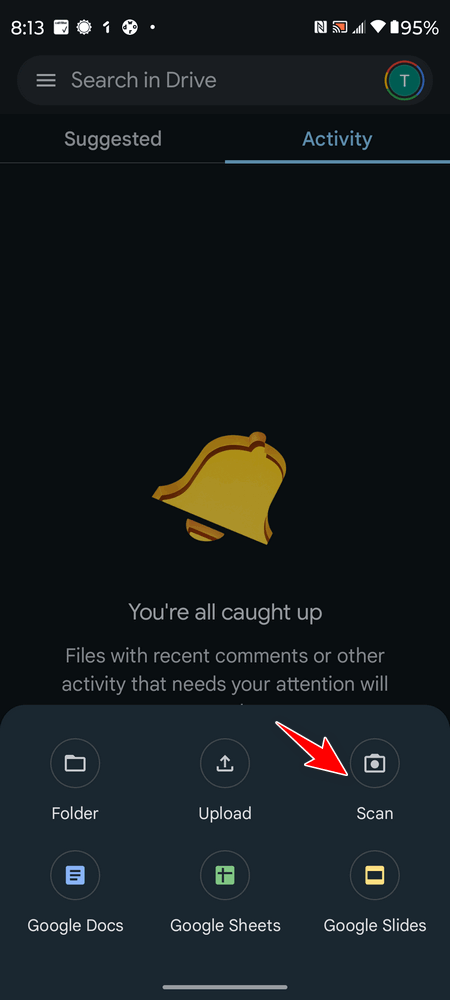
Position your phone over the document. Ensure your document is on a flat surface with good lighting, and try to avoid glare and shadows. A blue frame will guide you.
Capture the scan! Tap the capture button or wait for automatic capture (if enabled). Google Drive might take multiple shots for optimal results.
Review and refine: The app will display your scanned document. Adjust the cropping, rotation, and brightness to your preferences.
Now all you have to do is save it. Give your scan a descriptive name and choose where to save it in your Drive. You can choose to save your scan in PDF or image format—your choice. We recommend saving it as a PDF, though – especially if you plan to print it.
Some helpful tips:
1. Make sure you hold the camera steady when scanning.
2. Remove any background objects that might show up in the scan.
3. Natural light is the best. Try to avoid harsh overhead lights or direct sunlight that creates glare.
4. Always check the scanned document before saving it to ensure clarity and proper orientation.
Now you know how to scan with your Android smartphone, so you can give your scanner a rest.