

Keeping the AI Robots Out of Your Inbox: A Guide to Gmail Privacy
This tip is for everyone using a free Gmail account
AI is everywhere, and it’s also in your Gmail account. If the idea of AI “learning” from your private emails—even if it’s just to help you write a better email reply—feels a little bit like someone secretly reading your diary, we’re going to show you how to prevent those prying AI robot eyes from reading your email.
That’s right. You have a choice. You don’t have to allow Google’s AI robots to read and learn from your email. You can opt out. It takes about two minutes, and it won’t break your email. Here is how to do it.
Open Gmail on your computer and sign in (if you’re not already signed in).
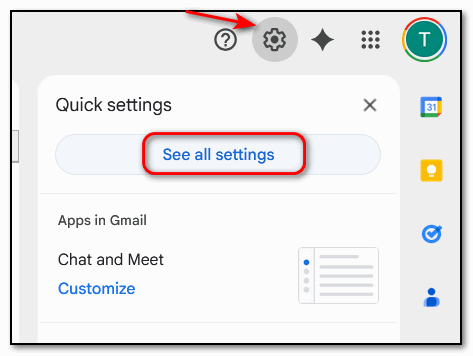
Look at the top right corner for the Gear Icon (Settings).
Click it, then click the button that says “See all settings.”
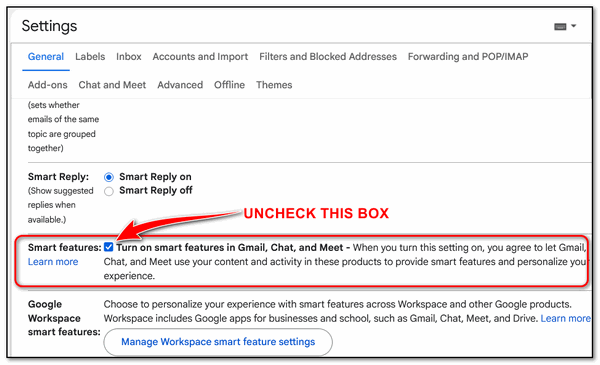
You’ll land on a page with a lot of tabs. Stay on the one labeled General (it’s usually the first one). Scroll down about halfway until you see these Smart Features…
Uncheck the box next to Smart features.
* A pop-up window will appear…
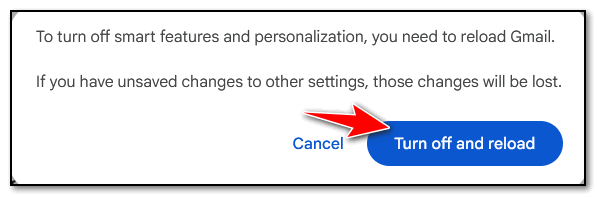
If you value privacy more than you need a robot to finish your sentences, click “Turn off and reload.”
When I did this categories tabs no longer show up
It does not change the category labels (folders). They can be shown or hidden by clicking the 3 horizontal line at the top-left of your Gmail inbox page. The 3 horizontal line icon is just to the left of the word Gmail at the top. Click to show folders (Labels), click again to hide them. This has nothing to do with turning of AI.
On my Windows 11 Pro desktop I am unable to locate smart features. I asked google chat and they said there is no such category available???