

Managing the Task Manager
If you’ve been using a Windows computer for a while, you know that Windows can sometimes get a little glitchy. Sometimes it seems to get stuck, frozen, or just plain misbehaves! When that happens, your best friend is a tool that’s been around since 1995: the Task Manager.
Over the years, Microsoft has given the Task Manager several facelifts. In the latest versions of Windows 11, they’ve given this old workhorse a modern design and even a “Dark Mode” for those of you who, like me, find the bright white screens a bit hard on the eyes. At first glance, it might look a little intimidating with all those moving numbers, but it’s actually quite easy to use once you know where to click.
Here are three simple tips to help you master the Task Manager and keep your PC running smoothly.
1. Customize Your View (Expand and Contract)
When you first open Task Manager, you’ll see columns for things like CPU, Memory, and Disk. But did you know you can see even more?
Right-click on any column header (like where it says “Name”). A list will appear, and you can checkmark items like “Power usage” or “GPU” to see what’s consuming your battery or graphics power.
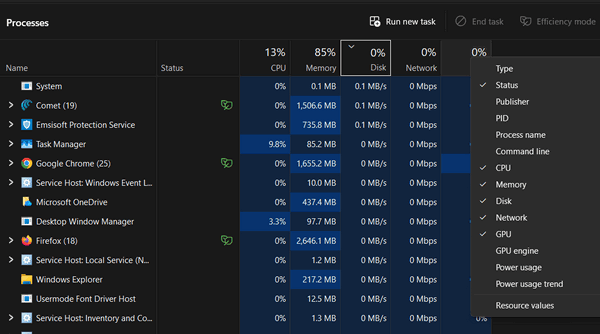
You can arrange the columns in any order you want. Click and drag those columns to move them around. You can also grab the little lines between the columns with your mouse to make them wider or narrower so you can more easily read what’s there!
2. The “Mini” Monitor (Graph Summary View)
Sometimes you want to keep an eye on your computer’s “vital signs” without having a window full of info and numbers taking up the screen.
Go to the Performance tab (it looks like a little heartbeat monitor on the left). Now, double-click on any of the graphs (like CPU or Memory).
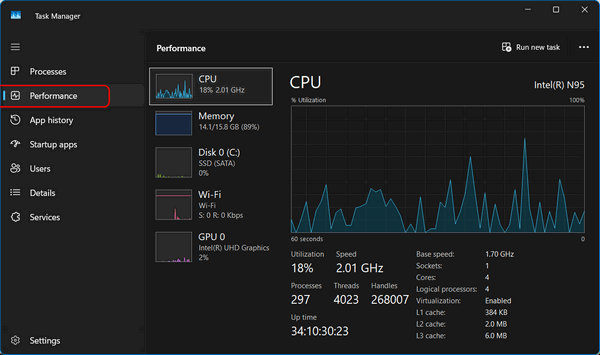
The whole window shrinks down into a tiny, tidy little box that floats on top of your other programs. It stays right where you can see it, so you’ll know exactly when your computer is working too hard. To get back to the big view, just double-click it again!
3. The “Magic Elixir” (Restarting Windows Explorer)
This is one of our favorite tricks for fixing a “glitchy” computer without having to reboot or shut down. Windows Explorer is the heart of Windows. If your icons disappear or the Taskbar freezes up, or the start menu doesn’t work, or if things seem glitchy, restarting Explorer usually fixes the problem.
Find Windows Explorer in the list of processes. Right-click it and choose Restart. Your screen might flicker for a second, and your taskbar will disappear and come right back.
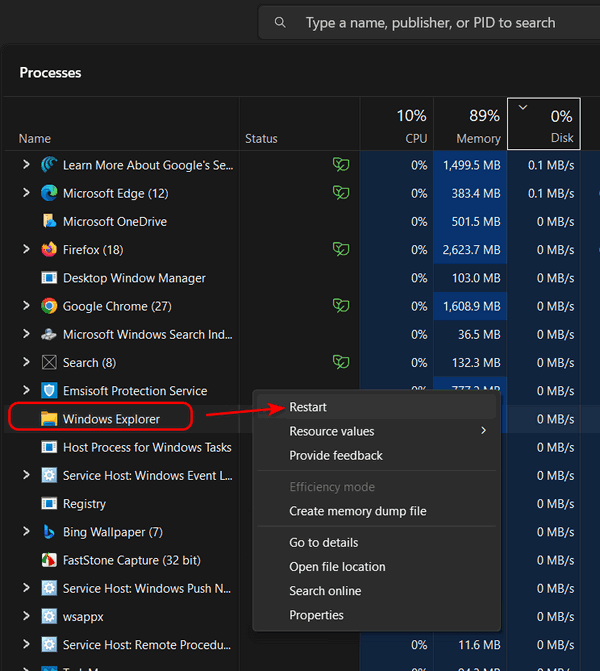
Don’t worry—this won’t close your Word documents, lose anything you were working on, and you won’t lose any data; it just “refreshes” Windows.
Very cool! I didn’t know half those tricks! Of course now I want to know what some of those processes are!