

Navigate the Windows 10 or 11 Start Menu Faster with This Trick
The Windows 10 and Windows 11 Start menu lists programs in alphabetical order if you know where to look. If you’re like us and have a lot of programs installed, rather than scrolling the entire menu to find a program, we will show you a faster way to find what you’re looking for.
Windows 10
Open the Windows 10 Start menu. You’ll notice the menu is sectionalized from # to Z.
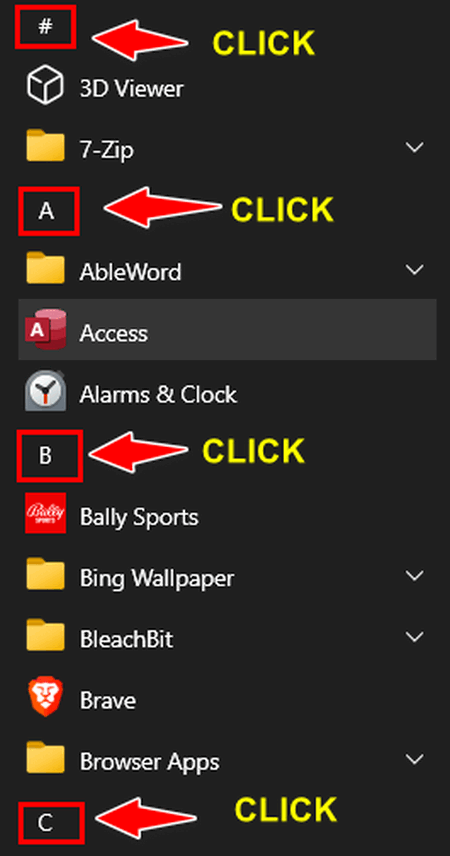
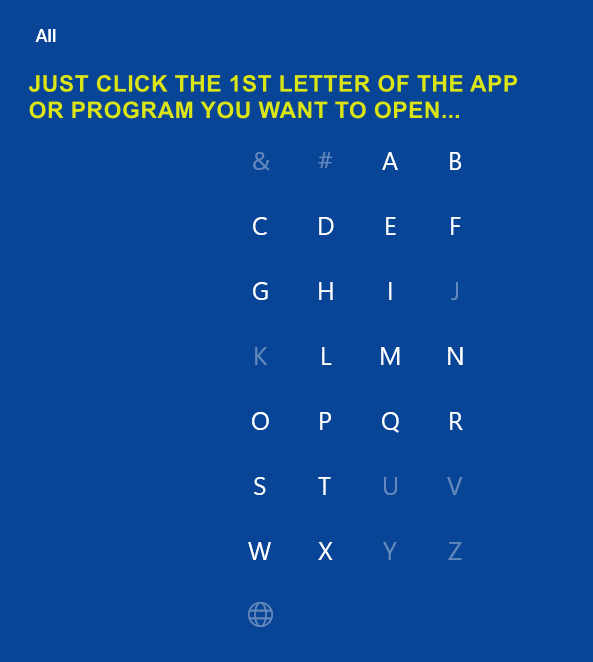
Click on any letter, and you’ll see this:
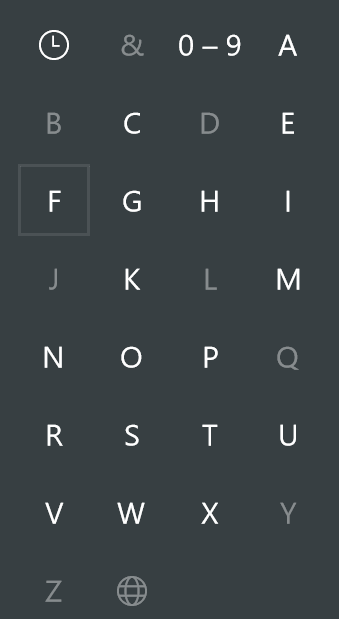
When you click on the # or letter, that section will open. For instance, clicking on “W” will take you directly to the “W” section of your Start menu, where all the apps and programs on your computer that begin with the letter W are located. And in case you’re wondering what that clock-like thing is at the top, if you click it, it will show you any programs you’ve recently installed.
Windows 11
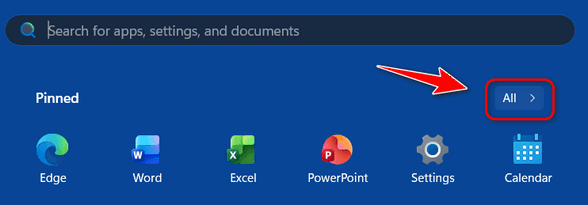
Open the Windows 11 Start menu and click on “All ” at the top right.
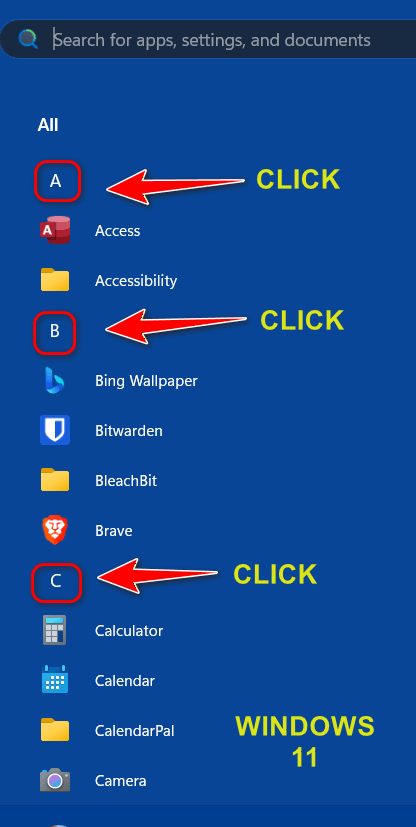
Now, you’ll see a menu that is set up exactly like the Windows 10 Start menu. And it works the same way – just click the # or letter to go to that section of the Start menu.
And it works the same as Windows 10.
Clicking any letter opens a new window showing the entire alphabet. Click the first letter of the app or program you want to open. So instead of scrolling the whole menu to get to Media Player, just click on the “M”. If you’re at the top of the Start menu, and you want to, for example, open the Weather app… you don’t have to scroll through the whole menu to get to the “W” section. Just click on the “W,” and you’re immediately there.
And don’t forget, you can use the Taskbar/Start menu search to find programs quickly, too, just type the name of the program in the search.