

Windows 11 Quick Settings
Windows 11’s Quick Settings is the successor to the “Action Center” from Windows 10. It allows you to toggle system features without opening the full Settings app. You can scroll Quick Settings to reveal all available toggles.
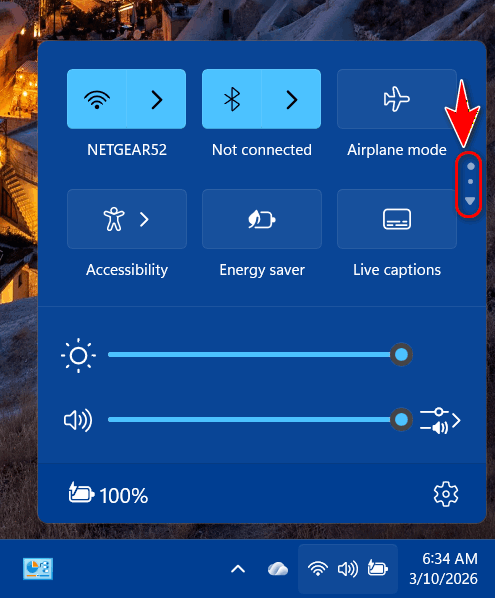
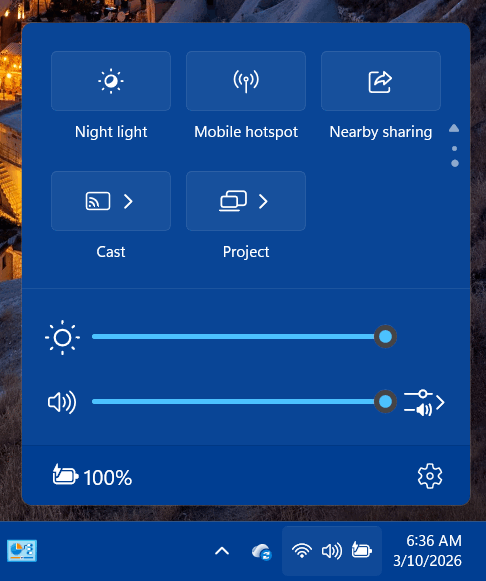
You can access Quick Settings by using the Windows key + A shortcut or by clicking on the cluster of icons in the bottom-right corner of your taskbar (the Wi-Fi, Volume, and Battery icons). In Windows 11, these icons are grouped as a single button.
Basic Features of the Quick Settings Panel
Tiles with small arrows (like Wi-Fi or Bluetooth) allow you to select specific networks or devices directly within the panel rather than leaving your current window. Other tiles include toggles like Wi-Fi, Bluetooth, Airplane Mode, Mobile Hotspot, and Night Light. Accessibility, Energy Saver, Live Captions, and more.
You also find interactive sliders for adjusting Volume and Screen Brightness.
Coming Soon!
If you’re on the cutting edge and you’ve installed the most recent updtes you may also see several improvements like the Dark Mode Toggle which is being added to the Quick Settings. Also, you’ll have new customization options that allow you to add, remove, and reorder tiles. Click the pencil icon (Edit) to modify the options that appear in the panel. You can add or remove quick settings and customize them however you want.
But today, we just wanted to let you know what you might have missed, and let you know about Windows 11 Quick Settings