

Saturday Bonus Questions and Answers – 121325

Merry Christmas from Darcy & TC!
Christmas is less than two weeks away, and the snow is flying around out there. The cold, almost-winter air makes it seem like it’s mid-January. But the earliest sunset has already happened, and the sunset gets about a minute later every evening… but the sunrise gets later every morning. And, of course, it’s Saturday, and it’s time for another edition of Saturday Bonus Questions and Answers.
Today, as we do every Saturday, we’re featuring some of the questions and answers from past issues of our InfoAve Weekly newsletters.
These questions & answers were selected at random from past InfoAve Weekly newsletters.

Christmas Holiday Sale
Cloudeight Direct Computer Care Repair Keys Are Just $39 Right Now!
You can get a Cloudeight Direct Computer Care Key for just $39 during our Christmas Holiday Sale! You save over 20% off our regular low price of $50. Your Cloudeight Direct Computer Care Repair key never expires; it’s good until you use it. It’s good for any computer repair that we can do remotely.
Buy a Cloudeight Direct Computer Care Repair Key for just $39 during our Christmas Holiday Sale!
Saturday Bonus Questions and Answers – 121325
Peggy got an email from McAfee, but doesn’t use McAfee
I just got an email from McAfee. I have not used McAfee since I bought my first computer 20+ years ago. My email address has changed numerous times since then. How can these people still contact me with an email that has absolutely no basis in truth?
Our answer
Hi Peggy. This is a widespread and popular phishing scam. We have seen it, just as millions of others have. This spam/scam/phishing mail was sent to tens of millions, whether they ever used McAfee or not. There’s a similar scam letter going around claiming to be from Norton. These scammer-spammers harvest email addresses from the Web and buy spam lists created from data obtained from data breaches, as well as from companies that share/sell data, including email addresses.
So, don’t worry. The email was not from McAfee, although it looked like it was. They call emails like the fake email from McAfee “Phishing” emails for a reason – these miscreants send out emails by the tens of millions, hoping to catch a few “phish” and make some easy money.
Phishing is a big business – if only a few “phish’ bite, these criminals can make a lot of money. So always be careful with email.
We hope this helps you, Peggy.
Kenda can’t find Adobe Reader on her PC
I have been a fan for a long time. I tried to download a file only to find no Adobe on my computer. I have spent several hours on this problem without any answers. Any help you can give would be greatly appreciated. Thank you, Kenda H.
Our answer
Hi Kenda. Thanks!
Abode products usually don’t come pre-installed on Windows 10 or Windows 11 PCs. If you’re talking about Adobe Reader, it’s not necessary anymore because you can open PDF files with any modern browser. Windows comes with Microsoft Edge, and Edge can open any PDF file, so you can read them. You can also open PDF files with Chrome, Firefox, Opera, Brave, and others.’
If you still feel you need Adobe Reader, you can get it free here – but be forewarned, Adobe will try to install McAfee Security Scan and McAfee Safe Connect, two useless McAfee products basically used to goad you into installing McAfee antivirus. So, if you do decide to get Adobe Reader, be sure to uncheck the McAfee boxes on the page before downloading. And we’ve had people who claimed they’ve unchecked those boxes and still got the McAfee products.
We hope this helps you, Kenda.
Robert wants to make IrfanView the default image viewer on Windows 11
I would like to know if you have a solution to make IrfanView the default viewer in Windows 11. It is not listed in the properties list. You can right-click on a photo, and it is an option to view it with IrfanView. I would much appreciate some help.
Our answer
Hi Robert. Open Irfanview, and click on Options > File Associations. Then, in the dialog that opens, click “Default Apps”. Although it still says Windows 10, Default apps in Windows 11 will open when you click on the Default Apps button.
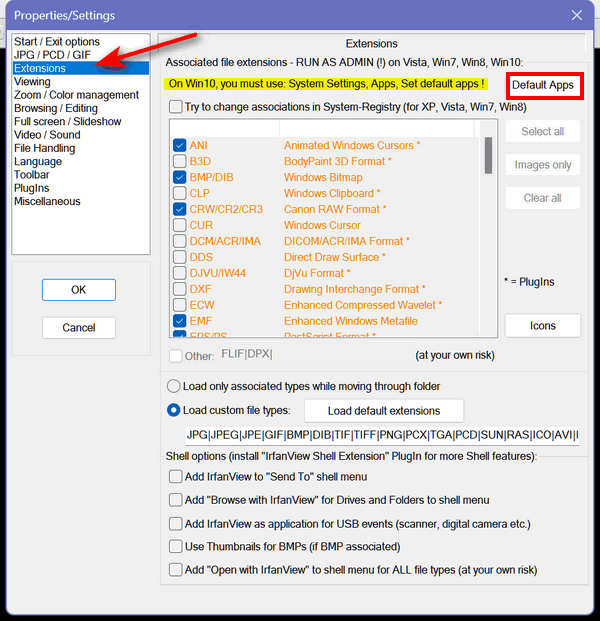
Irfanview will be on the list. Click on it. Then you’ll have to choose the file types you want it to open. The basic image file types are BMP, GIF, ICO, JPEG, JPG, PNG, RAW, TIF, TIFF, WBMP, and WEBP. You’ll need to select each by clicking the large plus sign (+) under each file format and then select Irfanview from the list that appears.
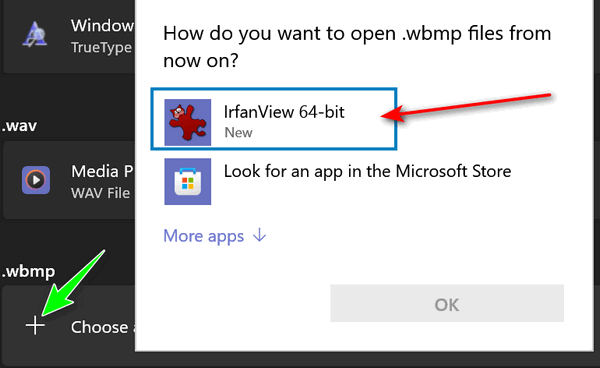
It’s not as easy as it is on Windows 10, but you can still set IrfanView as the default image viewer on Windows 11.

Christmas Holiday Sale
Computer Cleanup, Checkup & Optimization Service
During our special Christmas Holiday Sale, you can buy a Cloudeight Direct Computer Care Cleanup, Checkup, and Optimization service key for just $19! That’s right… for just $19…
** We’ll check your computer for malware and questionable programs
** We’ll check and optimize your startup programs
** We’ll check your computer performance to make sure your RAM and CPU usage are within normal ranges
** We’ll check to make sure your Windows settings are configured for the best performance and privacy.
** We’ll review your installed programs and make sure no questionable programs are installed.
Our Christmas Holiday Cleanup, Checkup, and Optimization can help ensure your computer is running at its best.
Take advantage of this special offer before it’s gone. Get all the details here.
Anne says if she can’t trust mail from Norton, who can she trust?
I have Norton 360 installed. Recently, an email from Norton advised me that if I renewed right now, I could get a two-year subscription for the price of a one-year subscription. This did not sound right. I contacted Norton, and they replied that they never offer deals like that. My problem is that I cannot trust emails from Norton, bona fide or not! It’s a bit of a Catch-22. Any ideas on how to distinguish the good from the bad?
Our answer
Hi Anne. There’s no one way to tell if an email is a scam unless you’re really good at investigating email headers. It’s not easy to do, and even those can be forged.
The rule of thumb we use and teach is never to click a link in an email from a company that deals with money. If you want to check out Norton’s special offers, go directly to their site by typing in the URL in your browser.
And one more good rule to follow – if it sounds too good to be true, then it probably is. If the email contains glaring spelling or grammatical errors or is written in very poor English, it is probably spam.
Never click links that ask you to change your password, or tell you you’ve been compromised, etc. Always visit the site involved by typing in the URL in your browser.
And though you didn’t ask, I wanted to give you our thoughts on Norton/LifeLock. We don’t trust Norton/LifeLock. LifeLock has been sued several times for false advertising. In my opinion, making people believe a program can protect them from identity theft when it can’t possibly do that only causes more identity theft because people let their guard down. LifeLock does not prevent identity theft. Norton is famous for bait-and-switch tactics, luring customers in with a low price, then increasing the price or even doubling the price over time.
Richard has a couple of issues with Windows 11
I just upgraded to Windows 11. Two issues so far. First, the touch keypad no longer works. I’m typing this on an old keyboard I attached. Secondly, I see no way to attach a file folder to the taskbar. I put them in the start menu, which was not easy. Any help would be appreciated.
Our answer
Hi Richard. If you’re talking about the Windows touch keyboard… if you right-click on the desktop, choose “Personalization” and look under “Taskbar corner icons” you’ll see a switch for Touch Keyboard. You can turn it on from there. I just tried my Touch Keyboard in Windows 11 on both Windows 11 PCs, and it works fine. If that doesn’t work, then you have a Windows issue that may require you to reinstall Windows 11 or run SFC/DISM scans. Or perhaps a future update will fix it.
Pinning a folder to the taskbar is not the same as in Windows 10. Even in Windows 10, it was not just a matter of dragging and dropping, but this does not work in Windows 11. If you’re willing to do a little work, you can pin files and folders to the taskbar in Windows 11 – although this can change with any Windows 11 updates.
It’s easy to pin a folder or app to the Start menu in Windows 11, though. All you have to do is right-click and choose “Pin to start”. So, I’m not sure why you’re having trouble pinning apps/folders to the start menu. The main start menu does not show everything that is in the start menu. To see the entire start menu, click on “All apps” near the top right. When you see that, you’ll see a menu similar to other versions of Windows.
Ken wants to know how to make his computer ask for a password after waking it from sleep mode.
I want to make sure that no one else can access my computer. How can I set my computer up to ask for a PIN after it wakes from sleep? I hope you can help – I can’t seem to find an answer that works. I’m counting on you!
Our answer
Hi Ken. Assuming you’re not using a screensaver, do this:
— Right-click on the start button and click “Settings”.
— In Settings, click on “Accounts” and then click “Sign-in options”.
Under Sign-in Options, under “Require sign-in,” make sure under “If you’ve been away, when should Windows require you to sign in again?” “When PC wakes up from sleep” is selected. See the screenshot below.

If you are using a screensaver, do this:
— Type Screensaver in the taskbar search. Press Enter when “Change Screensaver” appears in the search results.
— Make sure the box next to “On resume, display logon screen” is checked. Then click Apply/OK.

We hope this helps you, Ken.
Christmas Holiday Sale
Cloudeight Direct Computer Care Repair Keys Are Just $39 Right Now!
You can get a Cloudeight Direct Computer Care Key for just $39 during our Christmas Holiday Sale! You save over 20% off our regular low price of $50. Your Cloudeight Direct Computer Care Repair key never expires; it’s good until you use it. It’s good for any computer repair that we can do remotely.
Buy a Cloudeight Direct Computer Care Repair Key for just $39 during our Christmas Holiday Sale!
Brenda wants to change the size of the taskbar icons on her computer.
Hi Guys. I have just updated to Windows 11 and although it is not very complicated, I find I am struggling with a few things. Some of them I will be able to work out, I hope, but the one that has me beat is…how do I reduce the size of the icons on my taskbar? I like them to be small, but they are quite large. I went into Taskbar settings, but couldn’t find anything helpful. I would be so grateful if you could advise me on how to do this. Thank you and kind regards. Brenda.
Our answer
Hi Brenda. Unlike Windows 10 and most versions of Windows before it, Windows 11 does not have a simple setting to show small or large icons. One way to change the size of the icons is by editing the registry, which we do not recommend, as doing it may cause problems such as taskbar misalignment and more serious problems.
Luckily, there are BAT files you can download and run to change the size of the icons on your taskbar to small, medium, or large (default). See this page to download the BAT files and instructions.
We hope this helps you, Brenda.
——-
Brenda wrote back: “Thank you! That was easy! Brenda.”
Pearl needs to convert an MS Word document to a PDF
I needed to change an MS Word document to a PDF (of a JPEG). How do I do that? Is there a program to do that?
Our answer
Hi Pearl. You can convert any file to PDF using Windows 10’s (or Windows 11) Print to PDF feature. See our tutorial here.
Another easy way to convert a Word document to a PDF file is to use one of the many free online tools. Here’s one we’ve featured before…
https://smallpdf.com/word-to-pdf
All you have to do is visit that page, select the Word doc you want to convert to PDF, and click the convert button. You’ll see it says “Converting,” then when the conversion is done, you will see a download button appear. Click the download button to download your PDF file.
We hope this helps you, Pearl.
David wants to add the Brave search engine to MS Edge
How do I add the Brave search engine to Microsoft Edge? It is not in the list of search engines shown in Edge. Thanks.
Our answer
Hi David. Open Microsoft Edge and enter the following into the address bar at the top: edge://settings/searchEngines
That should take you straight to the “Manage search engines” settings section. In Manage Search Engines, click on the “Add” button and enter the following:
Search engine:
Brave
Keyword: (this can be anything you like, for example, “:br” or BRAVE instead of “brave.com” )
brave.com
URL with %s in place of query:
https://search.brave.com/search?q=%s&source=desktop
After you’ve done that, click the “Save” button to add the Brave Search engine to your Microsoft Edge browser’s search engine list.
We hope this helps you, David.
Daniel wants to send large files by email, but…
I’ve been watching all of your daily and weekly newsletters religiously for years. I learned a lot of things, and I thank you very much. Occasionally, we need to send someone a big email, for example, 50 MB, 150 MB, or even larger. But we are limited to 10 MB with Bell (or ISP) or 25 MB with Gmail. Could you suggest a free site on the internet or a program that would allow me to send large files to a person for free? Thank you very much for your help. Yours sincerely, Daniel.
Our answer
Hi Daniel. Thanks very much for your nice comments. Many free “big file” transfer services allow you to share large files up to 10 GB. They all work in the same way. You upload the large file(s) you want to share, and a link is created that you can share with the recipient(s). Essentially, you upload the large file and send an email with a link to download the file(s) to anyone you want to share the file(s) with.
Here are two such services:
Most of these kinds of services require you to sign up for a free account. Generally, free accounts have limitations as to the size of the file (but much larger than the 150 MB you mentioned).
Of the two services mentioned above, they have file size limits for free accounts of 10 GB and 2 GB, respectively. Another limitation of the free accounts is that your recipients will have to download the file within a certain number of days, or it will be deleted. But if you are looking for a free, easy way to share large files, this is the best way – unless you have a Gmail account (which you can get free). If you have a Gmail account, you can share large files using Google Drive – you can read more about that here.
We hope this helps you, Daniel.

Donate today and help us keep on helping you!
Please help us to keep on helping you!
When you support us with a small gift, you help us continue our mission to keep you informed, separate the truth from the hyperbole, and help you stay safer online. Plus, our computer tips make your computer easier to use.
Did you know that we provide support to thousands of people? Every week, we help dozens of people via email at no charge. The questions and answers you see in our newsletters are from the email answers and help we provide to everyone free of charge.
Thanks to your gifts, we do a lot more than provide this free newsletter. We help you recognize online threats, fight for your online privacy, provide you with the knowledge you need to navigate the Web safely, provide you with suggestions for safe, free software and websites, and help you get more out of your PC.
Please help us keep up the good fight with a small gift.
Interested in making an automatic monthly gift? Visit this page.
Please help us keep helping you… and help you stay safe on the Web.