

How to Shutdown or Restart Your PC Without Installing Updates
All too often, you might be packing up your laptop or closing down your desktop in a bit of a rush, only to click the Start menu and find that your usual power options have been replaced by Update and Shut Down or Update and Restart.
Windows 11 quietly stripped away the legacy grace period that let users temporarily defer pending patches at shutdown. The power menu has gone from a basic hardware toggle into an aggressive compliance engine.
Many users have expressed anger over forced multi-reboot updates blocking immediate power-off requests. Microsoft’s Forced Update model treats user hardware as a Microsoft-managed endpoint rather than personal property.
On the rare occasions when you need to shut down or restart your computer and don’t have time to wait 15 or 20 minutes for Windows to install updates, here is how to do it.
Method 1: The Quick “Run” Command (The Best Way)
This is the neatest trick to bypass the update queue entirely. It sends a direct message to your computer to turn off or restart immediately, completely skipping the update process.
To Shut Down Right Away (without updating):
On your keyboard, press the Windows Key + R at the same time. This opens the little “Run” box in the bottom-left corner of your screen.
In the box, type or copy/paste this exact command:
shutdown /s /f /t 0
Click OK or press Enter.
To Restart Right Away (Without Updating):
Press the Windows Key + R to open the “Run” box.
In the box, type or copy/paste this exact command (the /r tells it to restart instead of shutting down):
shutdown /r /f /t 0
Click OK or press Enter.
Your PC will immediately close your programs and shut down or reboot right away, completely ignoring the pending updates until the next time you turn it on.
Another option is the legacy Alt + F4 dialog.
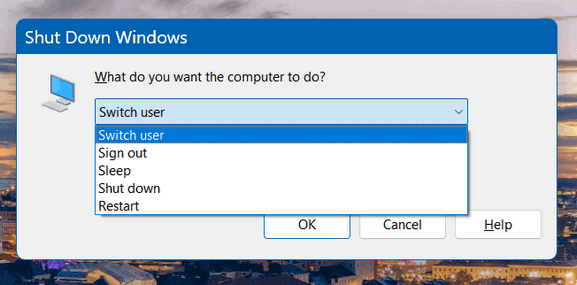
Bringing up the classic old-school desktop shutdown prompt by hitting Alt + F4 while on your desktop can occasionally force a clean shutdown or restart option if the pending update hasn’t reached an immutable execution state. Be cautious… this method doesn’t always work, but it can be an option.
We do not recommend the Nuclear Option
You do have the nuclear option: holding down the power button on your case until your PC shuts down; however, this can cause data corruption or even break a Windows update because it instantly cuts power to your PC.
Doing a shutdown or restart without installing updates is not always worth risking your security. Forcing a shutdown or restart should be used cautiously.