

Saturday Bonus Questions and Answers – 010326
The Holiday Season is over, and we’re starting a brand new year. We wish you all the best in the New Year. And today, as we do every Saturday, we’re featuring some of the questions and answers from past issues of our InfoAve Weekly newsletters.
These questions & answers were selected at random from past InfoAve Weekly newsletters.
Please consider giving us a helping hand!
If our computer support & help, or our tips and tricks, have helped you or made your computer life easier or more productive, please consider helping us with a small donation. Your gifts enable us to continue helping you. Take a moment and help us if you can.

Donate today and help us keep helping you!
Saturday Bonus Questions and Answers – 010326
Laura says Bing has taken over
Bing keeps taking over Google Chrome. Someone said I should use Restoro to check it out. Please do you have an answer? Thank you.
Our answer
Hi Laura. Bing is a Microsoft search engine. I am guessing you added a Bing toolbar (extension) or some other extension to Chrome that keeps switching your search engine. It could be a search engine hijacker.
Try this:
1. Type CHROME://EXTENSIONS in the Chrome address bar & press “Enter”
2. Disable or remove any extension that contains the word Bing or Search
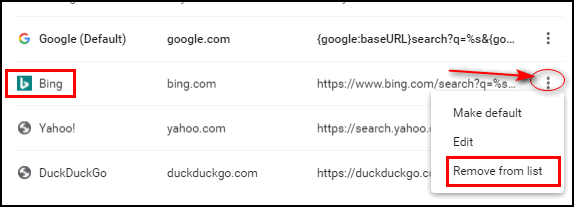
You can also remove Bing from the list of search engines available in Chrome.
1. Type CHROME://SETTINGS/SEARCH in the Chrome address bar & press “Enter”
2. Make sure your default search engine is set to Google.
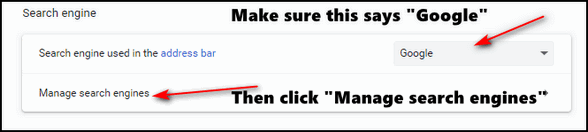
3. After you click “Manage search engines, you can remove Bing from the list of available search engines, if you choose to do so.
If the above doesn’t stop Bing, reset Chrome by following the instructions on this page.
Resetting Chrome returns Chrome to its defaults. Keep in mind this does not remove bookmarks. It disables all extensions, clears Chrome history and cache, and restores Chrome to its factory defaults.
Restoro is malware in our opinion. It’s scammy and it can mess up your computer. Our advice is don’t use it. It’s certainly not the miracle cure it claims to be. If you have installed it, we recommend you uninstall it.
Mike’s friend sent him a tip on how to make his computer lightning-fast
How to kill Win 10 apps… A friend of mine found on the web how to disable all the extra apps on Win10 to trim his PC down to the bare minimum and reported blinding speeds as a result. Rather than search the internet, I thought I’d ask the experts – YOU! Where do you look to disable or even remove all the nonessential programs in Windows 10? A list of what to kill or keep and where to find those controls would be terrific.
Our answer
Hi Michael. There are a lot of myths going on here. Windows Store apps don’t use any resources when they’re not running. And you can stop any app from running in the background by going to Settings > Apps >Privacy >Background apps and turning the switch at the top under “Let apps run in the background” to “Off”.
Some people refer to desktop programs as “apps”. The only programs that generally affect performance are the ones starting with Windows. The only programs that need to start with Windows are programs like antivirus programs or programs necessary for an essential function like the computer’s sound. There are dozens of programs (many free) that help control startups. Generally, there should not be more than 4 or 5 programs starting with Windows.
Our two favorite programs to use to manage Windows startup programs are HiBit Uninstaller and Autoruns. You can also use Windows Task Manager to control start-ups. Hibit and Autoruns are more robust.
Cutting back on startup programs can make a big difference in computer performance, but “lightning-fast” is probably more due to having a lot of RAM than it is to turning off background apps and keeping startup programs to a minimum, although it’s always helpful to keep things under control.
Task Manager is also a good way to see what programs are using the most resources thus slowing down your computer. See this article.
And I can tell you this if a Windows 10 or Windows 11 PC has only 4GB of RAM, there’s no way on God’s green earth, that that computer is going to be lightning-fast no matter what do. The more programs you open the fewer resources you’ll have available. And most people don’t realize that with most browsers, each tab opens as a separate process. So having 20 browser tabs open will slow down any computer that doesn’t have enough installed RAM. We don’t suggest running Windows 10 or Windows 11 with less than 8 GB of RAM.
My $280 cheapie Windows 11 computer runs “lightning-fast” because it has 12 GB of RAM. And even with more than adequate RAM, I still don’t allow many programs starting with Windows
So, whenever I hear someone saying “Oh, you and do this and that and make your computer lightning fast” I raise my eyebrows and think “sure” – because this is the fallacy promoted by the many scammy One-Click-Wonder-Fix programs.
So, I guess, my answer isn’t what you wanted to hear, but we hope it’s helpful anyway.
——
Mike wrote back: “Brilliant answer TC! You’re the best! My friend does have heaps of RAM.”
Larry says his “webmail” adblocker no longer works
Hello, folks! I need some advice, and I know you computer wizards can help me. I used Web Ad Blocker for a long time, and it worked to block all the ads in all of my email programs (Outlook and Gmail), but then it suddenly quit working. I uninstalled it and reinstalled it, and the ads continue to appear, especially in my Outlook mail. I remember you guys recommending this program and that is why I got it, and it has worked great for years. Reinstalling it did not help. Is Web Ad Blocker no longer viable? Is there another (easy) program that I could install to block ads in my mail, which are so distracting? Thank you both so much, I would be lost without you guys there to help and guide us old folks! I trust your judgment and know you will give me the best advice. Thank you, from your friend! Larry H.
Our answer
Hi Larry. Thanks so much.
We have never heard of a webmail ad blocker and we’re not familiar with “Web Ad Blocker” so we have no idea what’s going on with it. The only two ad blockers we’ve ever recommended are Privacy Badger and uBlock Origin. While we recommend installing them both, if you’re only going to install one, then you should install uBlock Origin. It will block ads on all web pages, including on webmail pages.
You can read more about uBlock Origin here.
If you’re using Google Chrome, check out uBlock Origin Lite.
If you’re interested in adding the Privacy Badger extension to your browser also, see this page.
We hope this helps you, Larry.


Would you be interested in making an automatic monthly gift? Visit this page. Please help us keep on helping you… and help us keep you safe on the Web.
Steven asks about clearing browser history & more
Do you recommend clearing all history from Google Chrome? The last time I did that all of the circular icons which I use frequently disappeared from the opening page of Google Chrome. Also, all of my favorites (bookmarks) changed from icons to blank pages (icons not showing until I clicked and opened them again).
Our answer
Hi Steve. The site logos (icons) you see when you open Chrome are the sites you visit most. These are based on your browsing history. When you clear your history they’re removed. You can add them back by visiting your favorite sites again.
Chrome does not have “Favorites” it has bookmarks. Deleting browser history does not remove bookmarks. I think by “icons” you are referring to the “favicons” (AKA shortcut icon, website icon, tab icon, URL icon, or bookmark icon) that most sites display (like we display a little dragon), and yes, those will disappear if you clear your browser’s cache and history, but they’ll reappear when you reopen that page. The reason for this is that “favicons” aren’t stored on your computer – they come from the bookmarked site – and will reappear when you visit the site again. The favicons will remain visible as they are stored in your browser’s cache. If you want to learn more about favicons, see this page.
So, everything you describe is a result of clearing your browser’s (Chrome) history/cache.
We recommend clearing history/cache every few weeks. However, if you visit a scam site or phishing site and you are getting popups, ads, or other problems related to your encounters with scam/phishing/malware sites, then clearing the browser’s cache and history is a priority.
We hope this helps you, Steven.
Sandi wants to know how to show more icons on the Windows 11 taskbar
Some of the icons on my Windows 11 taskbar are hidden and some I can see. How do I get the hidden ones back so I can see them? This has just happened today. Thank you for your help.
Our answer
Hi Sandi. Right-click on your taskbar and open Taskbar settings. In “Taskbar settings,” click on “Other system tray icons” and turn on the ones you want to show on your taskbar.
We hope this helps you, Sandi.
Tim has some questions about VPNs
Hi Guys! Tim from Pittsburgh (again)- regarding VPNs, I am confused- if I sign up for a VPN service, where does that coverage begin? My internet comes from Comcast cable, through my modem and router, to my streaming devices, and to my PC. So, am I “covered” at the PC, or the Modem, or what? It’s not something that I install on my PC, is it? I don’t get it! (don’t want to go into the plus and minus of VPNs) just can’t figure out how it works! Hopefully, you can clear up another conundrum for this 80-year-old user. Thanks!
Our answer
Hi Tim. I think you’re misunderstanding what a VPN is and what it does. A VPN is a Virtual Private Network.
You can install a VPN app on your device, or a VPN extension in your browser that allows you to establish a secure connection with a VPN server.
A VPN connection creates a secure connection between you and the internet. Via the VPN everything you do on the internet is routed through an encrypted virtual tunnel. This disguises your IP address when you use the internet, making its location invisible to everyone. A VPN service usually allows you to choose the location that you want to appear to be from. You’re in Pittsburgh, but you could choose a VPN server in Los Angeles or London, or anywhere your VPN service has servers.
Your ISP is involved only in connecting you to the VPN service you use. Normally, your ISP logs everything you do and everywhere you go on the internet, but when you use a VPN service, your ISP only knows you’re connected to a VPN service what you do after you connect to the VPN service your ISP does not know. Many think this provides more security since their ISP cannot log their internet activities. But it’s the devil you know theory. Many VPNs claim they don’t keep logs of your activities, however, many do, and the only proof you have that they don’t log your internet activities is that they say they don’t.
Here’s a quick summary:
Without a VPN service…
YOU>>YOUR ISP>>THE INTERNET
With a VPN service…
YOU >> YOUR ISP>>YOUR VPN SERVICE >>THE INTERNET
A VPN service has nothing to do with your ISP, your router, or your modem. ISPs and routers/modems just get you onto the Internet. Without a VPN everything you do on the Internet goes through your ISP so your ISP can “see” everything you do and everywhere you go on the Internet and keep logs of all your online activities. With a VPN everything you do on the Internet once you’ve connected to your VPN service goes through your VPN. All your ISP knows (and logs) is that you’ve connected to a VPN server. But it’s important to remember that your VPN service may be logging everything you do on the Internet too… even if they claim they don’t.
Let us know if this helps you, Tim.
————-
Tim wrote back: “To quote Johnny Nash, ‘I can see clearly now…’ I think I’ve got it! Many thanks!”

Now available: Reg Organizer 9.88
If you purchased or renewed Reg Organizer through Cloudeight within the last 12 months, you’re entitled to a free version upgrade to Reg Organizer 9.40. It works great with Windows 10 and Windows 11!
Save $14 on Reg Organizer right now!
Reg Organizer – A Swiss Army Knife of Windows Tools – Works Great on Windows 10 and 11!
Donate today and help us keep on helping you!
Please help us to keep on helping you!
When you support us with a small gift, you help us continue our mission to keep you informed, separate the truth from the hyperbole, and help you stay safer online. Plus, our computer tips make your computer easier to use.
Did you know that we provide support to thousands of people? Every week we help dozens of people via email at no charge. The questions and answers you see in our newsletters are from the email answers and help we provide to everyone free of charge.
Thanks to your gifts, we do a lot more than provide this free newsletter. We help you recognize online threats, fight for your online privacy, provide you with the knowledge you need to navigate the Web safely, provide you with suggestions for safe, free software and websites, and help you get more out of your PC.
Please help us keep up the good fight with a small gift.
Interested in making an automatic monthly gift? Visit this page.
Please help us keep helping you… and help you stay safe on the Web.