

Saturday Bonus Questions and Answers – 011026
Spring is just 9 weeks away… seems like forever, but it will be here before you know it. And today, as we do every Saturday, we’re featuring some of the questions and answers from past issues of our InfoAve Weekly newsletters.
These questions & answers were selected at random from past InfoAve Weekly newsletters.
Please consider giving us a helping hand!
If our computer support & help, or our tips and tricks, have helped you or made your computer life easier or more productive, please consider helping us with a small donation. Your gifts enable us to continue helping you. Take a moment and help us if you can.

Donate today and help us keep helping you!
Saturday Bonus Questions and Answers – 011026
Stephen asks about cyber attacks from the “dark web”
I recently closed my account with AllClear ID for which I was paying $8.50 per month on the advice of a friend who has your service and signed me up. She told me you do not recommend these protective services and that they are not worth the money. Is there any type of malware protection I should have no to prevent cyber attacks? I currently have Windows Defender which came with my Windows 10 but that does not detect malware or invasion from the dark web. I was originally using McAfee for 4 years, but when I had Windows 10 installed the computer tech told me not to waste my money on McAfee and that Windows Defender is better. I retired recently and I am 75 years young. I am planning to sign up for a year of service with you as the last technician who came to my home from Geeks-to-You who I have been using charged me $225.00 for 2 hours of work and never solved my issue. Thanks for all your help and for answering my last question!
Our Answer
Hi Steven. You are not at risk from cyber-attacks from the dark web. You cannot even get on the dark web using a normal browser – you’d have to use something that uses the Onion network – like the Tor browser. In an onion network, messages are encapsulated in layers of encryption, like the layers of an onion. The encrypted data is transmitted through a series of network nodes called onion routers, each of which “peels” away a single layer, uncovering the data’s next destination. So nothing from the dark web will ever be on your computer and no mysterious malcontents sit in the dark corners of the dark web waiting to attack you. The dark web is a place where many go to buy illegal things like drugs. It’s not an attack vector.
When people say “cyber attack” they usually mean someone attacking them and stealing their identity. This is not done by a personal attack on you, It’s done because someone tricks you into giving up your personal information usually through a phishing email. And no program can provide you with 100% protection against being tricked -except that software between your ears – your common sense. Our motto: THINK BEFORE YOU CLICK!
We agree that Microsoft Defender is better than McAfee – but it’s not true that it does not protect you from malware. Malware means anything bad – viruses, Trojans, etc. In our opinion, Microsoft Defender is better than McAfee but not as good and not as user-friendly as Emsisoft Anti-Malware (which is also an antivirus app and anti-ransomware). You can read more about Emsisoft here.
Finally, Geeks-to-You ripped you off. Paying $225 for computer repair is way too much. I’m writing this answer to you on a Windows 11 laptop for which I paid approx. $250. You can buy a really nice 17″ Laptop for around $540. For $99 you could buy a Cloudeight Direct Computer Care SeniorPass which gives you unlimited computer repair sessions for one year and up to three annual checkups.
Don’t let people scare you into buying things. Remember the boogeyman is no more real now than he was when you were a kid. Don’t be afraid and don’t let people sell you things by scaring you.
Dianne wants to know if Express VPN is safe
Is Express VPN safe to use? I have a new Windows 11 laptop and wonder if I should just delete the app.
Our answer
Hi Dianne. It’s safe. but not necessary… and if something’s not necessary and you’re not going to use it, it should be removed. Keep in mind, also, that Express VPN is not free -so at some point in time, you may need to pay for it. Do you really need a VPN service? A VPN service has some usefulness, but it does not protect you from malware, phishing, ransomware, or identity theft as many VPN services claim to do. Read our article here if you want to know about VPNs.
You should be able to remove Express VPN using Control Panel or Settings > Apps >Apps & features.
if you have more questions or need more help, just let us know.
Beverly is having problems with the sound on her computer
I have lost the volume control on my desktop. I don’t know when I lost it as I usually keep it on mute. I have tried everything Google suggested to restore it. Do you have any suggestions that might restore it? Thanks.
Our answer
Hi Beverly. Here are some things you can try:
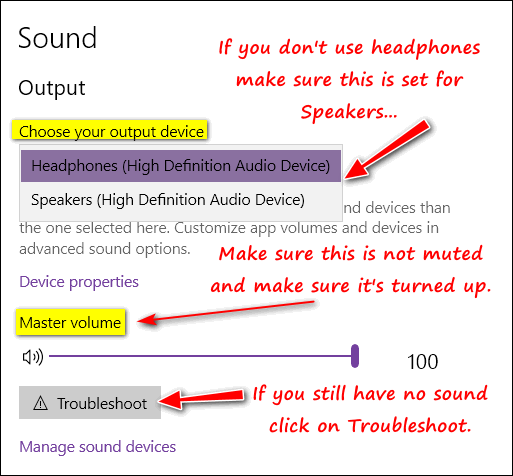
Right-click on the Windows 10 start button… click Settings > System > Sound.
1. Make sure your output device is set to Speakers and not headphones if you are not using headphones.
2. Make sure your Master volume is not muted and that it is turned up.
3. If you still have no sound, click on the Troubleshoot button and run the Windows 10 sound troubleshooter.
See the screenshot below for some helpful tips.
I hope this helps you. Beverly.


Would you be interested in making an automatic monthly gift? Visit this page. Please help us keep on helping you… and help us keep you safe on the Web.
Luana wants to know if she switches her default browser, will all her desktop icons change?
I have been with you since the 90s when I first started using your stationery. I have kept you as my Home Page all thru the years. Now that I am 87, I try to keep up with things. I have used your service on my computer many times. I have not needed any service for my computer. I have a question. I have used Chrome as a browser and also Edge. All my icons on my desktop have Chrome icons for things I saved etc. Now when I clicked on my browser and your Home Page opened, a question appeared and asked me if I wanted to make Microsoft Edge my default. Yes, I prefer it to Chrome after reading things from you but my question is, if I click on that default, what will happen to all those chrome icons on my desktop? Will they change to Edge Icons, will I lose them, or what? Please send me an answer so that I will know what to do. Blessings and thank you, Luana.
Our answer
Hi Luana. Thanks for your long-time support.
Your icons will not disappear. When you switch your default browser from Chrome to Edge, your icons will all change to the Edge icon (a blue stylized “E”) instead of the Chrome icon.
The Chrome browser shortcut icons look like this:

The Microsoft Edge Browser shortcut icons look like this:
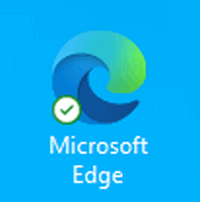
So, your desktop shortcut icons will change in appearance from Chrome’s icon to Edge’s icon, but they won’t change positions on your desktop, and they won’t disappear.
We hope this helps you, Luana.
Janet wants to change the name of the administrator account on her computer
My son got a new computer with Windows 11 on it and he gave me his Windows 10 computer. I really like it. But now my question is this. How do I change the administrator account name? Also, I’m using Thunderbird. How can I change it? I am having trouble changing this computer to my liking. I really like your newsletters and your website. They have helped me so much. Thank you.
Our answer
Hi Janet. Thanks! Here is how to the change administrator account name on Windows 10 using the Control Panel.
1. Type Control Panel into the Taskbar search
2. Then click Open or press enter when you see Control Panel
3. Under User Accounts, click on Change Account type
4. Select the account you want to rename.
5. Click on Change the account name.
6. Type the new user account name in the box.
Keep in mind when you look in C:\users\ you’ll see the old name (whatever name he used) will be there but as far as logging in and the account name you see, it will be whatever you named it. Everything else will remain the same (including Thunderbird). You may need to add your account to Thunderbird if your son set it up. But that’s easy to do and it’s also easy to delete other accounts from it too. Thunderbird won’t be affected by the administrator account name change – as the actual account name in C:\Users will not change.
Another thing you can do, if you want to, is creating a new administrator account with your name and sign-in information and once you get everything set up the way you want it, you can delete your son’s account. Go to Settings > Accounts > Email & Accounts > Add account. You can choose to add a Microsoft account or a local account and give that account administrator privileges.
If you want, you can even change the password or PIN if you think it’s necessary. If you need to do that, let us know.
We hope this helps you, Janet.
———-
Janet wrote back: “Thanks so much for your help. I created a new account of my own and deleted my son’s account. I couldn’t have done this without you!”
Sandy says Microsoft got into her computer and changed her passwords
I turned my computer on after being gone all day and I come to find out Microsoft changed all my passwords. I couldn’t get into any of my Gmail accounts. I had a doozy of a time trying to change all of them. How can they do that?
Our answer
Hi Sandy. Microsoft would not arbitrarily change your passwords – it would result in billions of dollars worth of class-action lawsuits and perhaps criminal charges.
I have no idea what happened but we can assure you it was not Microsoft. It almost sounds like you were scammed by someone pretending to be Microsoft – it happens more than anyone realizes.
You should use a good password manager to generate, store, and protect your passwords. There are several good free password managers out there -including Bitwarden, LastPass, and RoboForm. All of those also offer inexpensive paid versions with more features.
We hope this helps you, Sandy.

Now available: Reg Organizer 9.88
If you purchased or renewed Reg Organizer through Cloudeight within the last 12 months, you’re entitled to a free version upgrade to Reg Organizer 9.40. It works great with Windows 10 and Windows 11!
Save $14 on Reg Organizer right now!
Reg Organizer – A Swiss Army Knife of Windows Tools – Works Great on Windows 10 and 11!
Donate today and help us keep on helping you!
Please help us to keep on helping you!
When you support us with a small gift, you help us continue our mission to keep you informed, separate the truth from the hyperbole, and help you stay safer online. Plus, our computer tips make your computer easier to use.
Did you know that we provide support to thousands of people? Every week we help dozens of people via email at no charge. The questions and answers you see in our newsletters are from the email answers and help we provide to everyone free of charge.
Thanks to your gifts, we do a lot more than provide this free newsletter. We help you recognize online threats, fight for your online privacy, provide you with the knowledge you need to navigate the Web safely, provide you with suggestions for safe, free software and websites, and help you get more out of your PC.
Please help us keep up the good fight with a small gift.
Interested in making an automatic monthly gift? Visit this page.
Please help us keep helping you… and help you stay safe on the Web.