

Google Chrome’s “What’s New” Archive Page
Google Chrome updates quite frequently, and it’s hard to keep track of all the updates. Most of the time, these updates happen behind the scenes to keep your browser secure. However, every few weeks, Google adds new features that can actually make your daily browsing easier—if you know where to find them.
Instead of you having to hunt through menus to find these changes, Google has a “What’s New” page. It’s written in plain English and designed specifically for everyday users rather than computer experts.
How to Access the “What’s New” Page
You don’t need to search the web to find this information. You can see it directly in your browser using either of these two methods:
-
The Address Bar: Type chrome://whats-new into the bar at the top of your browser and press Enter.
-
The Menu: Click the three vertical dots in the top-right corner of your browser. Select Help, then click on What’s New.
- Or just go to the URL.. https://www.google.com/chrome/whats-new/archive/
It’s Not Just a List of Meaningless Technical Fixes!
The “What’s New” page isn’t just a list of technical fixes. It’s a visual guide that highlights:
-
Privacy and Security: It will often show you new ways to check if your passwords are safe or how to manage the “cookies” that websites use to track you.
-
Organization Tools: If Google adds a new way to save bookmarks or organize your open tabs, they will post a short video or animation there showing exactly how it works.
-
Performance: It explains new settings that can help your computer run faster or save battery life if you are using a laptop.
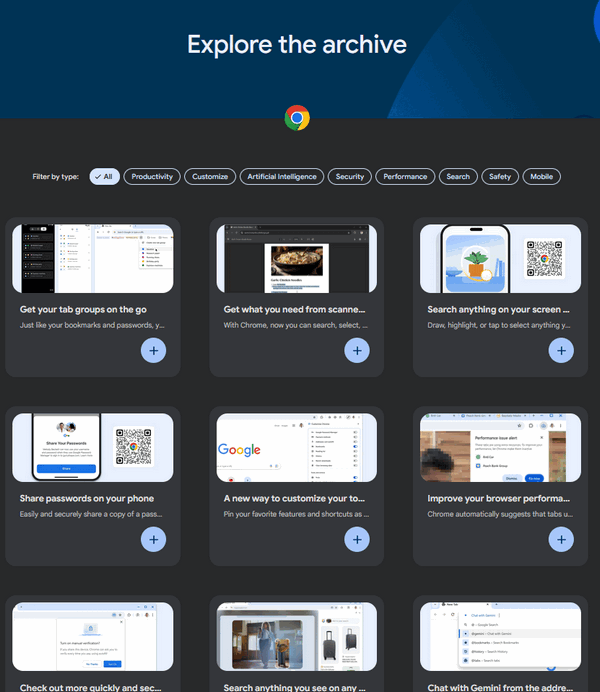
Here are a few of the featured items on Chrome’s What’s New Archive page today (12 January 2026)
- Get your tab groups on the go
Just like your bookmarks and passwords, your tab groups are now available across all your devices. Get started on one device and pick up your project on another device. - With Chrome, now you can search, select, or copy the text you want in scanned PDFs
- Search anything on your screen with Google Lens in Chrome
- Share passwords on your phone
Easily and securely share a copy of a password with your family group in Google Password Manager on your phone. - A new way to customize your toolbar
Pin your favorite features and shortcuts as toolbar buttons. - Improve your browser performance with one click
A Tip for Our Readers
You don’t need to check this every day. However, if you notice that Chrome looks slightly different after a restart, or if a new icon appears that you don’t recognize, the “What’s New” page is the first place you should look for an explanation. It’s the quickest way to stay informed without feeling overwhelmed by “tech-talk.”