

It’s All About Privacy: How to Turn Off Built-In Advertising and Telemetry In Windows 11
When you buy a new computer or install Windows 11, Microsoft sets up the system to look and feel ready to go out of the box. But behind the scenes, Windows 11 is quietly running a massive data-collection system.
If you value your privacy and want a cleaner, faster computer, it is highly recommended to take five minutes to turn off Windows 11’s built-in advertising and telemetry tracking. Here is why you should do it, what those words actually mean, and exactly how to turn them off.
What is “Telemetry”?
Most people have no idea what “telemetry” means, which is exactly how big tech companies prefer it. Think of telemetry as a digital surveillance system built directly into the foundation of your operating system. It is a feature that automatically records how you use your computer and transmits that data directly back to Microsoft’s corporate servers.
Whenever you open an app, click a menu, plug in a device, or experience a software crash, Windows packages that behavior up into a text log and uploads it. While Microsoft claims they use this data to find bugs and improve Windows, the reality is that Windows 11 tracks far more than is necessary for your computer to run smoothly.
Why You Should Turn It Off
There are three major reasons to take control of these settings:
Privacy
By default, Windows 11 tracks your physical location, assigns your computer a unique “Advertising ID” to profile your shopping habits, and can even log your typing keystrokes and handwriting patterns to “train” its language models.
Performance
Running a constant surveillance operation takes a toll on your hardware. Telemetry tools run in the background, consuming processing power and constantly hogging your internet bandwidth to upload data logs.
A Less Cluttered Desktop
Microsoft uses your tracking data to inject personalized advertisements directly into your Start menu, your Settings app, and your taskbar. Turning off tracking cuts off the fuel supply for these annoying pop-ups.
How to Turn Off Telemetry and Ads in Windows 11
Thankfully, Microsoft provides a way to turn these features off—they just hide them deep inside the settings menus. Follow these quick steps to reclaim your privacy:
Open the Privacy Settings
Step 1. Click your Start Button, open the Settings app (the gear icon), and select Privacy & Security from the left sidebar.
Strip Away the Advertising IDs
Step 2. Click on the General tab under the Windows Permissions section. Flip every single toggle switch to OFF.
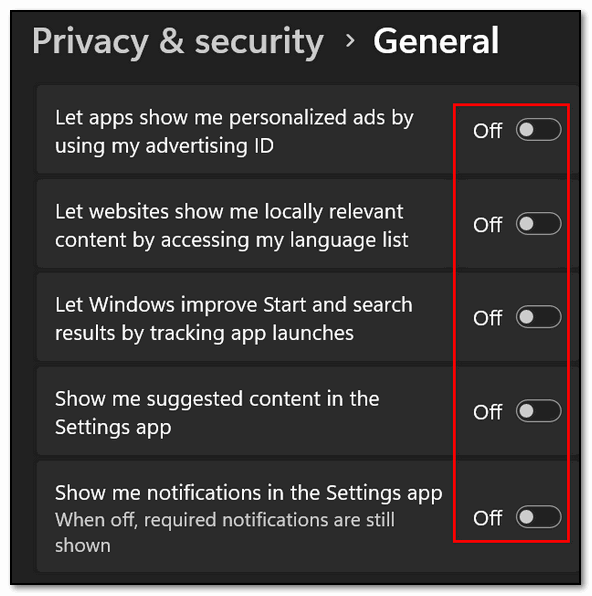
This disables your unique advertising profile, stops websites from tracking your language list, and blocks Windows from monitoring your app launches to suggest “recommended” content.
Shut Down Telemetry Tracking
Step 3. Go back one screen to Privacy & Security and click on Diagnostics & Feedback. Locate the toggle for Send Optional Diagnostic Data and turn it OFF.
This drops your tracking down to the absolute bare minimum. Scroll down and also turn OFF the switches for Tailored Experiences and Diagnostic Data Viewer.
Clear Your Diagnostic Logs
Step 4. Right under those toggles, click the Delete button next to Delete Diagnostic Data to wipe out all the tracking logs Microsoft has already saved on your hard drive.
The Bottom Line
Your computer belongs to you, not Microsoft. Turning off telemetry and advertising won’t break your Windows Updates, it won’t crash your software, and it won’t change your daily experience—except to make your computer run a little bit faster, cleaner, and a whole lot more privately.
I shut down all the items you listed.
The lines you mentioned, however, didn’t agree with the way items were listed in my Settings App. I wonder why?
Hi, When I follow these instructions I don’t see a “General” tab under the Windows Permissions section
Can this be done in Windows 10?
Will this still show up the way you wrote cause I am using StartAll Back and I don’t see the info you typed either on this article?
Open Settings (Windows key + I) click on Privacy and security > click on “General” –OR depending on your version it might be in Privacy and security > Recommendations and offers.
Does this help?
Thanks heaps once again, your instructions with the Recommendations and offers was what appeared in my settings.
I don’t have those categories listed
Every Windows 11 user has those categories listed. Settings > Privacy & security > General
OR depending on your version it might be in Privacy and security > Recommendations and offers.
Does this help?