

If you recently purchased a new laptop or received one as a gift, this tip will be very helpful to you. And for those of you who’ve been using a laptop for a while, this tip will serve as a reminder to you. The Function Key (the Fn key) on your laptop’s keyboard adds functionality to your laptop. You will see the function key labeled as the Fn, fn, or FN key. We’re going to refer to it in this article as the Fn key. Keep in mind that every laptop manufacturer has different Fn key combinations – but some are fairly universal, such as the Fn key plus the F2 key, which toggles your Wi-Fi connection on and off; some are specific to one brand or another. First, you’ll want to find your Fn key on your keyboard. Here it is:
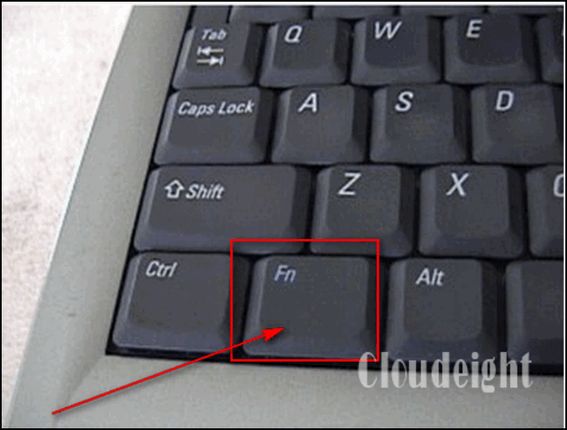 You’ll want to check your laptop manufacturer’s website for the Function key combinations for your brand of laptop. Just to show you some of the useful functions the Fn key provides, here are some that work on one of my laptops. Use this as a guide only – every laptop brand is different.
- Zzz icon (F1): Fn+F1 places the laptop PC in suspend mode (In case you’re wondering: The Zzz key is the icon on the F1 key on some ASUS laptops – the Zzz meaning “sleep”.)
- Radio Tower Icon (F2): Fn+F2 toggles the internal wireless LAN or Bluetooth (on selected models) ON or OFF with an on-screen display. When enabled, the corresponding wireless indicator will light. Windows software settings are necessary to use the wireless LAN or Bluetooth.
- Sun Down Icon (F5): Fn+F5 Decreases the display brightness
- Sun Up Icon (F6): Fn+F6 Increases the display brightness
- LCD Icon (F7): Fn+ F7 toggles the display panel ON and OFF.
- LCD/Monitor Icons (F8): Toggles between the Laptop’s display and an external monitor; NOTE: You must connect an external monitor “before” booting up.
- Crossed-out Touchpad (F9) (on selected models). Fn+F9 toggles the built-in touchpad between LOCKED (disabled) and UNLOCKED (enabled). Locking the touchpad will prevent you from accidentally moving the pointer while typing and is best used with an external pointing device such as a mouse.
- Crossed Speaker Icons (F10): Fn+F10 toggles the speakers ON and OFF
- Speaker Down Icon (F11): Fn+F11 Decreases the speaker volume
- Speaker Up Icon (F12): Fn+F12 increases the speaker volume (only in Windows OS)
- Num Lk (Ins): Fn+Num Lock Key toggles the numeric keypad (number lock) ON and OFF. Allows you to use a larger portion of the keyboard for number entry.
- Scr Lk (Del): Fn+Scroll Lock Key – Toggles the “Scroll Lock” ON and OFF. Allows you to use a larger portion of the keyboard for cell navigation.
While some of these Fn key combinations above may work on your laptop, be sure to check your laptop manufacturer’s website for Fn key combinations for your brand of laptop. Whatever brand of laptop you have, you’ll find that Fn Key combinations allow you to add more functionality to your laptop. The Fn key is mighty important on a laptop and so is learning how to use it. Because laptop hardware varies so much, there isn’t one single, universal master list that covers every brand. Instead, manufacturers publish these layout guides directly in their official support portals. If you are looking for the exact Fn key layouts for a specific machine, the official cheat sheets are located in the following places:
- ASUS: They keep an updated visual breakdown of their media, lighting, and performance toggles on their Official ASUS Keyboard Hotkeys Guide.
- Lenovo: Lenovo uses advanced Fn combos (like Fn + Q to change fan/performance modes or Fn + Space for RGB). You can find your specific model’s layout by searching its manual on the Lenovo Function Key Support page.
- Dell: Dell maps their shortcuts based on the laptop line (Inspiron, XPS, Alienware). Their primary master list is hosted on the Me and My Dell Keyboard Shortcut Hub.
- Microsoft Surface: Because Surface devices use detachable Type Covers, Microsoft hosts a dedicated page for their unique function row behavior at the Microsoft Surface Key Support Page.
Most manufacturers have a page of keyboard shortcuts showing Fn + shortcuts as well.