

How to Change Your Windows 11 Mouse Pointer and Text Cursor Size and Color
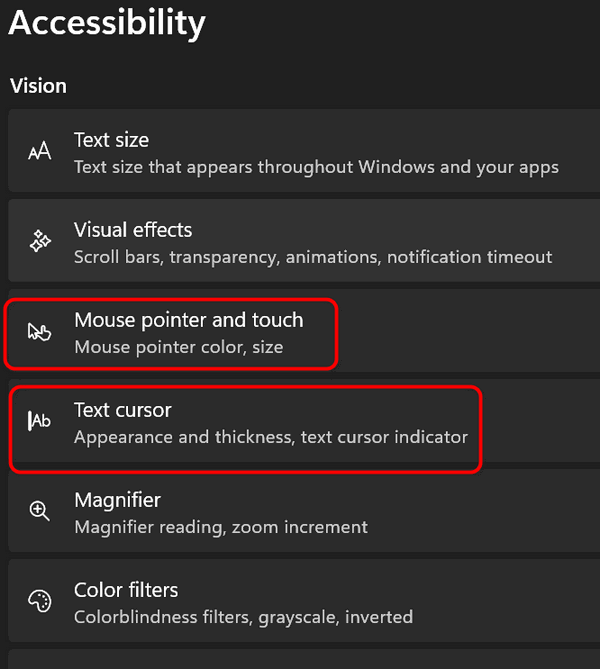
In Windows 11, you can configure your mouse pointer and text cursor by pressimg the Windows Key + U to open Accessibility settings, then clicking on “Mouse pointer and touch” to change your mouse pointer size, style, color, and behavior, or “Text cursor” to customize your text cursor.
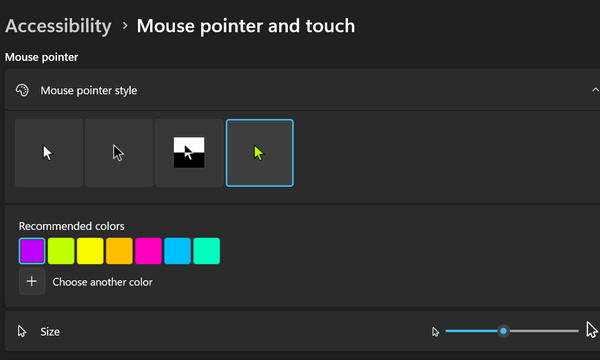
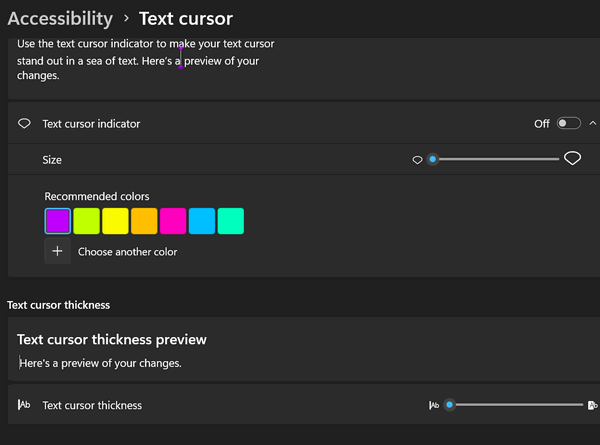
You can choose a pointer or cursor size by sliding the sliders to the right to make it larger or left to make it smaller. Once you choose a mouse pointer or text cursor size and style, you can choose a color by clicking on any of the colored squares. If you don’t like any of the available colors, click on “Choose another color” to choose any color you want. You’ll find a slider that lets you make your mouse pointer and text cursor as big or as small as you like. These settings allow you to customize your mouse pointer and text cursor just about any way you like.
PS: Another quick way to get to the mouse pointer settings in Windows 11 is by typing “MOUSE POINTER AND TOUCH”(without quotes) in the taskbar search and pressing Enter when you see “Mouse pointer and touch” appear in the search results