

The Taskbar is On The Move!
Windows 11 Finally Brings Back Freedom of Choice!
If you were among the millions of Windows users who upgraded to Windows 11 only to find you couldn’t move your taskbar from the bottom of the screen, you’ll be happy to know Microsoft finally acquiesced to the many Windows 11 users who were unhappy that they could not move the taskbar.
When Microsoft released Windows 11, one of the biggest complaints from long-time PC lovers was the completely locked-down Taskbar. For years in Windows 10 (and Windows 7 before that), you could drag or park your taskbar along the top, left, right, or bottom of your screen. Windows 11 glued it to the bottom.
Well, Microsoft listened to the endless feedback, and the wait is officially over: Movable Taskbars are back in Windows 11!
Move Your Windows 11 Taskbar Anywhere You Want!
Left or Right Edge: Perfect for widescreen monitors! Placing the taskbar on the side saves valuable vertical screen real estate, making reading web pages and documents much easier.
Top Edge: Keeps your active apps, system tray clock, and Start menu right at eye level.
Bottom Edge: The classic Windows look.
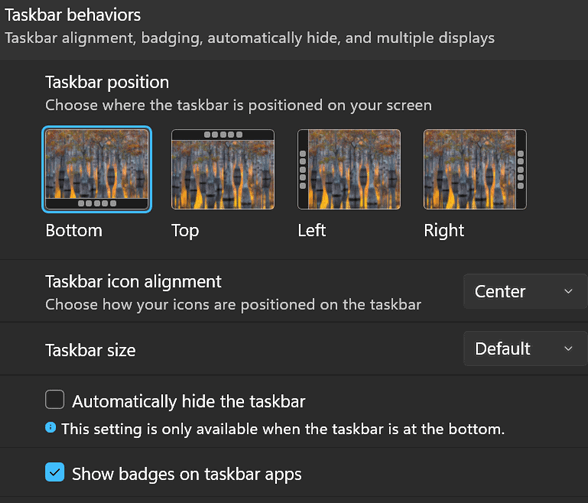
How to Move Your Taskbar in Windows 11:
1. Right-click any empty space on your Taskbar and select Taskbar settings.
2. Scroll down and click to expand. Taskbar behaviors.
3. Look for Taskbar position and click the drop-down menu or visual thumbnails.
4. Pick Top, Left, Right, or Bottom and watch your taskbar jump to your selected edge instantly!
Other Taskbar Improvements You Might Like
Moving the taskbar isn’t the only enhancement Microsoft packed into recent Windows 11 updates. Here are a few other fantastic tweaks that make daily computing much smoother.
Taskbar Sizing Options
You can now toggle between Default and Small taskbar icon sizes (available when the taskbar is parked at the top or bottom), giving you even more screen space for your active programs!
Instant “End Task” Right-Click Toggle
No more opening Task Manager when a frozen browser or app gets stuck! You can now enable a quick shortcut right on the taskbar:
Go to Settings > System > For developers and toggle End Task to ON
Now, whenever a program freezes, just right-click its icon on the taskbar and press End Task.
If you don’t see these options, then you’re not using Windows 11 25H2 or newer. To get these new taskbar options, upgrade your Windows 11 version.