

Managing Windows the Easy (and Safe) Way with Wintoys
Windows 10 / Windows 11 Freeware
Every so often, a tool comes along that makes managing Windows feel easy again instead of like a treasure hunt through five different control panels. Wintoys is a clean, modern, and free utility designed to bring your PC’s hidden settings, maintenance controls, and performance tweaks straight to your fingertips.
If you have ever found yourself digging through arcane deep Windows sub-menus just to turn off annoying lock-screen ads, stop background bloatware, or flush your DNS cache, Wintoys packs all of those tools into one slick dashboard.
If you have ever found yourself digging through deep Windows sub-menus just to turn off annoying lock-screen ads, stop background bloatware apps, or flush your DNS cache, Wintoys packs all of those tools into one slick dashboard.
Safe & Reputable
Unlike shady “registry cleaners”, “one-click fixers”, or questionable debloaters floating around the web, Wintoys is distributed directly through the verified Microsoft Store, meaning it installs cleanly with no bundled software or pop-up traps.
Modern, Reliable, and Easy to Use
The main dashboard acts like an upgraded, beginner-friendly Task Manager. At a glance, you can see your CPU/GPU specs, memory usage, and basic system health without confusing graphs.
Easy & Safe General Repairs
Under the “Health” section, you can run built-in Windows repair routines (like DISM, SFC, or clearing the Windows Update cache) with a single click—no messing around with the Command Prompt terminal required!
Easy Privacy Controls
Wintoys bundles Windows’ scattered telemetry, ad-tracking, and location-sharing toggles into one clear menu so you can lock down your privacy fast.
App & Startup Manager
Provides a simple list of all installed programs and startup apps, making it easy to disable software that slows down your PC’s boot time.
While Wintoys makes tweaking settings very simple, we always recommend sticking to the obvious performance, privacy, and cleaning options. Leave advanced options (like altering system services) alone unless you know exactly what you’re doing.
Here are some screenshots for you:
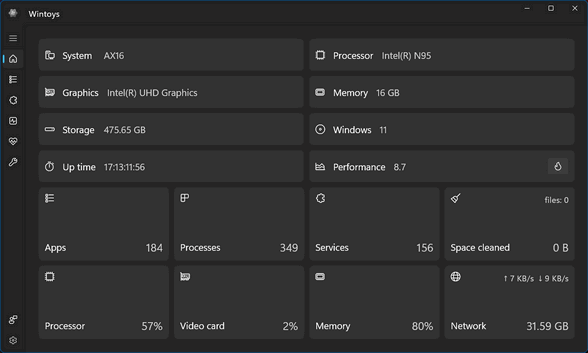
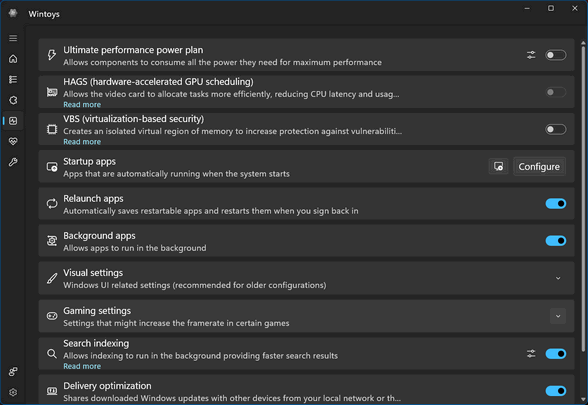
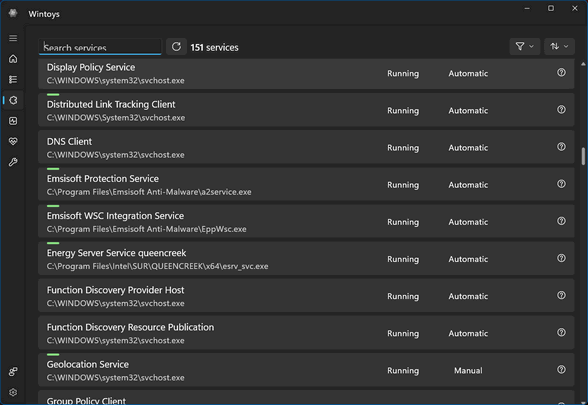
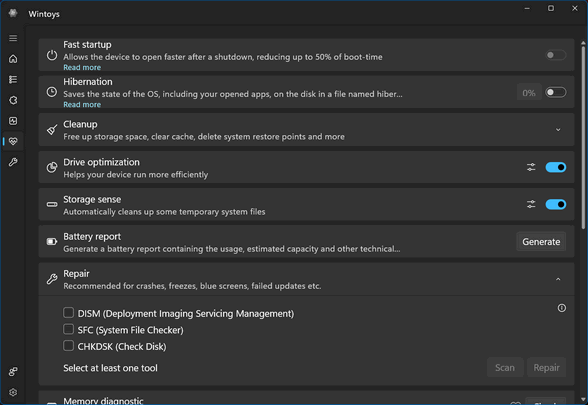
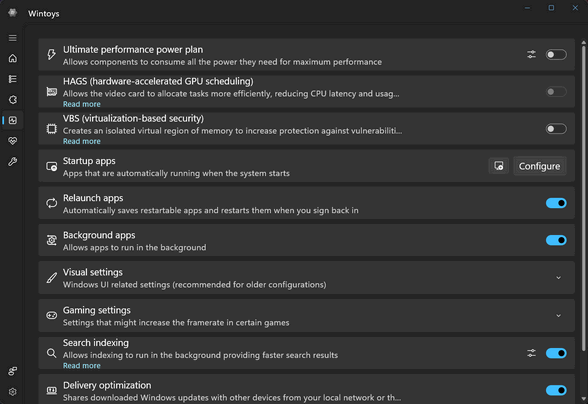
If you want an elegant and simple way to manage your Windows 10 or Windows 11 computer, look no further than Wintoys.
If you want to make managing Windows a whole lot easier, download Wintoys directly from the Microsoft Store.
One thing that impressed me with your latest outing is the number of screenshots included. This leads me to wonder if you use an app, MS or otherwise or just your keyboard. I think doing a series like this one would get tedious. Just curious!
Keep getting better, TC!
Terry B.
Not sure what you’re asking. Darcy and I tested the program thoroughly. Screenshots show what the different user panels look like. Not sure what you mean by do we use MS, an app or just your keyboard means. It’s pretty hard to just use your keyboard when making system changes – for example, running DISM or SFC or turning fast startup on or off. So, I don’t know how to answer the question. Wintoy does not do anything you can’t do without it; it just makes changing and fixing things a whole lot easier.