

Consolidate over 200+ Windows System Settings and Administrative Tools Into One, Easily Searchable List
It seems that with every “newer and better” Windows version, the more difficult it is to find the most important settings.
Windows 11, like Windows 10, attempts to simplify things using a stylish “Settings” menu, which appears to be attempting to cancel out the trusty old Control Panel. But not so fast! The Control Panel still contains a host of important options.
We wish we could rename GodMode to something else, but we can’t, as Windows 11 (as of now) will not show the correct icon unless it’s called GodMode. But take heart, GodMode is not a game mode where the gamer has the power to walk through walls, etc. GodMode gives you easy access to almost every Windows 10 or Windows 11 setting, all with a single click.
While you can create a shortcut to GodMode anywhere, we think it’s best to create the shortcut on the desktop since it will be more accessible. GodMode is more than a shortcut; it’s a special “magic” folder.
Here’s how to create a God Mode shortcut in Windows 10 or Windows 11
1. Create a new folder on your desktop (Right-click on an empty space on your desktop and click “New” then “Folder”.
2. Right-click on the newly created folder, choose “Rename”, and rename it exactly as below.
GodMode.{ED7BA470-8E54-465E-825C-99712043E01C}
(On Windows 11, you’ll have to click “See more options” to find “Rename” or simply press the Windows key + F2 to rename the folder. We also recommend you copy the GodMode folder name and then paste it as the folder name.)
3. When you’re done, you’ll have an icon on your desktop that looks like this – yes looks like a Control Panel icon.
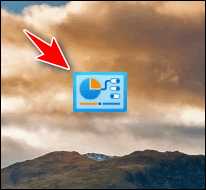
When you click it, you can access almost any Windows setting. Here are some screenshots from Windows 11:
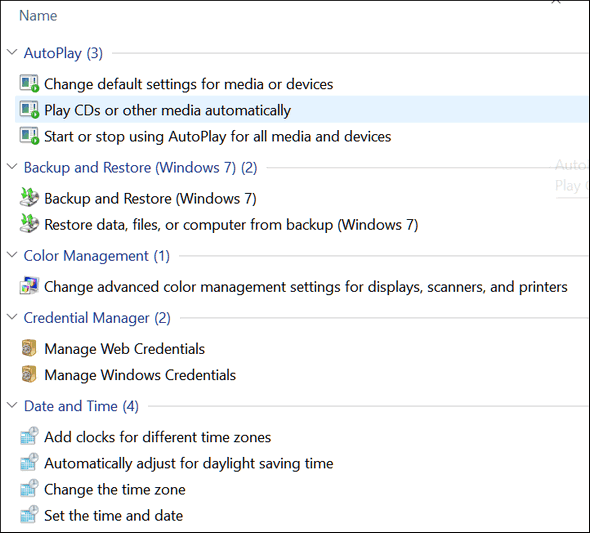
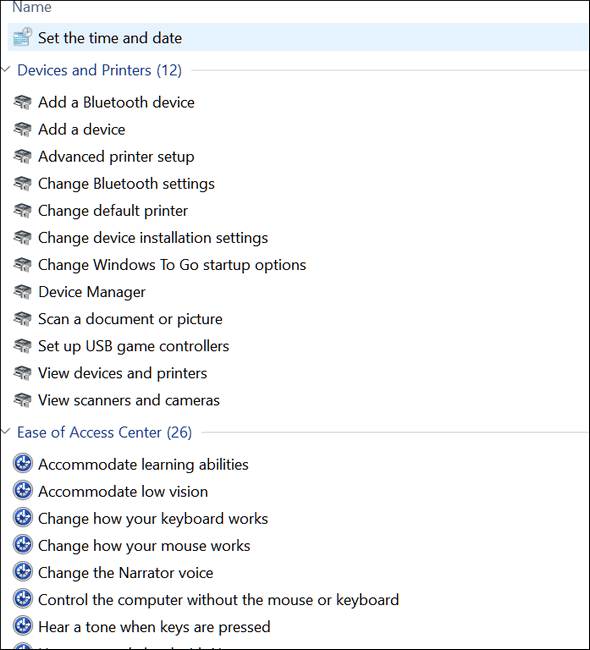

And here’s one from Windows 10…
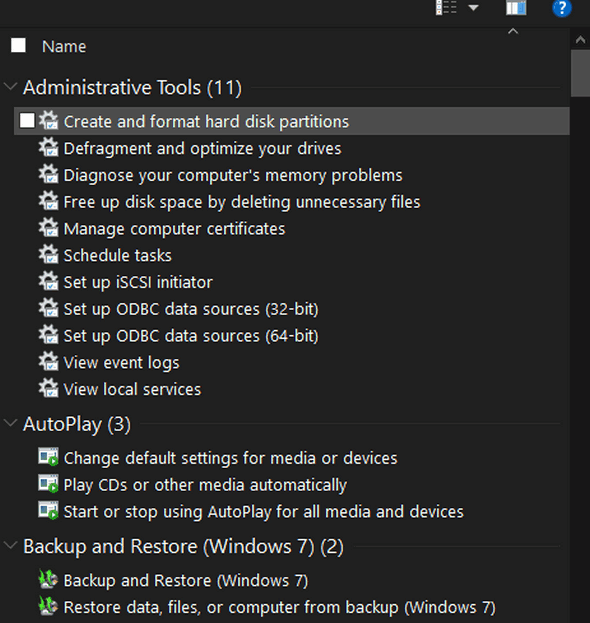
And there are a lot more settings than we show here. A virtual plethora of settings – all available to you when you empower yourself with GodMode.
If you want to see almost every setting available in GodMode, take a look at this page.
It’s now on my desktop. We’ll see how much of it I use over the next month or so. Thanks for thinking of us.
Terry
Port Coquitlam, BC
Canada