

How to Copy and Print Info from “About Your PC”: A Tutorial
This tip was created in answer to a question from Rosa, who wrote, “I would like to print the info about my computer. But when I go to “About your PC”, I can’t print it at all.”
So, for Rosa and everyone else who would like to print the information shown in “About your PC” on Windows 10 and/or Windows 11, this tip is for you.
Most of the screenshots shown here are from Windows 11, but this tip works in both Windows 11 and Windows 10.
First, open “About your PC” by typing ABOUT YOUR in the taskbar search. Press Enter or click Open when you see “About your PC” appear in the search results.
When About your PC opens, you’ll see “About” at the top. The first category you’ll see is “Device specifications,” and next to it (or beneath it) you’ll see a “Copy” button.
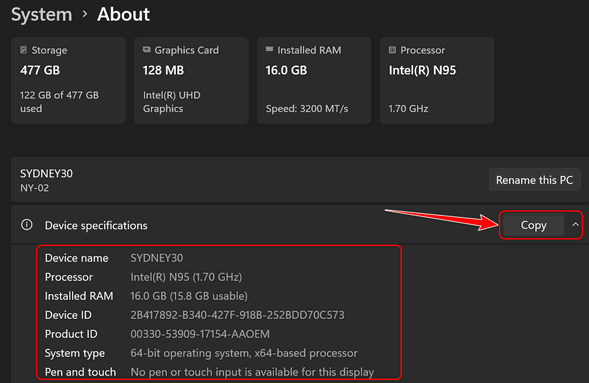
Above: A screenshot from Windows 11, and below is a screenshot from Windows 10.
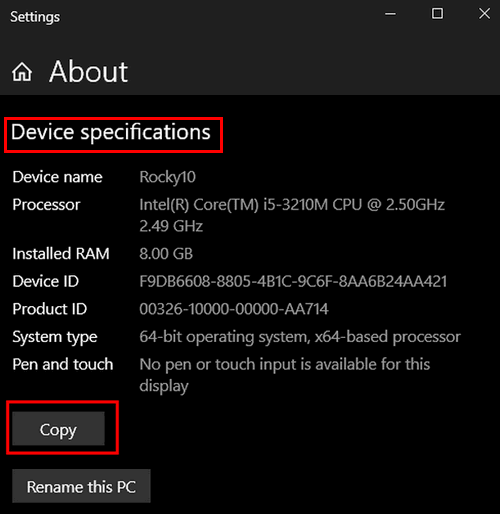
Both Windows 10 and Windows 11 show “Device specifications” at the top with a “Copy” button that allows you to copy the information shown to the Windows clipboard.
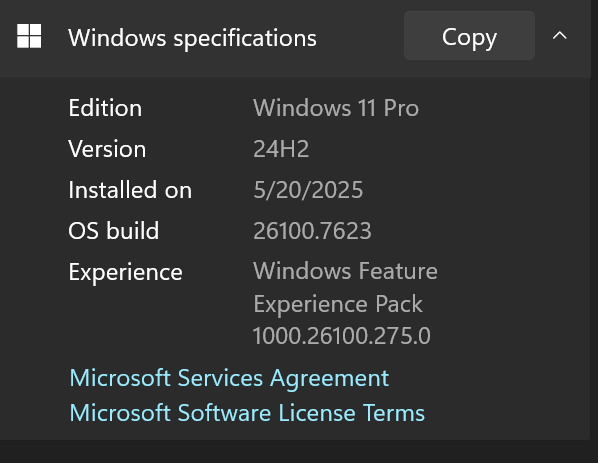
As you scroll down, you’ll see “Windows specifications” (on both Windows 10 and Windows 11). You’ll see a “Copy” button next to or beneath “Windows specifications,” which allows you to copy that information to the Windows clipboard. If you’re using Windows 11, you can also copy information from the “Support” section.
To print the information from any of the categories, you can use Notepad, WordPad, or whatever word processor you have installed. Every Windows 10 and 11 PC has Notepad and WordPad.
For this tip, we’re going to use Notepad.
Whether you’re using Windows 10 or Windows 11, type NOTEPAD in the taskbar search and press Enter when you see Notepad appear in the search results. Press the “Copy” button next to (or beneath) “Device specifications”, then press CTRL+V and paste the text into Notepad.
Next, under or next to “Windows specifications,” click the “Copy” button and press CTRL + V to paste the information into Notepad.
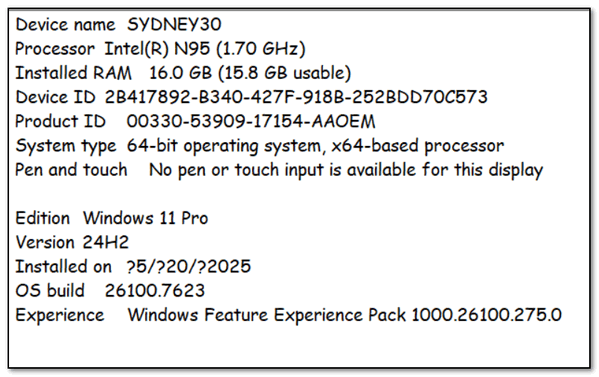
When you do all of that, you’ll end up with something that looks like this, which contains all of the information in “About your PC”:
Then, all you have to do to print your “About your PC” file is to press CTRL + P.
And if you choose, you can save your Notepad file – just give it a name and save it.
That’s a great tip
Thank you
I would be very interested if you could share with all of us on how to set up “move to” send to” and “copy to” in the registry with out damaging our computers.
Thanks
The copy to / move to script does not work on current versions of Windows 11. As soon as we find a way to make it work, we’ll put it in our newsletters and our website.
Greetings
Unless I am mistaken, If one were to download belarc Adviser It would give a similar amount of info and more and is readily printable. Please advise me if I am incorrect.
Why download something you don’t need. If you open run command type in MSINFO32 you’ll get more info than you need. I don’t believe in installing unnecessary software
could you advise me , when i copy and try to send it to clipboard nothing goes there says clipboard is empty running win 10 with opatch. i can wait if your too busy