

Increase Your Internet Speed and Privacy with Cloudflare’s Free 1.1.1.1 DNS Service
Cloudflare’s DNS service 1111 competes with — most prominently– Cisco’s OpenDNS and Google Public DNS. Cloudflare makes extraordinary claims for its 1111 DNS service, including a promise of privacy backed up by 3rd-party auditing. That’s impressive.
Last Thursday, we published our weekly Thursday Tech Headlines article. One headline drew a lot of attention. It was about using a DNS service to enhance your privacy and possibly your internet speed.
So today, we’re going to feature Cloudflare’s 1111 free public DNS service.
It is not the intent of this article to get you to take any action or change your DNS settings. But if you’re interested in or using Google Public DNS or OpenDNS, you should also consider Cloudflare’s DNS service 1111. It might be a better choice.
Before we dig deeper into 1111, it might help to understand what DNS is and what it does. If you’re not familiar with how the Internet works, it’s quite complex. Don’t worry, in our own inimitable way, we’re going to simplify it for you:
DNS is an acronym for Domain Name System. DNS translates common domain names like google.com to IP addresses. Every website on the internet has an IP address. Don’t fret. IP addresses are like phone numbers. For most of us, remembering names is a lot easier than remembering a series of numbers. So, instead of having to remember the IP address172.217.8.14 all you have to do is remember the name Google.com. See? It’s much easier to remember Google.com than 172.217.8.14… right?
So, when you type in www.google.com, DNS servers find the IP address 172.217.8.14 within milliseconds, and Google.com will open. If you can remember a long series of numbers, you could type 172.217.8.14 in your browser, and you’d end up in the same place… www.google.com.
What are the advantages of changing your DNS settings?
Because your ISP (Internet Service Provider) routes all your traffic through their DNS servers, and because your ISP’s DNS servers may not be the best or the fastest,
Changing your DNS settings can make websites open a bit faster and reduce the lag time… but honestly, you’re not likely to notice a 50-millisecond or a 100-millisecond speed increase.
Another reason you might want to change your DNS settings is to prevent your ISP from blocking certain sites or seeing all the sites you visit.
But the main reason why you may want to change your DNS settings is to enhance your privacy. Internet Service Providers (ISPs) route all your internet traffic through their own DNS servers. This is how they collect data about your Internet activities. They see and log every site you visit and everything you do on the Internet. Yes, that’s kind of creepy, but that’s how it works. And now that Net Neutrality is no more, ISPs are free to sell any data they collect from you.
We’ve featured tutorials before on how to change your DNS settings. For example, you can read this tutorial. It shows you how to change your DNS settings to Google’s Public DNS servers, and thus bypasses your ISP’s DNS servers. The tutorial also gives you a much more detailed definition of DNS than this one, if you’re one of those with an inquiring mind.
Today, we’re going to look into Cloudflare’s DNS Service called 1.1.1.1.
The following comes directly from the Cloudflare website:
DNS: Internet’s Directory
Nearly everything on the Internet starts with a DNS request. DNS is the Internet’s directory. Click on a link, open an app, send an email and the first thing your device does is ask the directory: Where can I find this?
Unfortunately, by default, DNS is usually slow and insecure. Your ISP, and anyone else listening in on the Internet, can see every site you visit and every app you use — even if their content is encrypted. Creepily, some DNS providers sell data about your Internet activity or use it target you with ads.
We think that’s gross. If you do too, now there’s an alternative: 1.1.1.1
Privacy First: Guaranteed.
We will never sell your data or use it to target ads. Period.
We will never log your IP address (the way other companies identify you). And we’re not just saying that. We’ve retained KPMG to audit our systems annually to ensure that we’re doing what we say.
Frankly, we don’t want to know what you do on the Internet—it’s none of our business—and we’ve taken the technical steps to ensure we can’t.
Faster than anything else.
We’ve built 1.1.1.1 to be the Internet’s fastest DNS directory. Don’t take our word for it. The independent DNS monitor DNSPerf ranks 1.1.1.1 the fastest DNS service in the world.
Since nearly everything you do on the Internet starts with a DNS request, choosing the fastest DNS directory across all your devices will accelerate almost everything you do online.
(Statistics from May, 2019)

We set up 1111 on one of our computers yesterday, and so far, so good. Cloudflare has instructions on how to set up Cloudflare’s 1.1.1.1 DNS on your Windows computer here. If you’re using an Android or Apple tablet or smartphone, Cloudflare has an app for you.
We make it even easier. We made a simple tutorial for you. The following instructions are for Windows 10 and Windows 11.
#1. Type Control in the Taskbar search
#2. In Control Panel, click on Network & Internet > Network and Sharing Center
#3. Click on your active Internet connection.
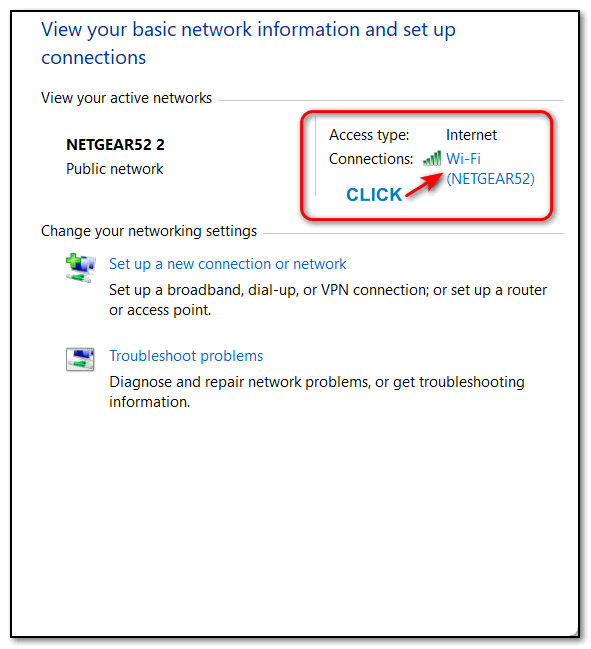
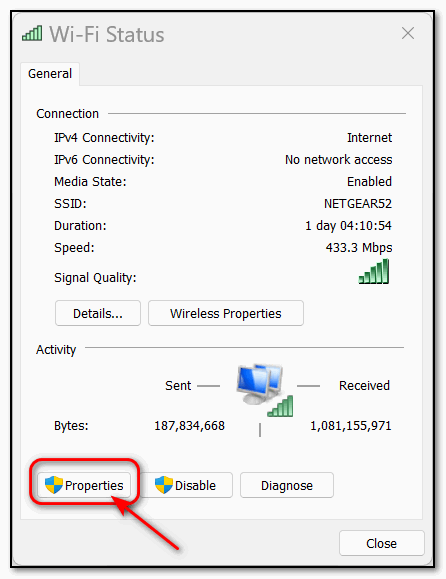
#4 In the dialog that opens, click on “Properties”.
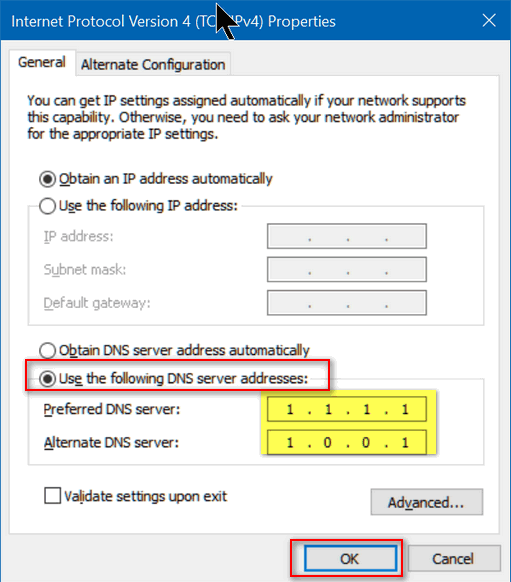
#5. In the Properties dialog, click on “Internet Protocol Version 4 (TCP/IPv4)” then click on Properties. Near the bottom of the dialog window, tick the circle next to “Use the following DNS server addresses:” In the space type: 1 1 1 1 on the first line and 1001 on the second line.
When you’re done, it should look like the screenshot below. Once you’ve done this, click OK.
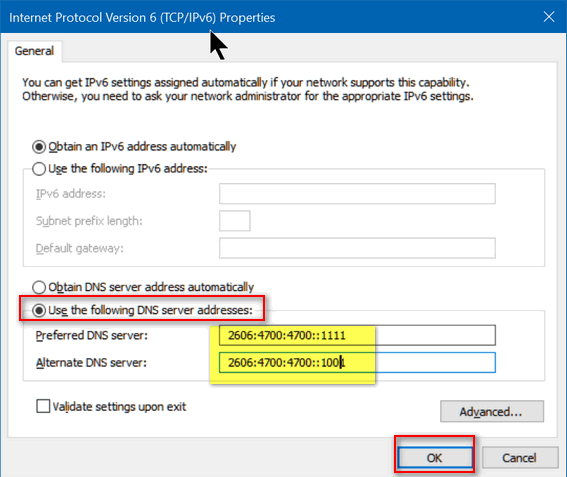
#6. Go back to the Network Properties dialog you opened before. This time, instead of highlighting “Internet Protocol Version 4…”, highlight “Internet Protocol Version 6 TCP/IPv6” and click on Properties (see our screenshot below):
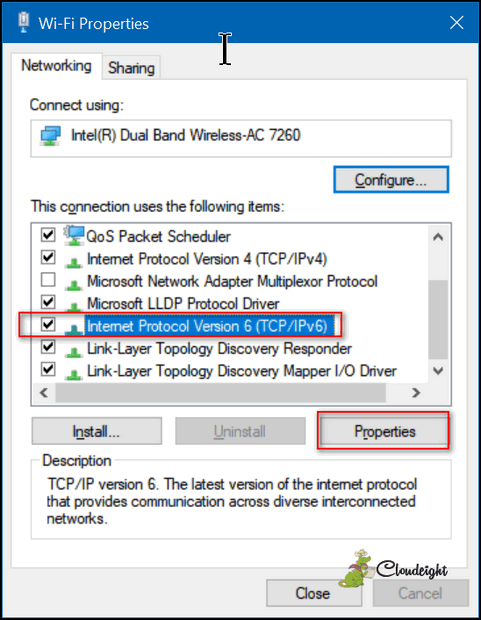
#7. In the TCP/IPv6 properties dialog, tick the circle next to “Use the following DNS Server Address. And on the first line (which will be blank) type the following DNS server address:
2606:4700:4700::1111
And on the second line type this address:
2606:4700:4700::1001
Now click OK. Note: If you choose to copy and paste those, be sure you eliminate any spaces before the number. Windows has a nasty habit of adding a single space to the beginning of whatever you copy if you copy from right to left.
(Bonus Tip! Whenever you copy a command or code from a webpage or anywhere else, always copy from left to right. I copy everything left to right – it’s a good habit to get into, as Windows adds an annoying space to whatever you copy if you copy from right to left. )
#8. Whew! Almost done. Most instructions for changing your DNS settings will tell you to close your browser and restart it. While you can do that if you like, suggest that you open a Command Prompt (Type CMD in taskbar search) and type the following command at the prompt and press Enter:
IPCONFIG /FLUSHDNS
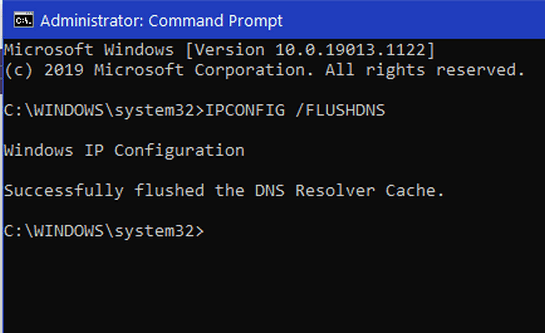
And that’s it. Keep in mind you can change your settings back to the original setting; it’s easy! Just go back and change the adapter setting by ticking the little circle next to “Obtain DNS server address automatically” in the properties dialogs for both TCP/IPv4 and TCP/IPv6.
“Change your computer DNS fast and safe with ChrisPC Free DNS Switch – Protect your children online experience from adult websites” https://changedns.how/
While ChrisPC DNS Switch is a handy tool for people who frequently jump between different DNS profiles, there are some significant “negatives” to consider—especially if you don’t like malware or being tracked.
The Free version of the software is ad-supported. Adware.
The free version frequently triggers a pop-up window (nag screen) urging you to upgrade to the $12.99 Pro version. This happens when you close the program or even if you leave the main window open for too long. You’ll see text advertisements inside the main application window and a “single advertisement” when you exit the settings.
It’s also well-known for bundling software and Potentially Unwanted Programs (PUPs). ChrisPC software has been flagged by users and some antivirus tools for including Relevant Knowledge or similar marketing research tools. In the past, installers have been noted to include telemetry software that tracks your browsing habits for research purposes. While it’s usually disclosed in the fine print during installation, most users find this intrusive if you don’t choose “Custom Installation” and uncheck any extra “offers” or “bundles” you’ll be installing malware or PUPs on your PC.
For a tool that performs a simple system change, ChrisPC DNS Switch requires a full installation. It should just be click to run.
Many competitors (like DNS Jumper or QuickSetDNS) are “portable,” meaning they are just a single file you can run without installing anything. ChrisPC adds files to your program directories and registry, which is unnecessary for a task as simple as changing DNS.
The “Free” versions more restricted than you might expect.
No thanks. I’ll stick with a DNS service that actually has auditors to prove they don’t keep logs, that is free, and that you don’t have to install.