

Saturday Bonus Questions and Answers – 122025

Merry Christmas from Darcy & TC!
This will be our last edition of Bonus Questions and Answers before Christmas. We both wish you and those you love a very Merry Christmas. And let’s not forget, of course, that today is Saturday, and it’s time for another edition of Saturday Bonus Questions and Answers.
Today, as we do every Saturday, we’re featuring some of the questions and answers from past issues of our InfoAve Weekly newsletters.
These questions & answers were selected at random from past InfoAve Weekly newsletters.

Christmas Holiday Sale
Cloudeight Direct Computer Care Repair Keys Are Just $39 Right Now!
You can get a Cloudeight Direct Computer Care Key for just $39 during our Christmas Holiday Sale! You save over 20% off our regular low price of $50. Your Cloudeight Direct Computer Care Repair key never expires; it’s good until you use it. It’s good for any computer repair that we can do remotely.
Buy a Cloudeight Direct Computer Care Repair Key for just $39 during our Christmas Holiday Sale!
Saturday Bonus Questions and Answers – 122025
Mary Ann encounters a scam
Our Acer computer has a pop-up warning from Windows Defender. The message says that Windows Defender has been locked down. We had a trial version of Emsisoft, but I think it just ran out. We do have a service key for this computer. Can you help us? I am afraid that something is attempting to hijack this PC.
Our answer
Hi Mary Ann. This is a scam. It’s not something on your computer; it’s a scam ad that appears in your browser. It’s not from Windows Defender at all; it’s from an ad that wants to make you believe it’s Windows Defender. But the fact is, it’s not even called “Windows Defender” anymore; it’s called Microsoft Defender. They tell you your computer is “locked down,” trying to scare you into calling a phone number or clicking a link for help. It’s just a scam, and it can’t hurt your computer unless you call the phone number or link shown in the ad and allow the scammer to access your computer remotely.
No antivirus can protect you from ads like these. You should install a good pop-up blocker like uBlock Origin to prevent this from happening to you in the future.
You should also clear your browser’s history and cache to prevent this from recurring. Here is our tutorial on clearing your browser’s history and cache. This tutorial covers Chrome, Edge, and Firefox browsers.
If you need more help or have more questions, please let us know, Mary Ann.
Eldad asks about OAuth2 email authentication.
Hi. I read in your Infoave Weekly newsletter that OE Classic will comply with Gmail authentication requirements – OAuth2 – in due course. My question is: Do you know something similar about Mozilla Thunderbird? I’ve been using this email client for years, and want to continue using it. Thanks, Eldad.
Our answer
Hi Eldad. OE Classic currently supports OAuth2.
Thunderbird has supported OAuth2 for a couple of years, so all current versions of Thunderbird already support this authentication method.
If, for some reason, your Gmail was not set up using OAuth2, you can easily set it up again without losing anything. When you set up your Gmail account in Thunderbird, you will see a Gmail sign-in page appear where you can sign in to Gmail with your username and password. Then the authentication details from Gmail are passed to Thunderbird – it’s automatic. But you don’t have to do this unless you have problems, and we don’t think you will.
Doris asks about RealPlayer and Movies & TV on her Windows 10 PC
I have RealPlayer on my Windows 10 desktop computer. There is also the “Movies & TV” app installed. When I download a video to Real Player, the video also goes to the program Movies & TV, which is fine. My question is, I would like to save the videos to a Thumb Drive, but I can’t find any way to do that from either RealPlayer or Movies & TV. Can I do that, and if so How. I’m not that computer-smart. Thank you for your help.
Our answer
Hi Doris. RealPlayer is outdated and unnecessary. Besides that, many security apps consider it a PUP (Potentially Unwanted Program). We suggest you download and install a free media player called VLC from here. Once you install it, you can make it your default media player for all media types. See this page for instructions on how to save any file you have open in VLC to your computer.
We hope this helps you, but if you need more help, please let us know.

Christmas Holiday Sale
Computer Cleanup, Checkup & Optimization Service
During our special Christmas Holiday Sale, you can buy a Cloudeight Direct Computer Care Cleanup, Checkup, and Optimization service key for just $19! That’s right… for just $19…
** We’ll check your computer for malware and questionable programs
** We’ll check and optimize your startup programs
** We’ll check your computer performance to make sure your RAM and CPU usage are within normal ranges
** We’ll check to make sure your Windows settings are configured for the best performance and privacy.
** We’ll review your installed programs and make sure no questionable programs are installed.
Our Christmas Holiday Cleanup, Checkup, and Optimization can help ensure your computer is running at its best.
Take advantage of this special offer before it’s gone. Get all the details here.
Kathy says Chrome does not open correctly.
When I open Google Chrome, it comes up in the bottom corner of my screen. I have tried everything to make it come up full screen but nothing works. I even tried reinstalling Chrome. Can you help? Thanks so much. Kathy.
Our answer
Hi Kathy. Can you grab a corner of the window and drag it up? I am not sure what you’re seeing.
You can also try right-clicking on your Chrome shortcut, clicking on “Google Chrome” > “Properties” >” Run” > “Maximized”– See the screenshot below.
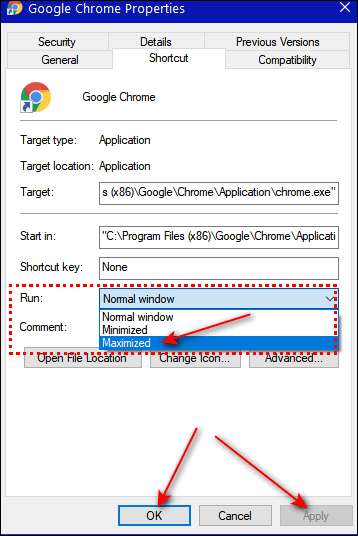
One more thing, uninstalling Chrome and reinstalling it does not usually fix problems like this because there is a folder in C:\Users\Your User Name\AppData\Local\Google that has to be manually deleted before you reinstall Chrome. This folder contains all your settings, extensions, history, etc. So if none of the above works, you can uninstall Chrome, delete that folder, restart your computer (you must restart your computer before reinstalling Chrome), and then reinstall Chrome. If you do this, you’ll lose your bookmarks, so you might want to save them before you do this if they’re important to you. You can learn how to save your Chrome bookmarks here.
Let us know if this helps you, Kathy.
—–
Kathy wrote back. “Thank you so much! My Chrome is now opening full-size. I appreciate you guys so much. You are always so helpful. Kathy”
Dick asks about Chromebooks
I need you to put your heads together, not too close though, and help me decide something.
I was watching one of the home shopping channels and they had an HP Chromebook for a pretty good price, which included a new printer and a few other goodies. I don’t need the extra goodies but it’s the first time I have considered a Chromebook. I have a Dell All-in-One Windows PC in my office with Emsisoft in it. A Chromebook seems like a perfect little companion computer to have next to me, in my family room to have readily available for looking up info, etc. Doing a small bit of research a Chromebook does not need an antivirus program as it does not get a virus. Also, it’s mentioned that you don’t need a big hard drive as it uses the Cloud.
Now, this is all I have found out about Chromebooks, except that they are made by several companies. The HP seems like one of the best and most inexpensive. If you have a few minutes in your busy schedule, could you let me know what you think of Chromebooks, which one might be the best one, at the best price? Also, what is your opinion on them not needing an antivirus program? Amazon seems to have a good selection at some pretty good prices. It’s just amazing that both of you are there for us, to help us through the computer gargle we read. Of course, you need donations to do this. I’m sure you like to go to the grocery store just like we do.
Our answer
Hi Dick. Thanks so much for your support and your nice comments.
Chromebooks are perfect for doing research, browsing the web, searching for things, online shopping, etc. They’re great as long as you don’t mind using Web apps for everything, since you really can’t install programs on a Chromebook.
As far as what brand of Chromebook to buy, think of it this way…Chrome OS is an operating system, like Windows is an operating system. HP, Dell, Acer, and others offer computers using the Windows operating system and computers with the Chrome operating system. So, just about any major brand that you like would be just fine. Chromebooks don’t need as much RAM as Windows PCs, so while 4GB of RAM is not enough for a Windows 10 or Windows 11 PC, it’s plenty for a Chromebook.
Most computer manufacturers now offer “Chromebooks”… so whatever brands you trust for Windows PCs you can also trust for Chromebooks.
Since you don’t install apps directly on the Chromebook but use them from the Cloud, then antivirus software is not essential. But as Chromebooks evolve, that could change.
We are not sure if this helps you much, Dick. It seems like you had it pretty well thought out before you wrote.
————
Dick wrote back: “Thank you so much, TC. You confirmed some of the things I was curious about concerning Chromebooks. You and Darcy are so good to us computer folks. We appreciate you being there for us, so I’m going to be there for you. I’m heading to the donation page right now. Dick”
Terry says Microsoft Edge tells him our site is dangerous
Microsoft Edge says you are a dangerous site because your Certificate is not valid – it’s self-signed. I know you are safe. How can I get that junk removed? I trust you and have since you and I met in the 1990s! AND, fabulous news, I root for you all the time. Cheers and Happy Spring, Terry
Our answer
Hi Terry. Thanks for your nice comments and your long-time support.
It appears that you have a bad extension installed in Edge or you’re using a security program that isn’t working correctly. A site can’t “Self-sign” a certificate.
When you do some investigating, here’s what Edge says about Thundercloud.net…
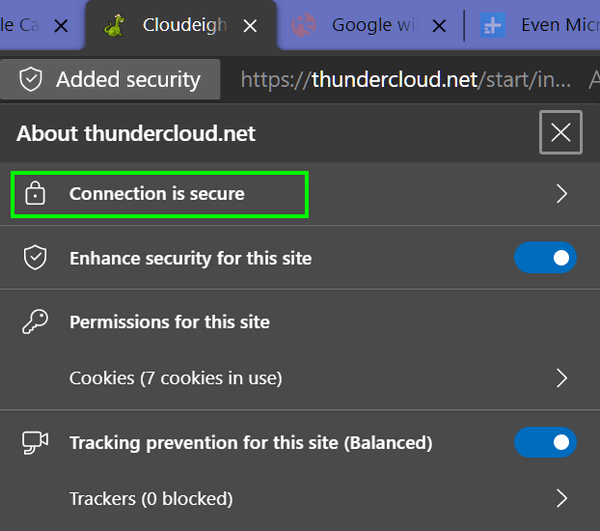
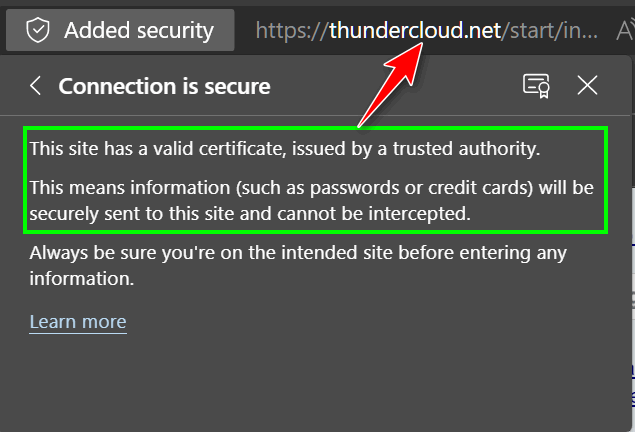
So, Terry, whatever extension you’ve installed in Edge or whatever security program you’ve installed on your computer is giving you incorrect information. If you’ve not installed something, then your ISP may be using some kind of filter that’s not working properly. A website cannot “Self-sign” a security certificate; it would make no sense. A site security certificate has to be issued by a trusted certificate authority – sites can’t just make one up and sign it themselves.
Christmas Holiday Sale
Cloudeight Direct Computer Care Repair Keys Are Just $39 Right Now!
You can get a Cloudeight Direct Computer Care Key for just $39 during our Christmas Holiday Sale! You save over 20% off our regular low price of $50. Your Cloudeight Direct Computer Care Repair key never expires; it’s good until you use it. It’s good for any computer repair that we can do remotely.
Buy a Cloudeight Direct Computer Care Repair Key for just $39 during our Christmas Holiday Sale!
Colin wants a narrower left margin in Gmail
G’day Darcy and TC. Is there any way I can reduce the space taken up in Gmail by that left-hand pane with Categories, Labels, etc.? It takes up a third of my screen. Best regards, Colin.
Our answer
Hi Colin. Open Gmail in your browser and look near the top left corner. Click on the 3 horizontal lines icon that appears right before the Gmail logo.

Once you do, you’ll see the names of the folders and labels are then replaced by icons thus reducing the size of the margin on the left of the Gmail window. See?
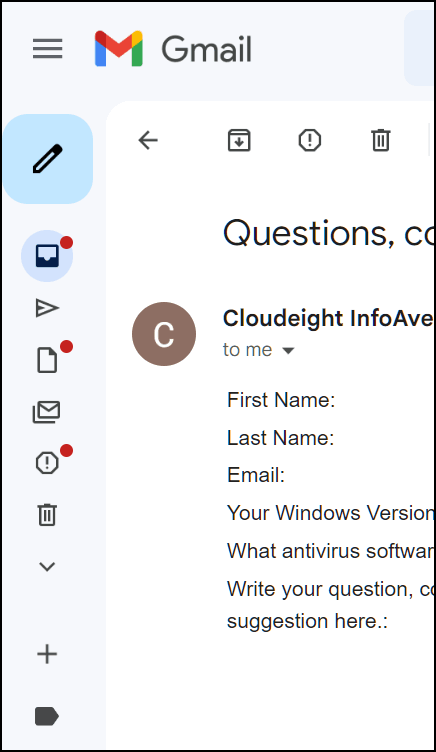
If you want to change back to the wider margin and show the full names of folders & labels, just click the icon again.
We hope this helps you, Colin.
Dianne wants to know why she has to sign out and sign back in to see the new items she saved to her desktop
Thanks for this tip, and the many others you have provided over the years. I work on posters and have had to redo some of my work because of an update. I often save my work on the desktop so it is easier to find, but lately, my work does not show up on the desktop. I have to sign out of Windows and then sign back in, and then the items are there. What would cause this problem?
Our answer
Hi Diane. Thanks so much for your kind words. Your problem is not an uncommon one. And you’ll be glad to learn that you don’t need to restart or sign out of Windows to refresh the desktop. You can do it more quickly and without signing out or restarting. You can refresh the Windows desktop in several ways.
Method 1: Using the keyboard shortcut
Click on the Windows desktop (not on an icon) to make sure it’s in focus. Press the F5 key on your keyboard. This will refresh the desktop, updating any icons or files that have changed or been added.
Method 2: Using the right-click menu
Right-click anywhere on the Windows desktop (not on an icon). Select “Refresh” in the context menu that appears. This will refresh the desktop and update any changes.
Method 3: Using Task Manager
Right-click on the taskbar and select “Task Manager” from the context menu, or press the Ctrl + Shift + Esc keys on your keyboard to open Task Manager directly. In Task Manager, select the “Windows Explorer” process. Click the “Restart” button at the bottom right corner of the Task Manager window. The desktop will temporarily disappear and then reappear. It will be refreshed and updated.
We hope this helps you, Dianne.
Les asks what password managers we recommend
Could you give me your recommendation for a password storage program, please? There are many programs on offer, and as I highly respect your advice, I am looking to you. Regards, Les.
Our answer
Here are the three password managers we use and recommend. All have free versions which have some restrictions (I use the free version of LastPass & Bitwarden). Darcy uses the paid version of RoboForm. You can read more about each by clicking the links below. Even the paid versions of these password managers are very reasonable, but you may find the free versions adequate for your needs, as I do.
We hope this helps you make a good choice, Les.

Donate today and help us keep on helping you!
Please help us to keep on helping you!
When you support us with a small gift, you help us continue our mission to keep you informed, separate the truth from the hyperbole, and help you stay safer online. Plus, our computer tips make your computer easier to use.
Did you know that we provide support to thousands of people? Every week, we help dozens of people via email at no charge. The questions and answers you see in our newsletters are from the email answers and help we provide to everyone free of charge.
Thanks to your gifts, we do a lot more than provide this free newsletter. We help you recognize online threats, fight for your online privacy, provide you with the knowledge you need to navigate the Web safely, provide you with suggestions for safe, free software and websites, and help you get more out of your PC.
Please help us keep up the good fight with a small gift.
Interested in making an automatic monthly gift? Visit this page.
Please help us keep helping you… and help you stay safe on the Web.
Merry Christmas to both of you.