

Windows 10 has a time machine — it’s called File History
Windows 10 has a feature called File History which allows you to restore accidentally deleted, altered or corrupted files, quickly and easily. First, before you can take advantage of the Windows time machine – File History – you must turn it on. There are two ways to do this, but we find the Control Panel the easiest way to turn on File History.
NOTICE: YOU MUST HAVE AN EXTERNAL HARD DRIVE IN ORDER TO USE FILE HISTORY.
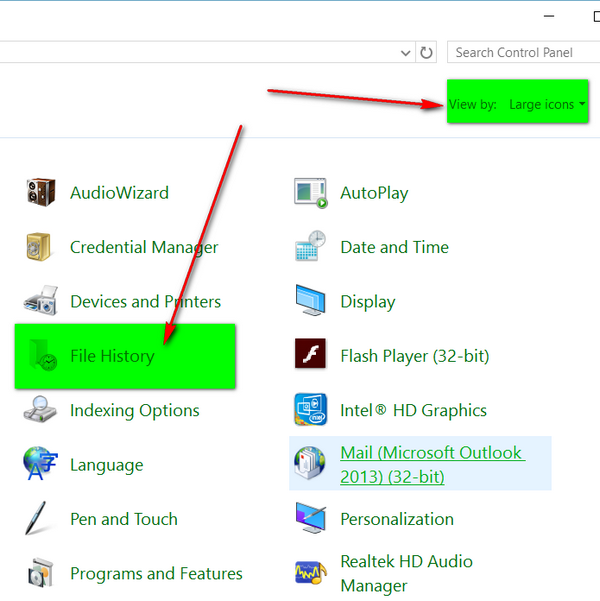
Right-click on your Windows 10 start button and click on Control Panel. If you are not already in Large icon view, switch to Large icons by selecting it in the View by: field (shown below highlighted in green). When you are in Large icons view you will have the contents of the Control Panel displayed as large icons (see below). Find ” File History (highlighted below) can click it.

Make sure your external hard drive is plugged in. Next click the button that says “Turn on”.

File history will find your external drive (mine is called Gulf (G:). See above. When it’s successfully connected and working you’ll see “File History is on” (see above next to the red arrow).
Once you turn on File History, Windows will make a snap shot of your libraries and other folders. Once it has completed making this snap shot, it will keep the snap shots updated by recording the changes anytime you make changes to any of the folders monitored by File History.
To restore a file from Fire History, navigate to the directory in which the file you accidentally deleted or changed and click “Home” (see below) then click on History (see below):

I turned on File History on this Windows 10 computer on Wednesday, August 12, 2015 at 7:43 AM. I have not made any changes to the Pictures folder since then so the only snapshot Windows has of this folder is the one that was created on that date. Today is August 16, 2015. I can restore any file or folder from the snapshot by selecting any file or folder …

And clicking the green button (which we call the time machine button). See below:

Well folks…that’s the basics of File History. You can fine tune File History, add folders to it and make changes to it by clicking the start button and opening Settings. In the Settings dialog click Update & Security and select “Backup” from the menu shown on the left pane. But that’s another tip for another day.
Turning File History on with its default settings should be OK for most users… and much better than not turning it on at all.
I have been needing to do that on this machine I have Windows 10 on. I can see that coming in handy for sure.
I was going to tell you I put Classic Shell back on for curiosity the other day and I did not leave it on long. That is a good way to find out how much you use things…lol. It was very nice on 8.1 Windows, but you were right , it did not take long to start missing that right click at “Start” and the other things in that start menu that I uninstalled it. I thought I might would leave it on for awhile just to try it in Windows 10. It got on my nerves. I could not believe how much I did miss Windows 10 start menu after I set it up the way I wanted it. You were right. It has a lot of customization and all these tips just help you find them sooner. I will say this again, Classic Shell is very good and I used it with Windows 8.1, but with all the customizing you have now in the Windows 10 start menu as you said to begin with and I have found out as I have went along I personally don’t think you need a program to do that any more either.
I hate to say this, but that is not like OS X Time Machine. If I have a failure, boot a disk tell it about time machine and I am up and running same hardware with a fixed drive or a whole new machine, apps data etc. Its both a comprehensive as well as file backup. I wish that Windows had that, that easy. You have to go and configure anything you use outside the Library as well, program things directories elsewhere. Its a big improvement glad they have it but they missed the mark again.
We never said in this article that File History (The Time Machine) is the ONLY way to recover your computer in the event of catastrophic failure.Windows 10 has other more powerful recovery tools such as System Refresh. System Refresh re-installs Windows while keeping all your personal files and apps. And if you want o reset your computer to its brand new stateFile History is not for recovering your computer in the case of a major computer disaster, it is for recovering a file you accidentally change or deleted or a file that has become corrupted for some reason. That’s the purpose of File History. The purpose of System Refresh is to recover from a major problem by reinstalling all your apps, personal files and folders, and Windows settings. Just wanted to clear up what the main purpose of file history is.
I think you’re missing the point. This isn’t a comprehensive backup similar to Time Machine at all. It ONLY backs up your Library folders. I have a second hard drive I use for storage that I want to automatically back up, but there is no way to do that in Windows 10, except “Storage Spaces” which requires a special filesystem. Time Machine can be set to back up ANY drive and it backs up every change to every file on that entire drive.
I was only using time machine (lowercase) to make a point. Not comparing it to backup programs or Apple’s Time Machine (uppercase).
Nowhere in the article did I infer that System Restore was a “backup”. In fact, System Restore backs up NOTHING, it uses Windows Volume Shadow Copy Service (see here )
I have no idea why you’re commenting on backup programs or even mentioning backup programs. System restore is not a back up program. It uses Volume Shadow Copy Service to allow you to go back to a previous point in time. It has been a feature of Windows since Windows ME. It does not replace, nor is it intended to replace a backup program.
I had Classic Shell in Windows 8.1, and as I said above I liked it. In Windows 10 I did not keep it installed that long “or long enough” and went through the program like I did in Windows 8.1. That was not really fair to Classic Shell. I did not give it the full potential that it deserved. My fault! It is free.
Another good one is Stardock Start10. You have 30 days to try it out. After that it is $4.99. They use PayPal. This program is very good to. Please don’t let $4.99 back you off from at least trying it for the 30 day’s. That start menu you use a lot.
Please try both and see what you think. If you don’t like neither one then go back to the Windows 10 start menu. All you have to do is uninstall each one of them. Did not cost you a thing to try them out but try them both, and keep each one on there for a while to know…
I am a Mac Bootcamp user searching for Windows Time Machine which brought me to your article. I never knew about this feature and have just been testing it out. It is faster than working off my Nas which has its own hourly backup system. Now I can work on my fast PCie Mac drive while File History takes snapshots every hour and stores them on the NAS (which also has an hourly backup to a third drive). This is productivity. Thanks!