

Zoom Power!
With Zoom Power, You Can Make Text Bigger or smaller When Reading Emails or Web Pages; Make Icons Bigger or Smaller on Your Desktop or in File Explorer.
This tip works in Windows 10 and Windows 11
Over the months and years we’ve been around, we’ve received hundreds of emails from people asking for help because the text and other items on webpages or emails have become too small to read comfortably, and asking us, “How can I make things bigger and easier to read?”
While each browser and email program has its own “view” options, Zoom Power will work on almost any browser or email program. So, it’s kind of like “one size fits all”, only this one-size-fits-all really does!
To enlarge the text in your email reading pane or when using your Web browser, hold down the CTRL key and move the mouse wheel away from you until the text is as large as you want it. You can also hold down the CTRL key and keep tapping the + (plus) key until the text is as big as you want it. This works when reading an email, as well as when composing an email. It also works on most web pages in most browsers.
If you want to make the text smaller, hold down the CTRL key and move the mouse wheel toward you. Or hold down the CTRL key and keep tapping the – (minus/dash) key until the font is the size you want it. As with making text larger, this works in most email programs when reading mail as well as when composing mail. It also works in most browsers on most web pages.
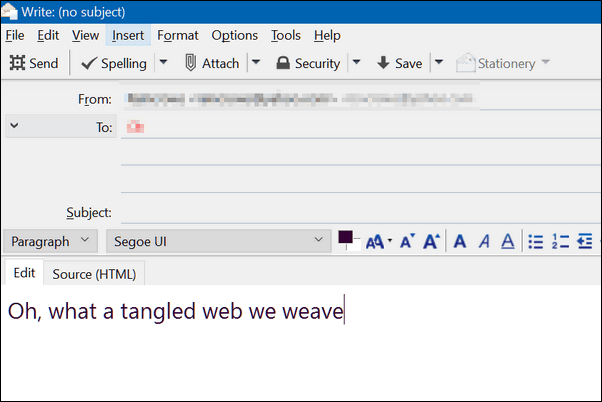
Above is the compose window in Thunderbird. The text is the normal size. But, my eyes are weary, and I’m having trouble reading that, so a little CTRL Key + moving the scroll wheel away from me (toward the screen) and look!
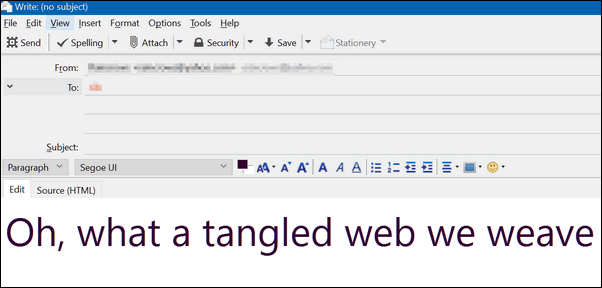
No matter how blurry my eyes were or where my glasses were, I could still read that!
And it works the same in the reading pane (window):
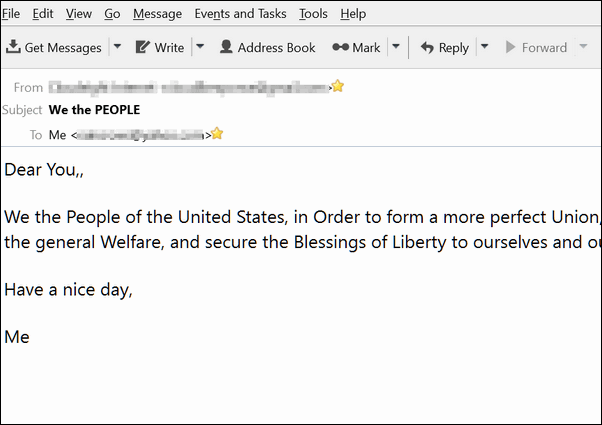
Above. I was feeling patriotic and decided to send myself the Preamble to the U.S. Constitution. But when I received it, sans glasses, I couldn’t read it very well. But then, a little Ctrl Key magic and… look ma! No more squinting!
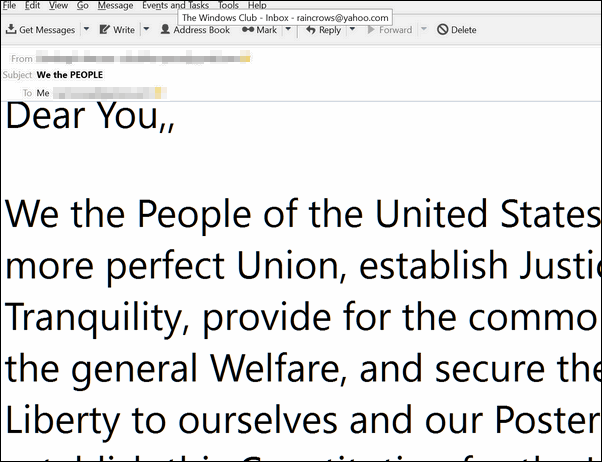
Now, look up there. See? Now I can see the double comma I didn’t realize was there.
So if you’re having problems reading or writing an email because the text is too small and you want a quick way to make it bigger, just use Zoom Power!
In Thunderbird (and some other email programs), the text will remain larger until you restart the programs. In most browsers, changing the text size as above only works for the current tab or Web page.
Note: When composing an email, you also make your font bigger in your email program’s options/settings. But be careful with this: If your recipient has normal vision your text may look HUGE to them if you change the font size in your email program. If you use the method above, the recipient will see the normal text size set in their email program, but you’ll see the text as big as you need it to be.
Zoom Power works in any browser, too!
This works in any browser, including Firefox, Chrome, Opera, Microsoft Edge, Brave, Vivaldi, and more. You can make page contents, including text, bigger or smaller using the Ctrl key and your mouse wheel.
Let’s use Zoom Power on some webpages…
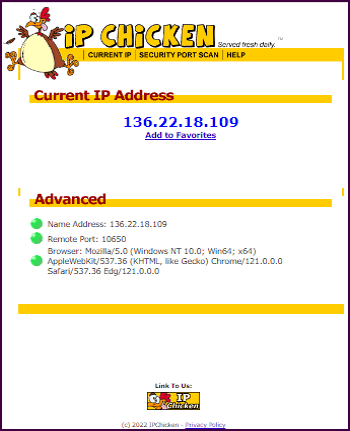

Here’s a site more familiar to you (we hope)…
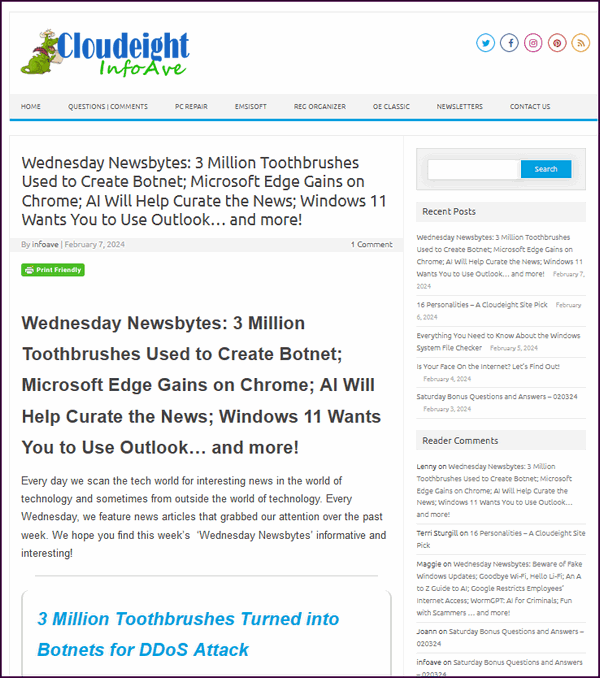
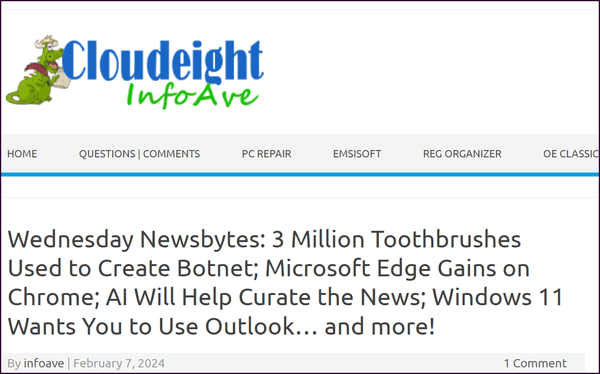
You can use Zoom Power on any webpage to make the text and images on it any size you want – from the minuscule to the magnificent. You can control the size of the items on any page using Zoom Power!
Did you know that you can use Zoom Power to make File Explorer or Desktop icons bigger (or smaller)?
Yes, you can! You can use CTRL + mouse wheel to make your desktop icons larger or smaller. You can also use the same method to change the size of icons in File Explorer. Check out the screenshots below:
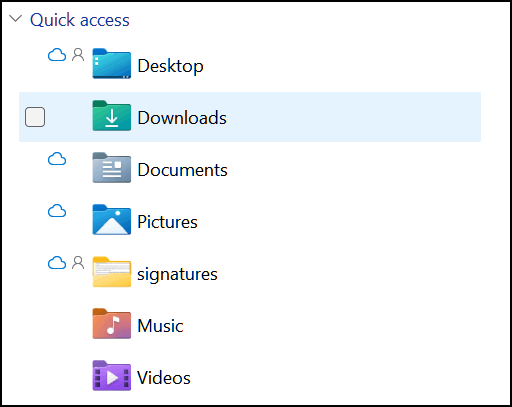
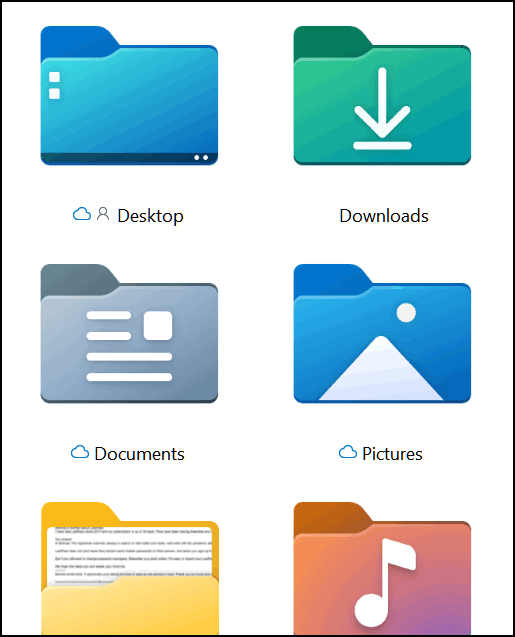
Above: Changing the size of icons in File Explorer.
Below: Changing the size of icons on the Desktop.
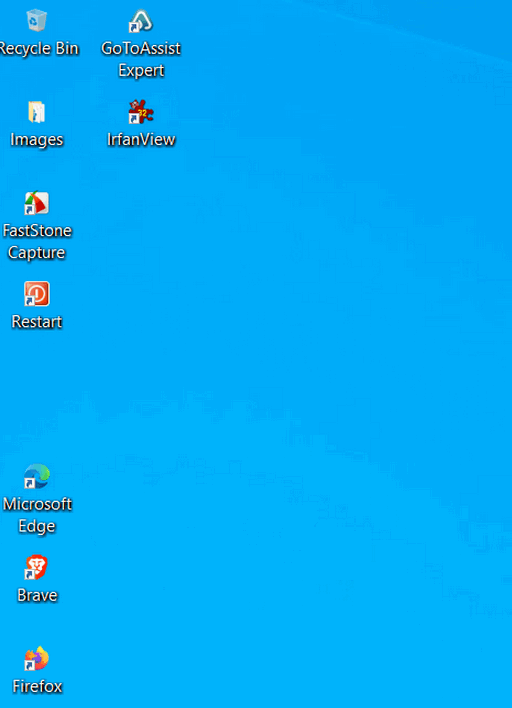
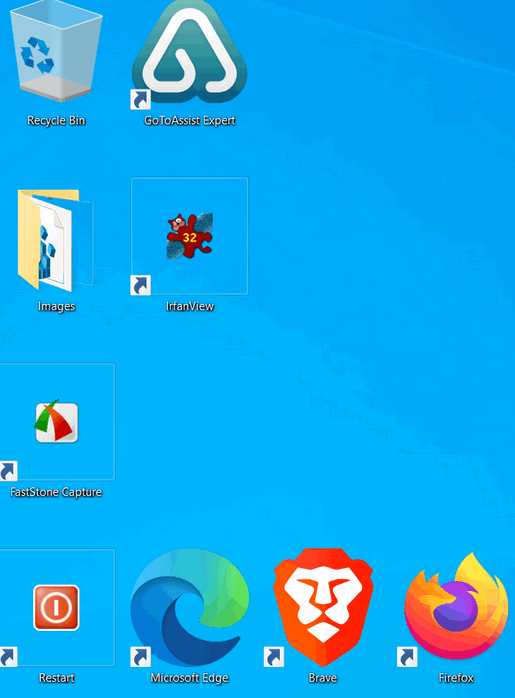
Now you know how to use Zoom Power to make the text and content in emails and web pages larger (or smaller). And how to use Zoom Power to increase or decrease the size of items in File Explorer and/or make your desktop icons bigger or smaller.
IYKYK 😊
Thank you for that tip!
Thank you for the lesson on how to make text larger. I also have the issue of in emails received from businesses that the text is very light instead of black text. How can I make the text darker in those emails?
Thank you, Carol
You can’t. You can only incease or decrease the brightness of your screen.
Copy the text in the email and paste it in a new email and make it darker to read Quick fix)
That’s an idaa. In some apps and browsers you can make the background black and the text white, also.
Would it not be simpler to increase the size of everything by adjusting a single setting; by going to Settings > System > Display and increasing the “Change the size of text, apps, and other items” from the default 100% to 125% or 150%?
Go ahead and try resizing text in Settings to a point as large as we showed in the Zoom article. Once you get past 150% you start having problems and your text size isn’t relative the program. You can only make the text a little bit larger then you run into many problems. Windows and many apps have fixed-size buttons and boxes. When the text grows, but the box doesn’t, the bottom or sides of the words get cut off. A “Submit” button might just look like a blue rectangle with a few stray lines in it, or the “Cancel” button might disappear entirely. In menus and on your desktop, words will start to climb on top of each other. You might see the date on your taskbar trying to occupy the same space as your open apps.Websites and windows that used to fit on one screen will suddenly require a lot of “thumb-work” on the mouse. You’ll find yourself scrolling horizontally (left to right) just to finish reading a single sentence. It makes reading difficult. Some older programs simply aren’t built for large text. The “X” to close a window might get pushed off the edge of the screen, or a “Save” dialog box might pop up with the “Save” button hidden somewhere below your taskbar where you can’t click it. But go ahead and try it and see.