

Saturday Bonus Questions and Answers – 122725

Wishing you a Happy, Healthy, and Peaceful NEW YEAR!
This will be our last edition of Bonus Questions and Answers for 2025. We both wish you and those you love a very Happy New Year.. And let’s not forget, of course, that today is Saturday, and it’s time for another edition of Saturday Bonus Questions and Answers.
Today, as we do every Saturday, we’re featuring some of the questions and answers from past issues of our InfoAve Weekly newsletters.
These questions & answers were selected at random from past InfoAve Weekly newsletters.

Christmas Holiday Sale
Cloudeight Direct Computer Care Repair Keys Are Just $39 Right Now!
You can get a Cloudeight Direct Computer Care Key for just $39 during our Christmas Holiday Sale! You save over 20% off our regular low price of $50. Your Cloudeight Direct Computer Care Repair key never expires; it’s good until you use it. It’s good for any computer repair that we can do remotely.
Buy a Cloudeight Direct Computer Care Repair Key for just $39 during our Christmas Holiday Sale!
Saturday Bonus Questions and Answers – 122725
Marie says her Windows 11 Start menu and taskbar/Start menu search do not work...
I am running Windows 11. The start menu does not open at all, and cannot type anything in the taskbar search. I have no idea how to correct this. Could you possibly help? Thank you, Marie.
Our answer
Hi Marie. Try this first. Turn off your computer using the power switch… and leave it off for five minutes. Make sure there are no power lights on. Then turn on your computer. Now see if your Start menu works.
If that does not work, try this…
Type CMD in the taskbar search and press Enter
When Command Prompt appears in the search results click on “Run as administrator.”
When the Command Prompt opens, type the following at the prompt…
SFC/ SCANNOW
and press Enter. Make sure you type it exactly as shown. The System File Checker takes from five to ten minutes to run. It will scan for missing/corrupted Windows files and try to replace any it finds. After the scan is complete. restart your computer and try your Start menu.
Still not working? Make sure your computer is up-to-date. Type Windows Update in the taskbar search and press Enter. When Windows Update opens, click on “Check for updates” and make sure your computer is up to date. If updates are installed and your computer has restarted, then try your Start menu.
More solutions…
If the problem started recently – say, within the past 2 weeks, try using System Restore. Type RSTRUI in the taskbar search and press Enter. This will start System Restore. Select “Choose a different date” and click “next. If there is a restore point available with a date that precedes the date your Start menu problems began, select it, and restore your computer to that date. You won’t lose anything except any programs you installed after that date.
The one solution that we’re sure will work is resetting Windows 11. A Windows 11 reset completely removes your Windows installation and reinstalls Windows, but keeps your personal files and folders. After a reset, you’ll need to reinstall any programs that did not come with Windows. A reset will fix your problems, but it is also the most time-consuming and work-intensive solution of all the possible solutions we’ve presented. If nothing else works for you, then we suggest you bite the bullet and follow the instructions on this page to reset your Windows 11 computer.
We hope this helps you, Marie.
Mildred’s taskbar search no longer works
Hi folks. I need a little help. My taskbar search doesn’t respond. I have done shutdowns. I can’t do a system restore as it doesn’t respond to create a restore point in the taskbar search. Am I making any sense? I still have a Computer care number. Thank you for all your help in the past and hopefully you have an answer for me… Mildred.
Our answer
Hi Mildred. This could be a difficult issue to solve. But let’s see if we can help you with this.
Here are some things you can try.
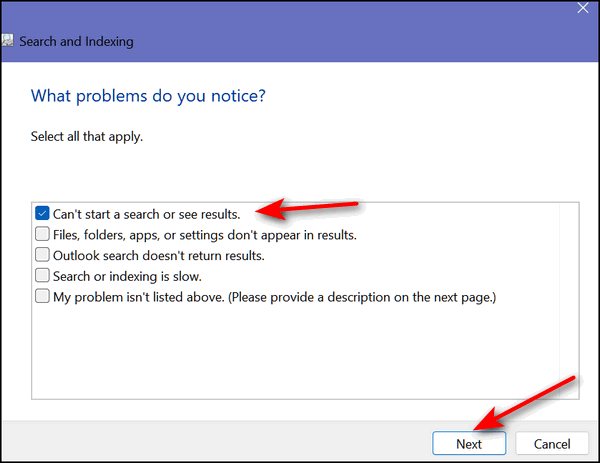
1. Run the Windows troubleshooter – Windows has a built-in troubleshooter that can help identify and fix issues with the taskbar search. To access it in Windows 10, open Settings > Update & Security > Troubleshoot > Search and Indexing. In Windows 11, open Settings then click on System > Troubleshoot > Other troubleshooters > Search and Indexing.
2. Reset Windows Search – resetting the Windows Search index can help fix issues with taskbar search. To do this, go to Settings > Search > Searching Windows > Advanced Search Indexer Settings > Troubleshoot Search and Indexing > Advanced > Rebuild.
3. Check for corrupt files – use the System File Checker (SFC) tool to scan for and repair corrupt system files. Open a Command Prompt as an administrator, type SFC /SCANNOW, and press Enter. You can also right-click on the Start button and click on Command Prompt (admin), PowerShell (admin), or Terminal (admin), depending on your computer configuration. In Command Prompt, PowerShell, or Terminal at the prompt type, SFC /SCANNOW and press Enter.
4. Disable third-party search software – if you have any third-party search software (like Everything Search) installed, try disabling it to see if it is interfering with the taskbar search functionality.
If none of these solutions work, you may need to reset your computer which means reinstalling Windows but keeping all your personal files (pictures, documents, music, videos) and you’ll need to re-install any software that didn’t come with Windows like Google Chrome, Emsisoft, etc.
Please let us know if this helps you – or if you need more help.
————
Mildred wrote back: “Thank you for the quick response. Reset Windows Search worked. Glad I didn’t have to do a computer reset. That scares the pants off me!! Thank you again ever so much. What would I do without you? Mildred”
Steve asks about OpenDNS
Hi. I’m curious about OpenDNS. Is it really as good as it claims?
Our answer
Hi Steve. We wrote about OpenDNS in 2013 (see this page). But that was nine years ago and as with computers and the Internet, nine years is a long time.
I just reviewed OpenDNS again and it looks to me like they’ve decided to be your guardian or censor, depending on how you look at it. Parental controls are fine as long as you decide what is appropriate and not someone else. Having someone else decide what’s appropriate never works out. The only free OPEN DNS service that you don’t have to sign up for is the free service where OpenDNS decides what you’ll see and what you won’t see. The free version with no sign-up is kind of like having someone else decide what books you can read and which books you’ll never see. Maybe you don’t want to see “Adult content” but who defines “adult content” for you? You or someone else? The free, no sign-up Open DNS option, decides for you… and is that ever a good idea?
We’ve tried several DNS services including OpenDNS, Google Public DNS, and Cloudflare’s 1.1.1.1 DNS. I think Cloudflare’s 1.1.1.1 DNS is the fastest, most private, and best. It’s also fairly easy to set up and you don’t have to give them any information or sign up for anything. We reviewed Cloudflare back in 2018 when it first came out. Today, I went back and took another look – and also set it up on the computer I am using. Again I was impressed.
So, if you want to know what DNS services do and/or if you would like to take a look at an alternative to OpenDNS, take a look at this article.

Christmas Holiday Sale
Computer Cleanup, Checkup & Optimization Service
During our special Christmas Holiday Sale, you can buy a Cloudeight Direct Computer Care Cleanup, Checkup, and Optimization service key for just $19! That’s right… for just $19…
** We’ll check your computer for malware and questionable programs
** We’ll check and optimize your startup programs
** We’ll check your computer performance to make sure your RAM and CPU usage are within normal ranges
** We’ll check to make sure your Windows settings are configured for the best performance and privacy.
** We’ll review your installed programs and make sure no questionable programs are installed.
Our Christmas Holiday Cleanup, Checkup, and Optimization can help ensure your computer is running at its best.
Take advantage of this special offer before it’s gone. Get all the details here.
Laura says Bing has taken over
Bing keeps taking over Google Chrome. Someone said I should use Restoro to check it out. Please do you have an answer? Thank you.
Our answer
Hi Laura. Bing is a Microsoft search engine. I am guessing you added a Bing toolbar (extension) or some other extension to Chrome that keeps switching your search engine. It could be a search engine hijacker.
Try this:
1. Type CHROME://EXTENSIONS in the Chrome address bar & press “Enter”
2. Disable or remove any extension that contains the word Bing or Search
You can also remove Bing from the list of search engines available in Chrome.
1. Type CHROME://SETTINGS/SEARCH in the Chrome address bar & press “Enter”
2. Make sure your default search engine is set to Google.
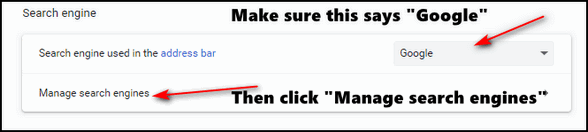
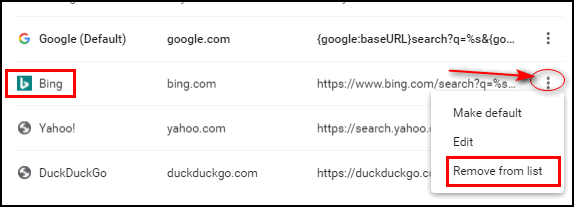
3. After you click “Manage search engines, you can remove Bing from the list of available search engines, if you choose to do so.
If the above doesn’t stop Bing, reset Chrome by following the instructions on this page.
Resetting Chrome returns Chrome to its defaults. Keep in mind, this does not remove bookmarks. It disables all extensions, clears Chrome history and cache, and restores Chrome to its factory defaults.
Restoro is malware in our opinion. It’s scammy and it can mess up your computer. Our advice is don’t use it. It’s certainly not the miracle cure it claims to be. If you have installed it, we recommend you uninstall it.
Mike’s friend sent him a tip on how to make his computer lightning-fast
How to kill Win 10 apps… A friend of mine found on the web how to disable all the extra apps on Win10 to trim his PC down to the bare minimum and reported blinding speeds as a result. Rather than search the internet, I thought I’d ask the experts – YOU! Where do you look to disable or even remove all the nonessential programs in Windows 10? A list of what to kill or keep and where to find those controls would be terrific.
Our answer
Hi Michael. There are a lot of myths going on here. Windows Store apps don’t use any resources when they’re not running. And you can stop any app from running in the background by going to Settings > Apps >Privacy >Background apps and turning the switch at the top under “Let apps run in the background” to “Off”.
Some people refer to desktop programs as apps. The only programs that generally affect performance are the ones starting with Windows. The only programs that need to start with Windows are programs like antivirus programs or programs necessary for an essential function like the computer’s sound. There are dozens of programs (many free) that help control startups. Generally, there should not be more than 4 or 5 programs starting with Windows.
Our two favorite programs to use to manage Windows startup programs are HiBit Uninstaller and Autoruns. You can also use Windows Task Manager to control start-ups. Hibit and Autoruns are more robust.
Cutting back on startup programs can make a big difference in computer performance, but “lightning-fast” is probably more due to having a lot of RAM than it is to turning off background apps and keeping startup programs to a minimum, although it’s always helpful to keep things under control.
Task Manager is also a good way to see what programs are using the most resources thus slowing down your computer. See this article.
And I can tell you this if a Windows 10 or Windows 11 PC has only 4GB of RAM, there’s no way on God’s green earth, that that computer is going to be lightning-fast no matter what do. The more programs you open the fewer resources you’ll have available. And most people don’t realize that with most browsers, each tab opens as a separate process. So having 20 browser tabs open will slow down any computer that doesn’t have enough installed RAM. We don’t suggest running Windows 10 or Windows 11 with less than 8 GB of RAM.
My $280 cheapie Windows 11 computer runs “lightning-fast” because it has 12 GB of RAM. And even with more than adequate RAM, I still don’t allow many programs starting with Windows
So, whenever I hear someone saying “Oh, you and do this and that and make your computer lightning fast” I raise my eyebrows and think “sure” – because this is the fallacy promoted by the many scammy One-Click-Wonder-Fix programs.
So, I guess, my answer isn’t what you wanted to hear, but we hope it’s helpful anyway.
——
Mike wrote back: “Brilliant answer TC! You’re the best! My friend does have heaps of RAM.”
Larry says his “webmail” adblocker no longer works
Hello, folks! I need some advice, and I know you computer wizards can help me. I used Web Ad Blocker for a long time, and it worked to block all the ads in all of my email programs (Outlook and Gmail), but then suddenly quit working. I uninstalled it and reinstalled it, and the ads continue to appear, especially in my Outlook mail. I remember you guys recommending this program and that is why I got it, and it has worked great for years. Reinstalling it did not help. Is Web Ad Blocker no longer viable? Is there another (easy) program that I could install to block ads in my mail, which are so distracting? Thank you both so much, I would be lost without you guys there to help and guide us old folks! I trust your judgment and know you will give me the best advice. Thank you, from your friend! Larry H.
Our answer
Hi Larry. Thanks so much.
We have never heard of a webmail ad blocker and we’re not familiar with “Web Ad Blocker” so we have no idea what’s going on with it. The only two ad blockers we’ve ever recommended are Privacy Badger and uBlock Origin. While we recommend installing them both, if you’re only going to install one, then you should install uBlock Origin. It will block ads on all web pages including on webmail pages.
You can read more about uBlock Origin here.
If you’re using Google Chrome, check out uBlock Origin Lite.
If you’re interested in adding the Privacy Badger extension to your browser also, see this page.
We hope this helps you, Larry.
Christmas Holiday Sale
Cloudeight Direct Computer Care Repair Keys Are Just $39 Right Now!
You can get a Cloudeight Direct Computer Care Key for just $39 during our Christmas Holiday Sale! You save over 20% off our regular low price of $50. Your Cloudeight Direct Computer Care Repair key never expires; it’s good until you use it. It’s good for any computer repair that we can do remotely.
Buy a Cloudeight Direct Computer Care Repair Key for just $39 during our Christmas Holiday Sale!
Dennis cannot figure out how to network his computers
I’ve tried and tried, but I cannot set up a network among our 3 computers. 2 are Windows 11 and the other is an old MS Surface running Windows 10. Can you recommend some kind of reading material in regular English (and illustrations won’t hurt) that will help this old fart accomplish something that I think most 3rd graders can do with ease?
Our answer
Hi Dennis. First, it’s not true (anymore) that networking computers is something any 3rd grader could do. Maybe back in the days when Windows still had “Homegroups”, but Windows 10 and Windows 11 do not. Networking is not simple anymore, it requires a lot of steps and some time. Before you attempt to network 3 computers, you should network the two Windows 11 computers and then add the Windows 10 computer, following similar steps. There are some differences between what you need to do in Windows 11 and what you need to do in Windows 10, but they are still similar.
It’s a lot easier to share files and folders between computers (file/folder sharing) than it is to network them. But since you asked, and since we are not going to get into writing guides for networking, we’re going to point you in the right direction. Here’s a guide that may help you. It shows how to network two computers – and that’s what you should do. Once the two are networked, you can then add the third.
To say that it’s so simple any third-grader could do it may have been true back in the days of “Homegroups” but it’s not that elementary anymore.
We hope this helps you, Dennis.
Doris says her Windows 10 Start button has disappeared from her taskbar
I hope you can help me with this. My start button on my taskbar has disappeared. Can you tell me how to find it? Or maybe you can do it for me? I am an old senior citizen and have a hard time following instructions. I have a Cloudeight Direct service key from 2017 which I can use. Thank you Doris G.
Our answer
Hi Doris. This may be something I would need to look at since I don’t know if you had your Windows 10 PC set up to look like Windows 7 or not. If you did and if Classic Shell was installed then we’d need to reinstall it or remove it and just go with the Windows 10 Start button.
But before we go through all of that, let me ask you to try two things for me:
#1. If you press the Windows key (it’s the key on the bottom of your keyboard with the Windows logo on it) – does your Start Menu open?
#2. Shut down your PC. Power it off completely. Make sure you hold the power button in for at least 30 seconds so all power is off and no lights on your computer are lit. Leave your computer off for at least 5 minutes – then turn it back on. Is your Start button there?
Let me know the answer to those 2 questions and we’ll go from there.
———
Doris wrote back: “Thanks so much! I turned my computer off for about 5 minutes and then turned it on, and the Start button was back on my taskbar. You two are great! Thanks again. Doris.”
Barbara says her computer screen is upside-down
How do I fix an upside-down display? My desktop screen turned upside-down this morning. HELP!
Our answer
Hi Barbara. There’s an easy fix. The works on any version of Windows including Windows 10 and Windows 11. You can make your upside-down screen right-side-up by holding down the CTRL+ALT keys and tapping the UP ARROW key on your keyboard.
We hope this helps you, Barbara.

Donate today and help us keep on helping you!
Please help us to keep on helping you!
When you support us with a small gift, you help us continue our mission to keep you informed, separate the truth from the hyperbole, and help you stay safer online. Plus, our computer tips make your computer easier to use.
Did you know that we provide support to thousands of people? Every week, we help dozens of people via email at no charge. The questions and answers you see in our newsletters are from the email answers and help we provide to everyone free of charge.
Thanks to your gifts, we do a lot more than provide this free newsletter. We help you recognize online threats, fight for your online privacy, provide you with the knowledge you need to navigate the Web safely, provide you with suggestions for safe, free software and websites, and help you get more out of your PC.
Please help us keep up the good fight with a small gift.
Interested in making an automatic monthly gift? Visit this page.
Please help us keep helping you… and help you stay safe on the Web.