

How to Turn On the Scareware Blocker in Microsoft Edge
We’ve all seen them: those terrifying pop-up alerts that scream your computer is infected with 47 viruses, or that your system is about to crash unless you call a toll-free “Microsoft Support” number immediately. Or even worse, it locks your screen and prevents you from doing anything on your computer (unless you’re very computer-savvy) until you pay the scammers to fix it.
This is scareware. Scareware is software designed to trick you into believing your computer has a major problem, so you buy useless or harmful apps or repair and cleanup services. It is one of the most common ways everyday computer users get scammed.
Thankfully, if you use Microsoft Edge, there is a built-in feature specifically designed to block these shady, low-reputation scareware sites and related apps before they even reach your machine. This feature is called “Scareware blocker
Today, we’re going to show you how to switch it on and keep your PC safer/
How to Turn on the Scareware blocker in Microsoft Edge
To activate this protection, follow these quick steps:
1. Open the Edge Settings menu:
Open Microsoft Edge. Click on the three dots (…) in the upper-right corner of your browser window and select Settings near the bottom of the drop-down menu.
2. Go to Privacy, Search, and Services:
In the left-hand sidebar, click on Privacy, search, and services (it has a lock icon next to it).
3. Scroll down to the Security section:
Scroll down the page until you find the Security heading. Under this section, locate the toggle switch labeled Scareware blocker.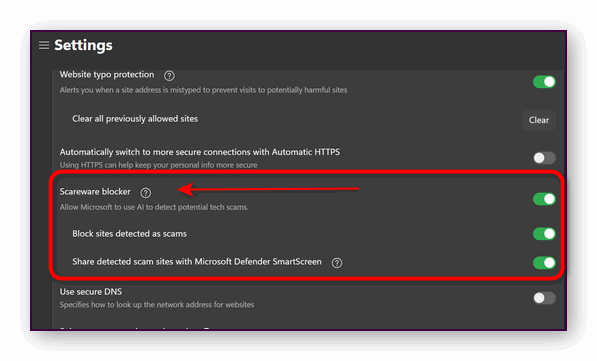
4. Toggle the main Scareware blocker switch to ON:
Click the toggle switch next to Scamware blocker so that it turns green – two additional settings, “Block sites detected as scams”, and “Share detected scam sites with Microsoft Defender Smartscreen”, will also turn on. If you don’t want to share scamware sites with Microsoft, you can turn that switch off.
However, remember that your screenshots and images remain strictly on your computer, as this analysis runs locally. The only thing Microsoft ever sees is the addresses of flagged scareware sites. This goes straight to Microsoft Defender SmartScreen so it can wave a red flag if you (or anyone else) try to visit them.
Take 30 seconds to turn on Edge’s Scareware blocker today—it is one of the easiest ways to save yourself a lot of grief down the road.