

The Emergency Restart Feature Hidden in Windows 11
We’ve all been there. The computer screen freezes, and nothing works. The keyboard is frozen, the screen is frozen, and the computer is non-responsive. So, the only thing we could do was shut down the PC using the power button and then restart. But there’s a new hidden feature in Windows 11 that makes it easier to restart when everything is frozen. It’s called “Emergency Restart”. Now you don’t have to use the power button to shut down the PC and risk data corruption. Windows 11’s “Emergency Restart” feature is accessible through the security screen.
Here’s How to Access the Security Screen
Press the Ctrl + Alt + Delete keys simultaneously.
This action should interrupt the frozen application and bring up the full-screen Windows security menu, which offers options like Task Manager, Sign Out, and Shutdown.
How to Trigger the Emergency Restart
Locate the Power icon (the circle with a vertical line) in the bottom-right corner of the screen.
Hold down the Control (Ctrl) key.
While holding Ctrl, click the Power icon.
A warning box will pop up confirming the action.
Confirm and Proceed
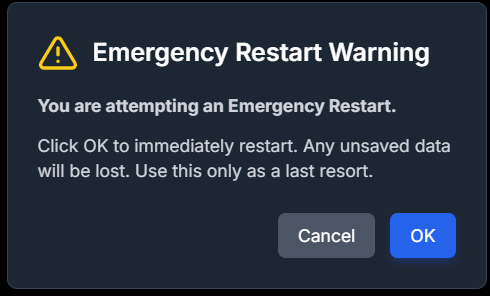
The warning will state: “Click OK to immediately restart. Any unsaved data will be lost. Use this only as a last resort.”
Click OK to execute the Emergency Restart. Your system will immediately reboot, hopefully resolving the issues that caused the freeze.
Now you know all about the new Windows 11 restart feature, let’s hope you never have to use it!
This is an excellent tip, and I could have used it the other day. I came back to my sleeping computer, and it would not come out of sleep mode. I wiggled the mouse and tapped the space bar, and still faced a black screen. Contort + Alt + Delete brought up nothing I could click. Finally, I used the power button and shut off the system. I actually didn’t SEE the little icons on the bottom right side but perhaps they would have worked. The computer has been fine sine (probably getting old!) but I really appreciate having a new way to get out of a jam!
I’ll give this a serious look. I’ve been dealing with a game that locks my computer up like Ft. Knox. Ctrl-Alt-Delete does nothing, have to power cycle. Any suggestions if that Emergency Restart option isn’t given as an option? Win11 system. Thanks for all the great work you do!