

Why You Should Turn Off Windows 11 Notifications
Imagine if you had a loudspeaker system installed in your house, and a booming voice blared out a notification every single time someone turned on a faucet, turned on the stove, or opened the refrigerator. Not only would it drive you absolutely crazy within an hour, but it would also make you wonder: Who on earth is monitoring my house close enough to know all of that?
Yet, that is exactly what Microsoft Windows 11 does by default. It constantly chimes and pops up little boxes to tell you about things you don’t need to know, from random news stories to tips on features you will never use.
Worse yet, to send you those notifications, Windows has to constantly monitor your activity in the background. If you want to reclaim your peace of mind, quiet your PC, and get a little bit of your privacy back, here is how to turn those annoying notifications off for good.
How to Turn Off Notifications in Windows 11
Microsoft doesn’t make it obvious, but you can silence the entire notifications system with just a couple of clicks.
Press the Windows Key + I on your keyboard to instantly open your Settings app.
Click on System (the top option on the left menu).
On the right side, click on Notifications.
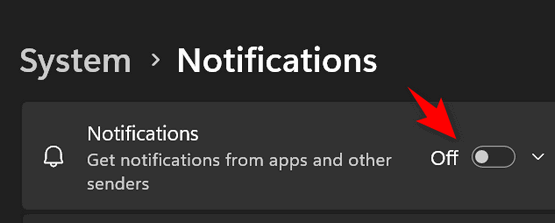
Right at the very top, you will see a master toggle switch labeled Notifications.
Flip that switch to OFF.
Once you turn off the master switch, Windows stops the pop-ups. But as long as you are on that settings page, let’s scroll all the way to the bottom and uncheck three hidden boxes that Microsoft uses to nose into your business.
Click on Additional settings at the bottom and uncheck these three options:
* Show the Windows welcome experience after updates and when signed in to show what’s new and suggested.
* Show ways to get the most out of Windows and finish setting up this device.
* Get tips and suggestions when using Windows.
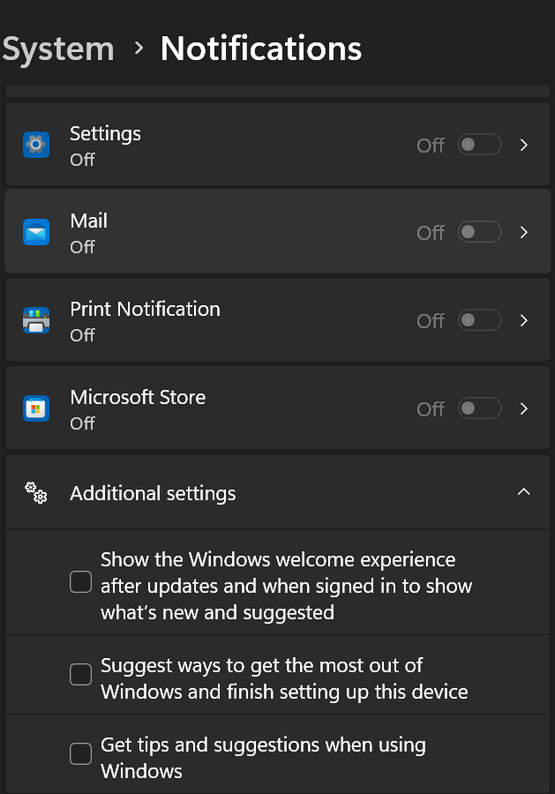
By unchecking these, you are telling Windows to stop tracking how you use your computer under the guise of sending you “helpful tips” or advertising Microsoft products.
What If I Want Notifications from Just One or Two Apps?
If you completely turn off notifications, you might miss a legitimate email or a calendar reminder. If you want to keep those but block all the junk, leave the master switch ON, and simply scroll down the page to the section called “Notifications from apps and other senders.”
Here, you will see a list of every app on your computer. You can go down the list and surgically turn OFF the real troublemakers (like the Microsoft Store, your web browser, or built-in games) while leaving your Email or Calendar turned ON.
Your computer should be a tool that works for you, not a digital busy-body that constantly begs for your attention. Take two minutes to shut those notifications down and enjoy a quieter, more private PC!