

One of Windows 11’s Best Hidden Features: Real-Time Live Captions for Everything
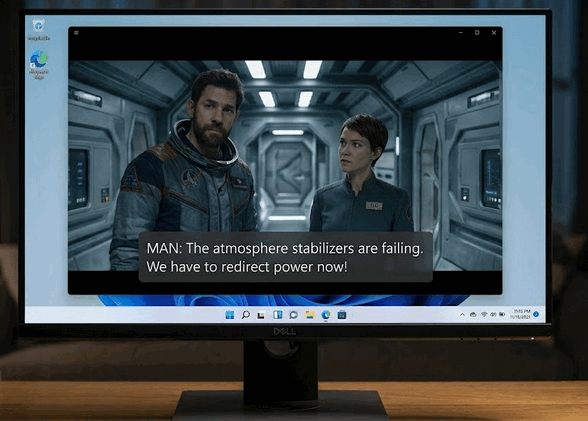
Have you ever struggled to hear what someone is saying in a video on your computer? Maybe your computer’s built-in speakers are tiny and tinny, or maybe your hearing just isn’t what it used to be. Or perhaps you’re trying to watch a video late at night without disturbing your spouse or housemates by turning the volume way up.
Whatever the reason, Microsoft includes a very useful feature in Windows 11 that almost nobody knows about: Live Captions. Unlike regular closed captions—which rely on YouTube or a video player to provide subtitles—Windows 11’s Live Captions work system-wide. That means it creates live, automatic subtitles (captions) for any audio playing on your PC in real time!
Windows 11 Live Captions Are a Game-Changer!
Windows 11 Captions can help when:
Your Hearing Isn’t What It Used to Be:
Dialogue in movies, news broadcasts, or video calls can often sound muffled or rushed. Live Captions give you clear, instant text on your screen so you never miss a word.
Watching videos, movies, or news broadcasts in quiet environments:
Need to keep the volume down so you don’t bother anyone nearby? Mute your sound completely and simply read along on screen!
If your computer speakers aren’t what they should be:
Many laptop and desktop speakers lack clarity and bass, making speech sound muddy. Live Captions bypass bad hardware entirely by displaying the text right over your screen.
Windows Captions is a great Windows 11 feature that is 100% private and works offline.
Windows processes the captions right on your device. Nothing is sent to the internet, keeping your audio private while allowing it to work even without a network connection!
How to Turn On Live Captions (The Easy Way)
The fastest way to turn Live Captions on or off is with a simple keyboard shortcut. Press Windows Key + Ctrl + L on your keyboard.
Note: The first time you turn it on, Windows will quickly download a tiny speech pack (this takes about a minute). Once downloaded, a neat black bar will appear at the top or bottom of your screen.
Now, play any video, podcast, or audio file—even a video call—and watch as Windows transcribes the words onto your screen live!
You can customize it to suit your eyes!
You can customize how the captions look so they are comfortable for you to read
Change Position: Click the little Settings gear icon on the caption bar to move the bar to the top of your screen, bottom of your screen, or set it as a floating box you can drag anywhere.
Change Text Style: In the settings, you can choose Large text, Yellow on blue, or custom colors to make the words easier to read.
Give Windows Key + Ctrl + L a try today—it’s one of the most useful features of Windows 11.
Cool! It works nicely. Some shows have a tendency to whisper and this will help lots.
it d/l but when I went to a video nothing. is there another step I missed?
windows key + ctl + L brings me to the start page again … what am I doing incorrectly ?