

Saturday Bonus Questions and Answers – 011726
Spring is just a dream here. We keep getting pounded with snow and sub-freezing temperatures. Hey, at least it’s staying lligt outside until 5:30 PM. That’s better than 4:55 PM last month. Despite the snow and cold, today, as we do every Saturday, we’re featuring some of the questions and answers from past issues of our InfoAve Weekly newsletters.
These questions & answers were selected at random from past InfoAve Weekly newsletters.
Please consider giving us a helping hand!
If our computer support & help, or our tips and tricks, have helped you or made your computer life easier or more productive, please consider helping us with a small donation. Your gifts enable us to continue helping you. Take a moment and help us if you can.

Donate today and help us keep helping you!
Saturday Bonus Questions and Answers – 011726
Ellie wants to switch her default browser to Microsoft Edge
I have Windows 10. I would like to switch my default browser to Microsoft Edge. How can I change my default to Edge? And one more question, once I switch to Edge, how do I make it open to your Cloudeight Start page like I have been in Chrome? I love your start page. It’s simple, informative, and not full of ads. Thank you… Ellie
Our answer
Hi Ellie. Thanks so much for using our Start page and for your nice comments.
In Windows 10 just type DEFAULT APPS in the taskbar search and press “Enter” or click “Open” when Default apps appears in the search results. On the “Default apps” page, click Google Chrome under Web browser and a list of other browsers currently installed on your computer will appear. Since Edge is installed on all Windows 10 computers, just click on “Microsoft Edge” to set it as your default browser. That’s all there is to it.
You can set our Start page as the home (start) page in any browser, including Edge. Here’s how to set a home page (start page) in Edge.
Click on Edge’s settings icon (3 dots) in the top-right corner. From the drop-down settings menu select “Settings”.
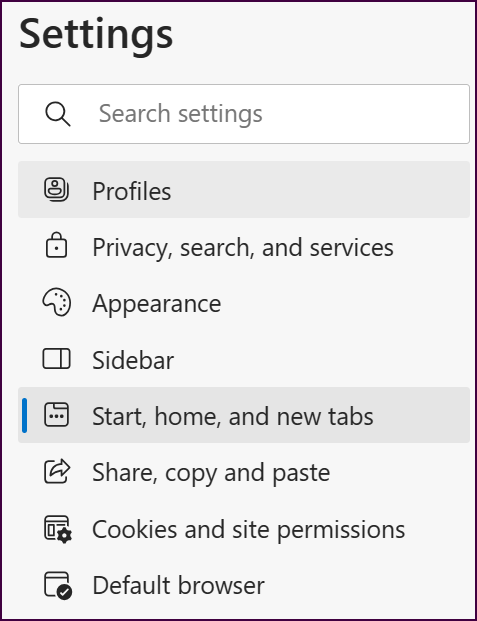
From the “Settings” menu, click on “Start, home and new tabs”.
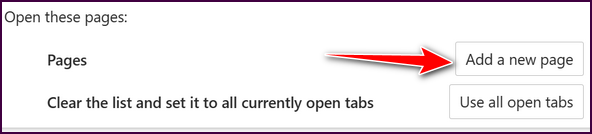
Under “Open these pages” click “Add a new page”.
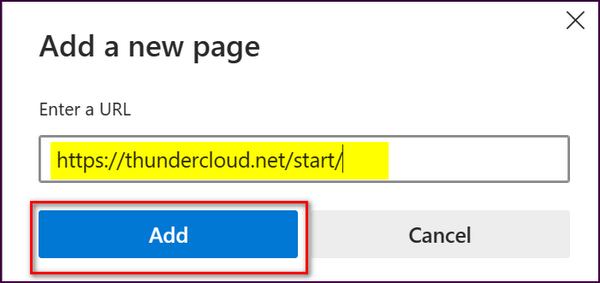
In the “Add a new page” dialog type the URL (Website address) under “Enter a URL”. Our Start page URL is https://thundercloud.net/start/.You can also copy the URL from here or from the browser’s address bar and paste it in to add a new page. Once you have entered the URL, click the “Add” button.
And that’s how you set a Start page in Microsoft Edge.
We hope this helps you, Ellie.
Rich wants to know how to add another Gmail account
God Bless you both (EB/TC). I have been a follower and user of your helpful instructions, and I remember you had sent out instructions on how to “correctly” add a 2nd or 3rd Gmail email to my Gmail account… would you please send me a link to that page so I can print it out? I also want to give a copy to a friend. God bless you and yours. Rich
Our answer
Thanks so much for your kind words and your support.
As for your question, here you go… here’s our tutorial showing you how to correctly create additional Gmail accounts and access them from your main Gmail account.
We hope this helps you… and your friend!
Hi guys. Love your newsletters but after a recent experience, I have to say, I’m not too happy with Emsisoft. I was browsing the web when a warning popped up, a malware scanner showed that my computer was infected with over 300 viruses. For $99, they cleaned up my computer, and I’m not very happy that my computer was infected. What’s going on with Emsisoft?
Our answer
Hi Chet. Since we’ve been recommending Emsisoft (eleven years now) we’ve never seen a computer protected by Emsisoft with a virus. What you saw was a scam pop-up saying your computer is infected and you need to:
A. Download something (malware)
or
B. Call a telephone number for help getting rid of all those viruses (scam)
or
C. Run a fake scanner that reveals you have hundreds of malware files or viruses.
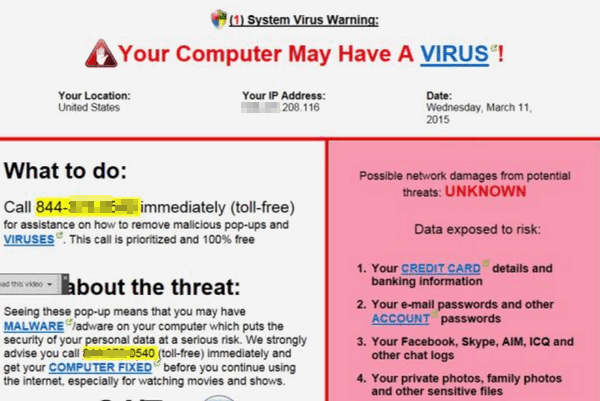
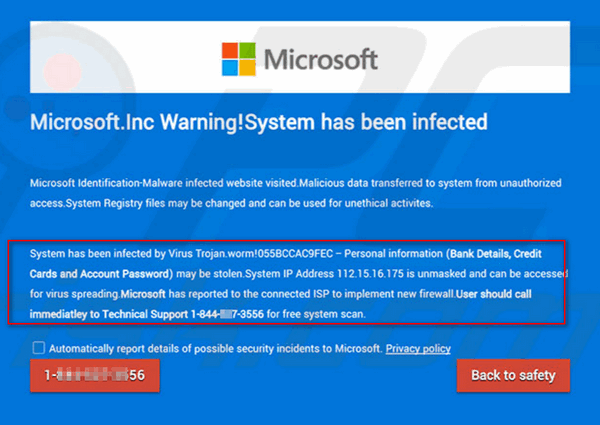
I’m guessing you chose option “C” or the fake scanner ran automatically without any action on your part. Most of these “scanners” are just animations; they don’t scan anything. And of course, after you paid the $99, another fake scanner ran, showing your computer free of malware and viruses. If you’ve seen something like or similar to these warnings (see the images below), which can appear as a pop-up that seems to come from your computer (it doesn’t) or seems to take over your browser (it doesn’t) then you’re not seeing a real warning, you’re seeing an advertisement for scam software or tech support.
You can only get rid of these kinds of ads by clearing your browser’s history & cache. See this page to learn how to do this:
 <
< 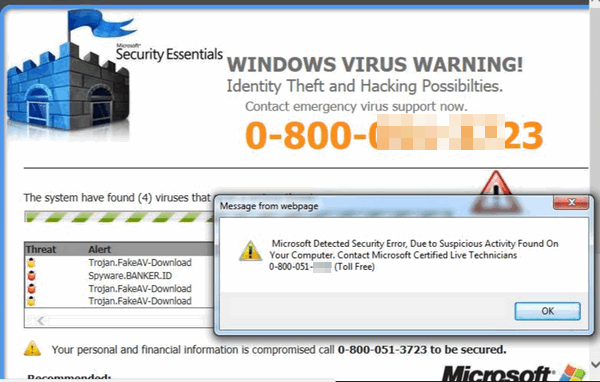 <
< 
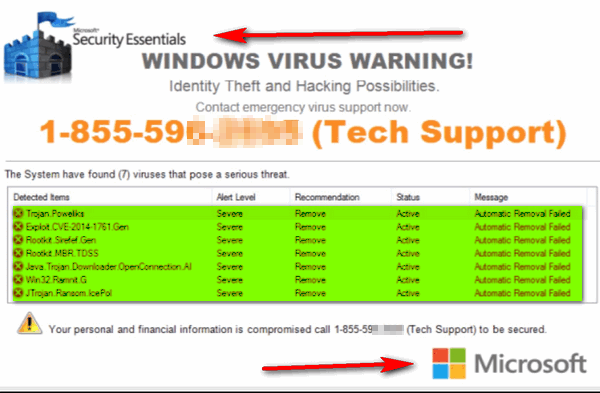
If you’ve received a message that your computer is infected and you need to take action – you don’t have a virus or a Trojan – scammers are attempting to sell you something.< We hope this helps you better understand what’s going on. Emsisoft protects your computer from malware and viruses, but it’s not an ad blocker. If you’re looking for a good free ad blocker, see this page. Emsisoft didn’t let you down – you were scammed. You should call your credit card company and see if you can get your $99 back since you were scammed.


Would you be interested in making an automatic monthly gift? Visit this page. Please help us keep on helping you… and help us keep you safe on the Web.
Karen downloads things and then can’t find them…
I download stuff, and I can never find it. Please help. Plus, how can I get the icons on the front page?
Our answer
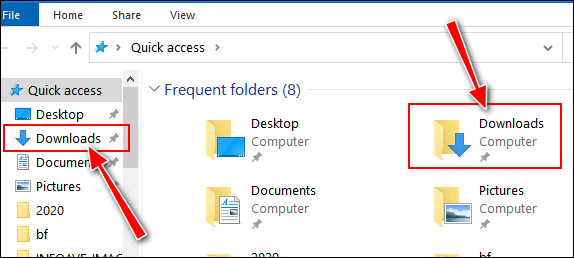
Hi Karen. Unless you have changed the default settings, all downloads go to your Downloads folder. Press & hold down the Windows key and tap the E key. The Downloads folder shows up in the left column as well as in the right pane. See the screenshot below.
I am not sure what you mean by getting icons on the front page… do you mean your desktop? Generally, you can put a shortcut to any file, program, or folder by right-clicking on the file, folder, or program, and choosing “Send to > Desktop (Create shortcut) from the menu that appears when you right-click an item. Here’s an annotated screenshot.
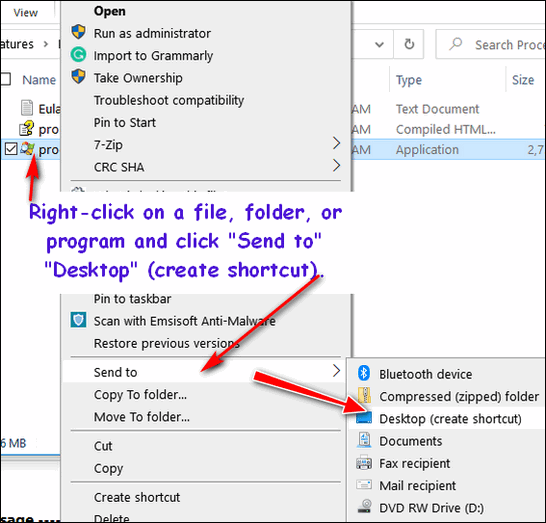
Or you can use the CTRL+J shortcut to locate recently downloaded files.
I hope this helps you, Karen.
John is being inundated with Norton and McAfee ads
Hello. I am being inundated by Norton and McAfee to renew my antivirus several times a day; I have used neither one in years. Norton told me I had five viruses, the next day ten, and one day later three. I use only Emsisoft and am clear of malware. I thought Norton was a legitimate antivirus distributor and would not resort to those tactics. Is there a way to block them? Thank you, John.
Our answer
Hi John. It’s not McAfee or Norton spawning these ads. Most likely, you’ve installed and allowed a browser extension that spews ads for Norton / McAfee.
You need to reset your browser, disable all extensions, and clear your browser’s history.
I don’t know what browser you’re using, so here is our page explaining how to reset the most popular browsers.
Conrad wants to control his computer’s sound with his keyboard
I have a Keytronic Lifetime Series Keyboard. LT Classic II. It has no ‘sound key’ to turn off the computer speakers in case of a loud annoying video presentation. I can’t always quickly silence the noise using the speaker icon on the taskbar. I would like to have a keystroke to silence the loud noise. Is there a way to program one of the lesser-used keys on my keyboard to use as a quick way to cancel the loud noise? Thank you, Conrad.
Our answer
Hi Conrad. All keyboards are different so I can’t answer what keyboard combinations on your keyboard would mute your computer’s sound. But I can tell you that just about every browser allows you to mute a site just by right-clicking on its tab. In Edge or Firefox – right-click on the tab you want to mute and click “Mute tab”. In Chrome, right-click on the tab you want to mute and click “Mute site”.
If you want to use keyboard key combinations to mute the volume on your computer, there’s a free utility from Nirsoft (a good and trustworthy developer) called SoundVolumeView. Here’s a bit about the utility from the developer’s page…
Start Using SoundVolumeView
SoundVolumeView doesn’t require any installation process or additional dll files. To start using it, simply run the executable file – SoundVolumeView.exe
After running SoundVolumeView, the main window displays all sound items found in your systems. There are 3 types of items: devices, subunits, and application volume.
For every item, the current volume level is displayed in percent units. For devices and subunits, the volume level is also displayed in Decibel. For subunits, the volume level is displayed for every channel separately.
Increase/Decrease/Mute Volume
In the main window of SoundVolumeView, you can select one or more items, and then mute, unmute, increase, or decrease the volume of selected items, using accelerator keys:
Mute – F7
Unmute – F8
Mute/Unmute switch – F9
Decrease volume 1% – Ctrl+1
Increase volume 1% – Ctrl+2
Decrease volume 5% – Ctrl+3
Increase volume 5% – Ctrl+4
Decrease volume 10% – Ctrl+5
Increase volume 10% – Ctrl+6
If this sounds like something you’d like to look at see this page.
We hope this helps you, Conrad.
——
Conrad wrote back: “Hello TC. Thanks for the response and suggestions. The Mute/Unmute tab in Firefox worked great. I never knew that feature was available. I’m using the Nirsoft utility now. I followed the help file “How to create a shortcut to mute and unmute your web browser on Windows”. From the shortcut, I created a ‘Shortcut key’ Ctrl + Shift + 1′. It has about a one-second delay before the sound deadens but otherwise, it does the job well. Thanks again for your help. Conrad.

Now available: Reg Organizer 9.88
If you purchased or renewed Reg Organizer through Cloudeight within the last 12 months, you’re entitled to a free version upgrade to Reg Organizer 9.40. It works great with Windows 10 and Windows 11!
Save $14 on Reg Organizer right now!
Reg Organizer – A Swiss Army Knife of Windows Tools – Works Great on Windows 10 and 11!
Donate today and help us keep on helping you!
Please help us to keep on helping you!
When you support us with a small gift, you help us continue our mission to keep you informed, separate the truth from the hyperbole, and help you stay safer online. Plus, our computer tips make your computer easier to use.
Did you know that we provide support to thousands of people? Every week we help dozens of people via email at no charge. The questions and answers you see in our newsletters are from the email answers and help we provide to everyone free of charge.
Thanks to your gifts, we do a lot more than provide this free newsletter. We help you recognize online threats, fight for your online privacy, provide you with the knowledge you need to navigate the Web safely, provide you with suggestions for safe, free software and websites, and help you get more out of your PC.
Please help us keep up the good fight with a small gift.
Interested in making an automatic monthly gift? Visit this page.
Please help us keep helping you… and help you stay safe on the Web.
HI TC & Darcy,
I have just bought a new Windows 11 laptop and was examining the improved Clipboard History. It works well except when I paste the emoji they are all in black and white and not coloured. Is there an explanation for this. Cheers
Norris