Troubleshoot Browser Problems the Easy Way
Whether you use Google Chrome, Microsoft Edge, or Mozilla Firefox, you can troubleshoot browser problems the easy way by using the browser’s private mode—Incognito mode (Chrome), InPrivate mode (Edge), or Private mode (Firefox).
Google Chrome
Open Chrome as you normally do. Once Chrome is open, use the CTRL+SHIFT+N keyboard shortcut to open a new Chrome Incognito window.
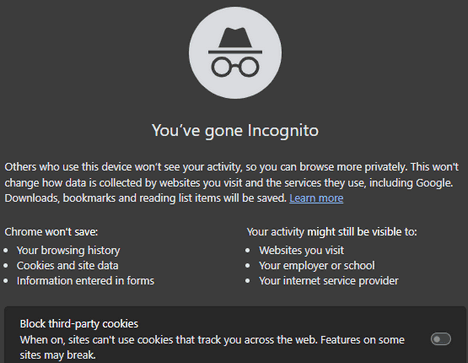
Above: Chrome in Incognito mode.
Microsoft Edge
Right-click on the Microsoft Edge shortcut and choose “New InPrivate window”.
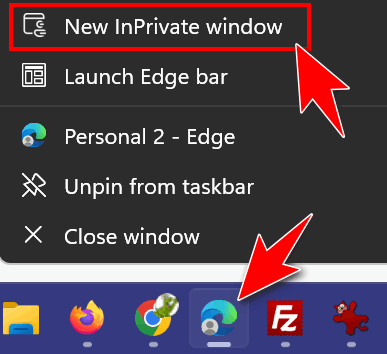
Above: Opening Edge in “InPrivate” mode.
Mozilla Firefox
Right-click on a Mozilla Firefox shortcut and choose “New private window”.

Above: Opening Firefox in its Private mode
Incognito mode in Google Chrome, InPrivate mode in Edge, and Private mode in Firefox disable all extensions/add-ons except those you have explicitly chosen to allow in your browser’s private mode.
Try browsing in your browser’s private mode for a few minutes and see if you still have problems. If you don’t have any problems with your browser in its private mode, then there’s a good chance that one of your extensions is causing your problem(s).
You can disable each extension, one at a time, until you find the culprit that’s causing your problem(s). You can then leave the extension disabled, remove it, or check for an updated version.
BONUS!
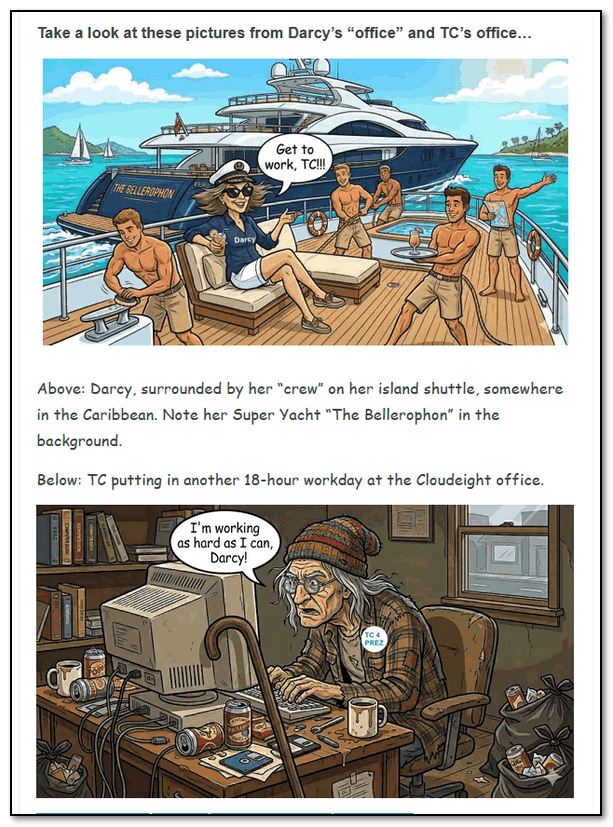
A sneak peek inside the Cloudeight offices!