

Windows 11’s New “Point-in-Time Restore”: Is It Better Than System Restore?
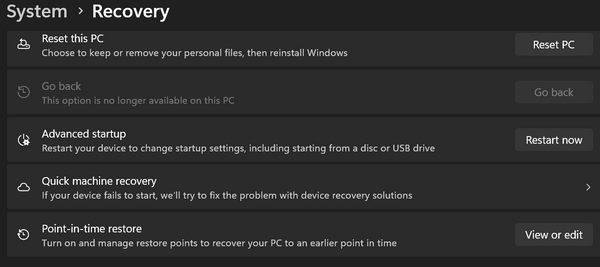
Recovery features are like insurance for your PC — you don’t think about them until you need them. For over two decades, System Restore has been a somewhat trusty “undo button” that rolls back Windows without touching any personal files. Windows 11 recently introduced a new feature called Point-in-Time Restore. Here is what it does and how it compares.
Microsoft silently introduced a new feature in Windows 11 called Point-in-Time Restore. It does not replace the old System Restore many of you are familiar with; rather, it provides yet another option to recover from a computer disaster. We wanted to make sure that you’re aware of it, what it does, and how it works.
What Makes Point-in-Time Restore Different from System Restore?
-
Automatic Daily Snapshots: Point-in-Time Restore automatically creates a snapshot every 24 hours, whereas System Restore relies on major updates or manual creation.
-
More Thorough Rewind: System Restore only rolls back system files and settings. Point-in-Time Restore also removes apps installed and personal files created after the snapshot.
-
72-Hour Window: Snapshots auto-delete after 3 days to save space.
- Point-in-Time is Enabled by Default: Point-in-time is enabled on most PCs with at least 200 GB of storage. Windows System Restore is not.
How to Adjust Storage Settings
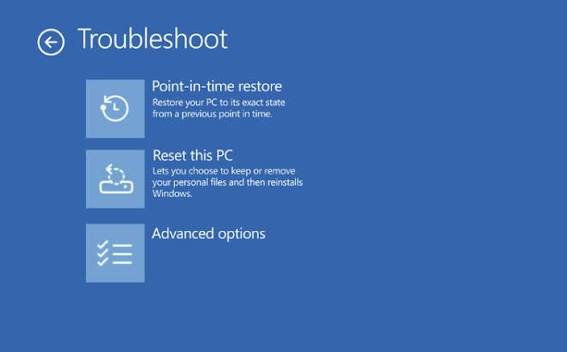
How to Run a Point-in-Time Restore
-
Hold Shift while clicking Restart in the Start Menu to enter Recovery Mode.
-
Select Troubleshoot > Point-in-Time Restore.
-
Have your BitLocker key ready if encrypted, choose a restore point, and follow the prompts.
Quick Comparison
-
Storage: System Restore keeps points as long as storage allows (good for old issues but bad for disk space). Point-in-Time Restore deletes points after 72 hours (best for immediate fixes and saving drive space).
-
Launch Method: System Restore runs directly from Windows; Point-in-Time Restore requires Recovery Mode.
Our Advice: Keep both enabled for maximum protection.