

How to Close a Frozen Program with Just Two Clicks
Have you ever had one of those Windows moments where a program freezes up on you? Maybe it’s a browser tab that decided to stop responding or a game that’s taking up a bit too much of your computer’s resources.
Usually, when that happens, the little “X” in the corner does nothing. We’ve all been taught to open the Task Manager, find the culprit, and right-click on it and choose End Task to shut it down. It works, but it’s not quick and easy, is it?
Well, I stumbled across a little surprise today that makes Windows life just a little bit easier!
The “Two-Click” Solution to a Frozen Program
Microsoft has added a smart new feature that lets you “End Task” right from your taskbar. No more hunting through the Task Manager. If an app is acting up, you just:
-
Right-click the app’s icon on your taskbar.
-
Click End Task.
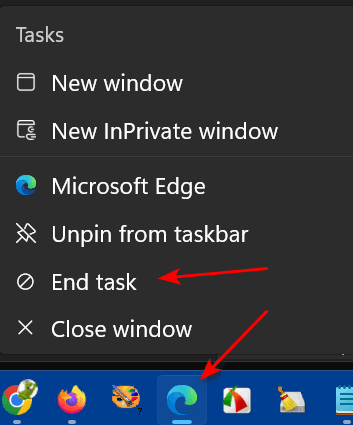
And just like that, the stubborn program is gone!
How to Turn It On
This feature might not be turned on by default on your computer yet. I’m not sure exactly which update brought it to my computer, but I’m glad it’s here. If you don’t see the option when you right-click, here is how you can enable it:
-
Open the Settings app (click your Start button and then the little gear icon).
-
Go to System and then click on Advanced.
-
Look for the toggle that says “Enable end task in taskbar by right click” and switch it to On.
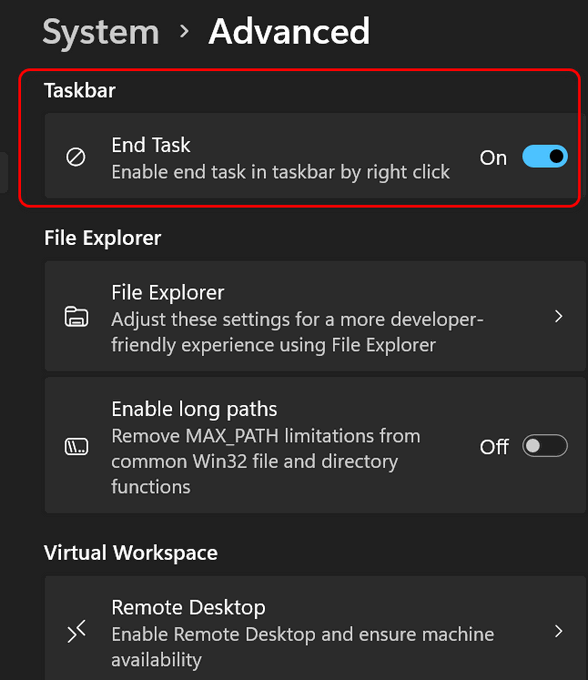
(Note: In some versions of Windows 11, you might find this under “System > For Developers” instead—don’t let the word “Developer” scare you; it’s perfectly safe for everyone to use.)
It’s a quick and easy change, but it really saves time when a program or app decides to act up and be difficult.
I’ll be using this tip a lot. I bet you will be too.