

Print a List of the Contents of Any Folder
Add “Print Directory Listing” to Your Right-click Menu
How nice would it be if you could right-click any folder and be able to print a list of all the files and folders inside it?
Today, we’re going to make it easy for you to add “Print Directory” to your right-click menu and once you do, all you need to do is right-click on a folder and choose Print Directory and you’ll be able to print a list of all the files and folders in that directory (folder).
To add “Print directory” to your right-click menu, download this zip file. The file contains two files: Printdir.bat and PrintDirectory.reg.
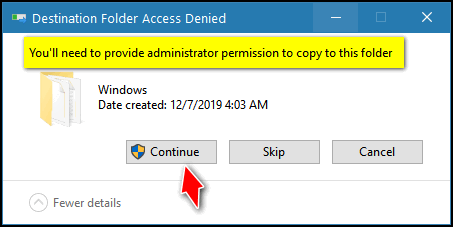
Unzip the zip file and copy Printdir.bat to C:\Windows. You may get a warning saying you’ll need administrator privileges to copy to this folder. If you do, click “Continue”.
Next, double-click on PrintDirectoryListing.reg file. You’ll get a warning about editing the registry – when Windows asks if you want to continue, click “Yes”.
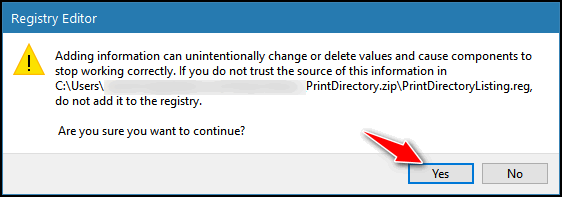
Click Yes. After you copied the BAT file and run the reg file, you’ll have Print Directory Listing in your right-click menu when you right-click on any folder.
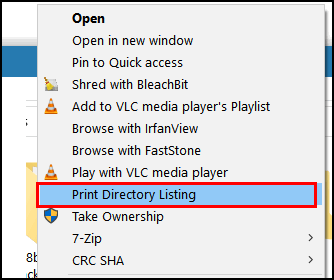
Select “Print Directory Listing” to print a list of the contents of any folder.
When trying this right click on any folder didn’t work it said this article not found, tried folders on D drive and C drive all the same.
Same for me Brian – When I right click a folder and then select “Print Directory Listing”, an error message comes up saying “Application not found”.
My apologies, I left a file out of the zip file and a very important step out of the instructions. I’m sorry… the zip file and the article have been corrected. You’ll need to re-download the zip file and perform one additional step. All should work fine then. Please go back to the article and follow the corrected instructions.
Same for me Brian – When I right click a folder and then select “Print Directory Listing”, an error message comes up saying “Application not found”.
My apologies, I left a file out of the zip file and a very important step out of the instructions. I’m sorry… the zip file and the article have been corrected. You’ll need to re-download the zip file and perform one additional step. All should work fine then. Please go back to the article and follow the corrected instructions.
I went through the above process and it did add Print Directory Listing to my right click menu on a file folder. But when I click on that, I get “Application Not Found”. What am I doing wrong :)?
I received the same error: “Application Not Found”
Was this tested first?
My apologies, I left a file out of the zip file and a very important step out of the instructions. I’m sorry… the zip file and the article have been corrected. You’ll need to re-download the zip file and perform one additional step. All should work fine then. Please go back to the article and follow the corrected instructions.
My apologies, I left a file out of the zip file and a very important step out of the instructions. I’m sorry… the zip file and the article have been corrected. You’ll need to re-download the zip file and perform one additional step. All should work fine then. Please go back to the article and follow the corrected instructions.
I would like to try this but haven’t yet because I would like to know if there is another command to to use to remove this one if I no longer wish the right click Print Directory Listing on the command menu?
Thanking you in advance for you help in this matter.
You can remove any item in the right-click menu either by editing the registry or by using one of the many freeware utilities available
Didn’t work for me either.
My apologies, I left a file out of the zip file and a very important step out of the instructions. I’m sorry… the zip file and the article have been corrected. You’ll need to re-download the zip file and perform one additional step. All should work fine then. Please go back to the article and follow the corrected instructions.
My apologies, I left a file out of the zip file and a very important step out of the instructions. I’m sorry… the zip file and the article have been corrected. You’ll need to re-download the zip file and perform one additional step. All should work fine then. Please go back to the article and follow the corrected instructions.
It worked great and started printing to my default printer. Is there a way to show the list before printing, in case you want to save it or save to pdf? Thank you!