

What is Benchmarking?
Benchmarking. Oh, how the geeks love to throw that word around as if it’s some arcane secret for only those “in-the-know” — i.e., other computer geeks.
If you are not a geek, think of benchmarking as a fitness test for your computer.
If you wanted to know how fit you were, you might time yourself walking a mile, see how many push-ups you can do, or check how much weight you can lift. Or… in my case, how fast I can get to the refrigerator for an ice-cold non-alcoholic beer. You’d end up with a set of numbers that you could compare to your results from last year or to some rippled athlete’s stats… or compare them to Darcy’s scores – email her!
Computer benchmarking is the same thing – only it’s a fitness test for your computer. Benchmarking is a series of standardized tests that push your computer’s “muscles” (its processor, memory, and storage) to their limits to learn how well they perform under stress. It gives you a score that tells you if your PC is a top-tier athlete or more of a couch potato.
WinSAT: Your Computer Built-in Fitness Checker
Your Windows PC has a built-in fitness checker – a benchmarking tool anyone can use. It’s called WinSAT. WinSAT stands for Windows System Assessment Tool. Back in the days of Windows 7, this tool powered the “Windows Experience Index,” which gave users computer performance scores from 1.0 to 7.9 so geeks could have something to brag about.
If you want to see your PC’s “fitness” scores, follow these simple steps:
-
Open the “Command Prompt”: Click your Start button, type
-
Right-click on it and select Run as Administrator.
-
Type the following and press Enter:
winsat formal -
Your computer might flicker, and you’ll see lines of text scrolling by. It’s testing how fast your hard drive can read files and how quickly your brain (the CPU) can crunch numbers. Don’t touch anything until it finishes!
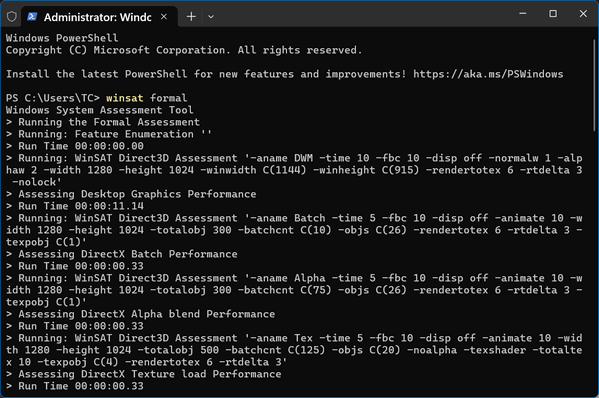
Once the test finishes, the window might just sit there. To see your results in a way that actually makes sense, Windows stores them in a hidden report.
The easiest “non-geek” way to see your score without digging through messy files is to:
-
Right-click your Start button and select Terminal (Admin) or PowerShell (Admin).
-
Type this command and hit Enter:
Get-CimInstance Win32_WinSAT
A list of numbers will appear. The scores usually range from 1.0 to 9.9. Here is what they actually mean in plain English:
CPUScore: How fast your computer “thinks” (Processor).
D3DScore: Your computer’s ability to handle 3D gaming and heavy video.
DiskScore: How fast your computer can open files (Hard Drive speed).
GraphicsScore: How smoothly your computer handles basic things like program windows and the taskbar.
MemoryScore: How well your computer can multitask (RAM).
WinSPRLevel: This is your Base Score.
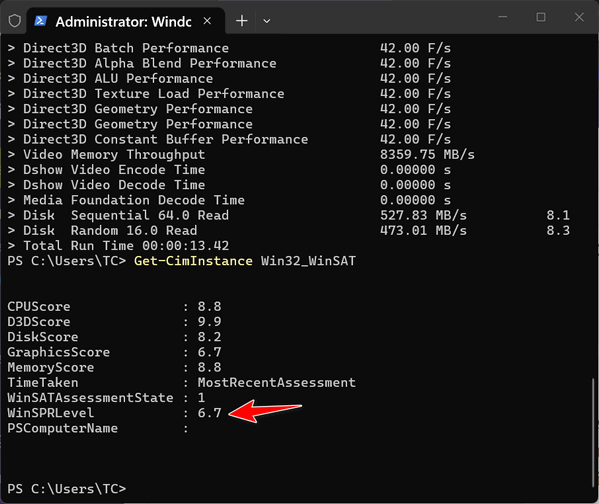
Your computer’s score is shown next to WinSPR Level and is always equal to your lowest individual score. This is because a computer is only as fast as its slowest part—like a sports car with bad tires, the tires limit the whole car!
Anything over 9 is a powerhouse – a geek’s machine. Anything lower? Well… if you’re not a geek, it probably won’t mean much to you. But let’s say this: Your computer should have a score of over 4.5. Otherwise, your computer might always be a little slow.
My cheap under $300 laptop scored 6.7. Not bad. But a real geek would say “tsk tsk”. But who really cares what the geeks think? Not me!
CPUScore: 9.2,
D3DScore: 9.9,
DiskScore: 8.1,
GraphicsScore: 6.3,
MemoryScore: 9.2,
TimeTaken: Most RecentAssessment,
WinSATAssessmentState: 1,
WinSPRLevel : 6.3
Very interesting. Thanks