

How to Pin Almost Anything to the Windows 11 Taskbar
Windows 11 is notable for its minimalistic and somewhat restrictive taskbar. For example, unless you have the latest update, you can’t move the taskbar to the top of your screen or the side as you could in most previous Windows versions. The default and only location is at the bottom of your screen… while it is centered by default, you can, optionally, move it to the left.
But Windows 11 does allow you to pin apps, programs, files, folders, websites, and even drives to the taskbar for quick and easy access. But not quite as easily as in Windows 10
Here’s our tutorial showing how to pin shortcuts to the Windows 11 taskbar.
Pin an App/Program to the Taskbar
You can pin any app that you use frequently to the taskbar so that you can launch it with one click. There are several ways to pin an app to the taskbar:
From the Start menu: Click the Start button on the taskbar, then find the app you want to pin. Right-click the app icon and select Pin to taskbar.
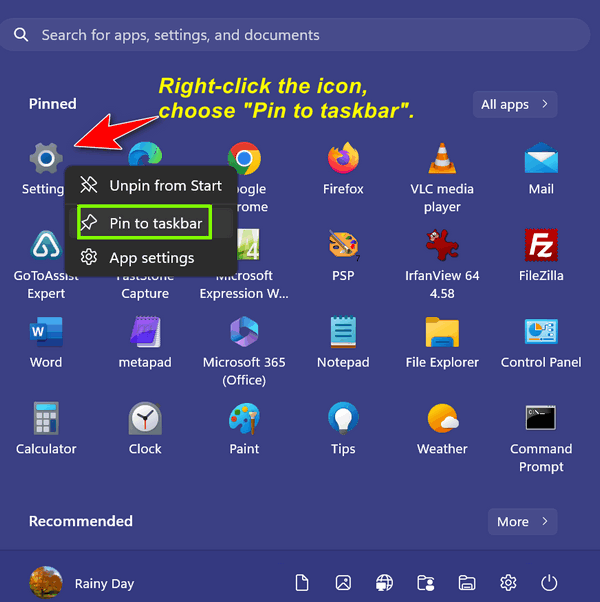
If you don’t see the program or app you’re looking for, click on “All apps” at the top right to bring up an alphabetical menu of apps & programs installed on your device.
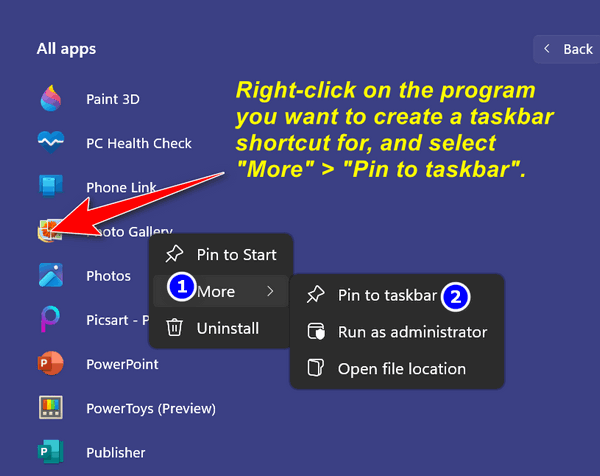
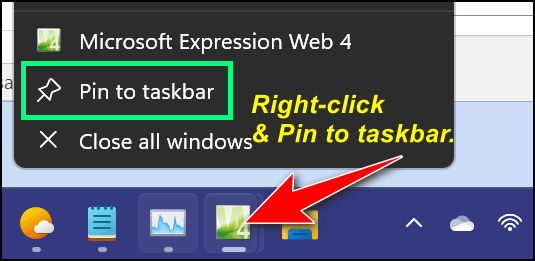
Pin a running app or program to the taskbar.
If you have an app open on your screen, you can pin it to the taskbar by right-clicking its icon and selecting Pin to taskbar.
Pin a File or Folder to the Taskbar
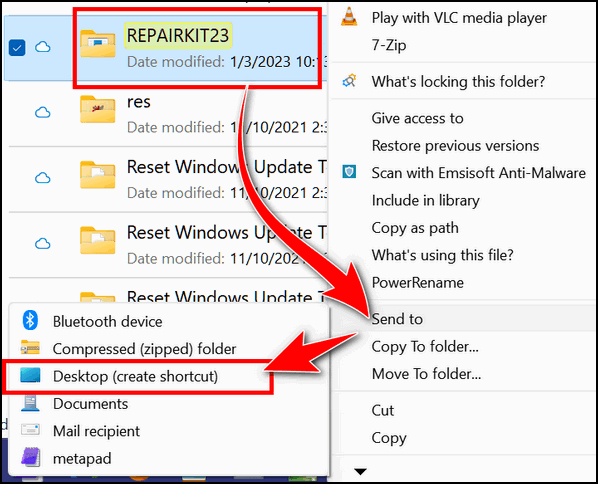
You can also pin a file or folder that you access often to the taskbar for convenience. However, unlike apps, you cannot directly pin a file or folder to the taskbar. You need to create a shortcut first and then modify its properties. Here’s how:
Right-click the file or folder that you want to pin and select Show more options > Send to > Desktop (create shortcut).
Right-click the shortcut that appears on your desktop, choose “More options” and select Properties. In the Target field, add the wordexplorer (not case sensitive) followed by a space before the Target path. For example, if your target path is…
C:\Users\YourName\Documents\MyFile.docx
Now change that to…
Explorer C:\Users\YourName\Documents\MyFile.docx.
Click Apply > OK.
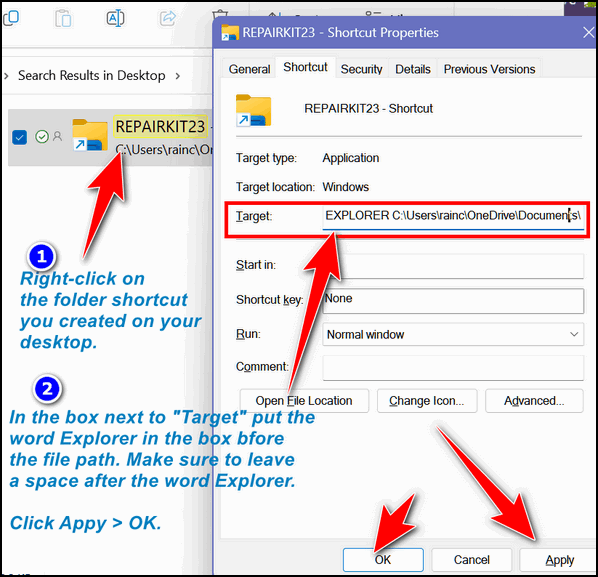
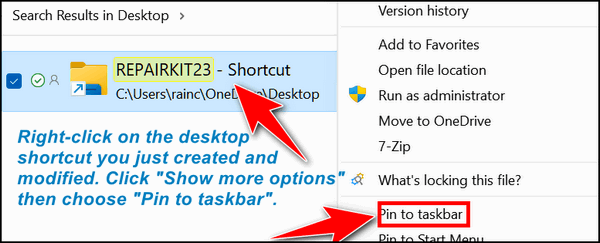
You can now drag and drop the shortcut from the desktop to the taskbar. You can then delete the shortcut from your desktop if you want. Or you can right-click on the shortcut and choose “Pin to Taskbar”.
Pin a Website to the Taskbar
You can also pin a website that you visit frequently to the taskbar for easy access. However, this only works with the Microsoft Edge browser. Yes, you can do it with Google Chrome, but it’s more complicated, plus everyone with Windows 11 has Edge installed.
Here’s how to create a website shortcut on your Windows 11 taskbar.
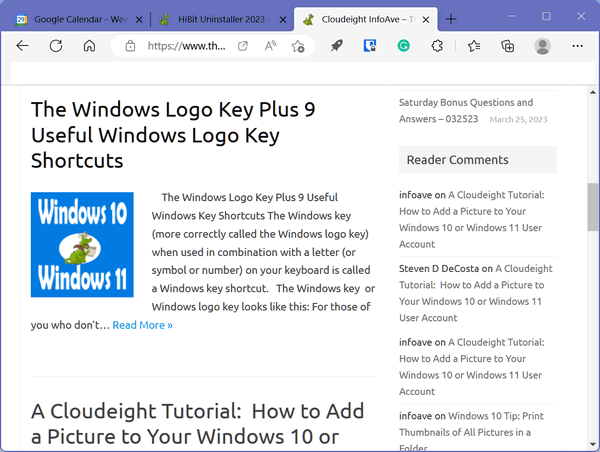
Open Microsoft Edge and go to the website that you want to pin.
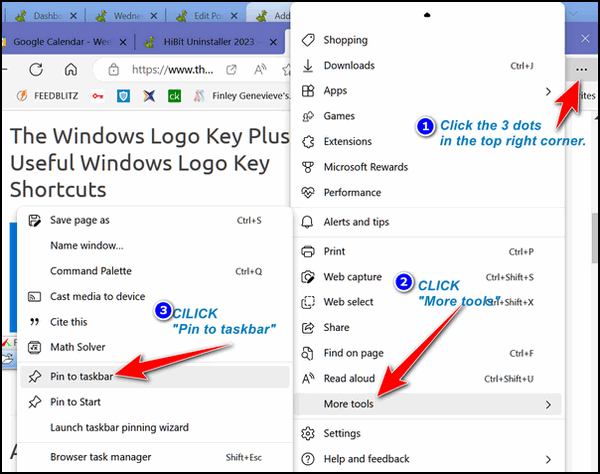
Click the three-dot menu at the top right corner and select More tools > “Pin to taskbar”.

We hope this tutorial helps you. Thank you for reading!
Dear TC, Is it still possible to access Zappitt through Cloudeight. I did have it on my old computer but on the new one which I might add is now becoming older also I am unablerd to activate it. I did have it for quite some time and was very happy with it. Please can you point me in the right direction to perhaps activate it again . Happy Easter and hope that the Easter Buny is good to you.
No. Zappit has not been updated since Windows XP, so we don’t want anyone using it. Windows DiskCleanup comes with Windows and you can run it by right-clicking the start button, clicking “Run” and typing CLEANMGR in the runbox and pressing Enter.
Happy Easter!