

Put “Copy To” and “Move To” On Windows 11’s Right-click Menu
Many of you have been asking how to restore “Copy to” and “Move to” to the Windows 11 right-click context menu. If you’re one of those folks who are missing the classic “Copy To” and “Move To” options in your right-click menu, we’ve got good news for you.
You can bring “Copy to” and “Move to” back to your right-click menu with a simple, safe registry tweak. Here is how to do it.
Click here to download the c2m2.zip file. Save the zip file to your computer and unzip it. Double-click the c2m2.reg file to run it. You’ll receive two warnings; the file is safe, so you can click Run to the first warning and Yes to the second.
If you’re using Emsisoft, you may get a warning from it becasue the file will modify your registry (that’s what it’s supposed to do). Click on “Wait, I think this is safe.” (or similar).
The registry file will change your registry so that “Copy to folder” and “Move to folder” appear on your Windows 11 right-click context menu. To use it, you’ll need to right-click on the file(s) or folder(s) you want to copy or move and choose “Show more options” before you can see “Copy to folder” and “Move to folder” on your right-click context menu.
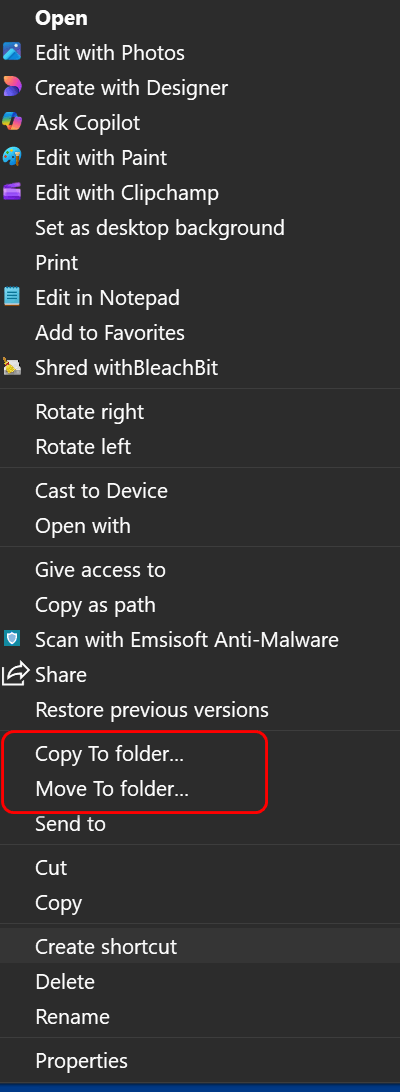
If you don’t see it on your right-click menu, restart your computer.
Happy right-clicking!
Thank you, I missed the copy to and move to. It works perfectly.