

Windows Storage Sense: Windows Housekeeping Made Automatic
There are dozens of free and paid programs that you can download to clean up your Windows computer. Windows even comes with Disk Cleanup, which Microsoft was supposed to deprecate some time ago but hasn’t—at least not yet. Of course, then there are PrivAzer and BleachBit, as well as the popular (but not popular with us) CCleaner, which we most strongly do not recommend.
Somewhere, along the way, Windows Storage Sense has been forgotten. So, we’re going to remind you about the benefits of Windows Storage Sense. We’ll cover Storage Sense in Windows 10 and the more streamlined Storage Sense in Windows 11.
Windows 10 Storage Sense
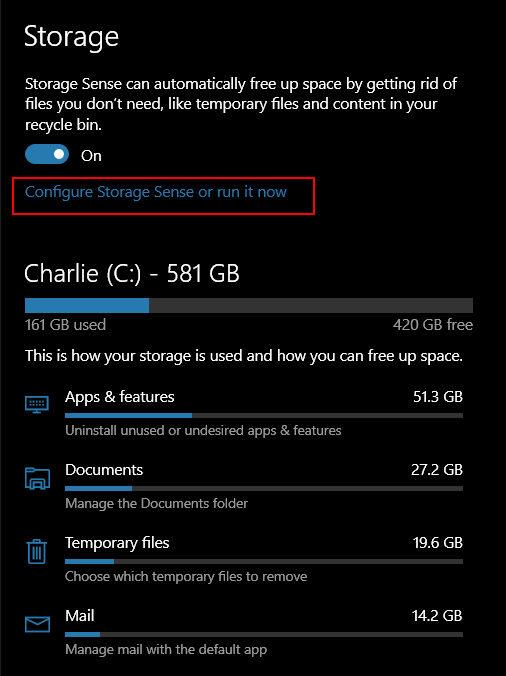
Right-click the Start button and choose Settings. In Settings, choose System > Storage.
If you have not done so already, turn on Storage Sense by sliding the switch to the “On” position.
If you want to run a quick cleanup, click “Configure Storage Sense or run it now”.
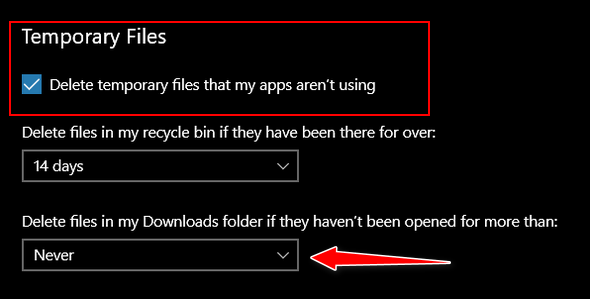
Under “Temporary Files, ” check the selection box next to “Delete temporary files my apps aren’t using”. And then check to make sure you have “Never” selected under “Delete files in my downloads folder if they haven’t been open for more than:”. You can easily clean up your Downloads folder manually.
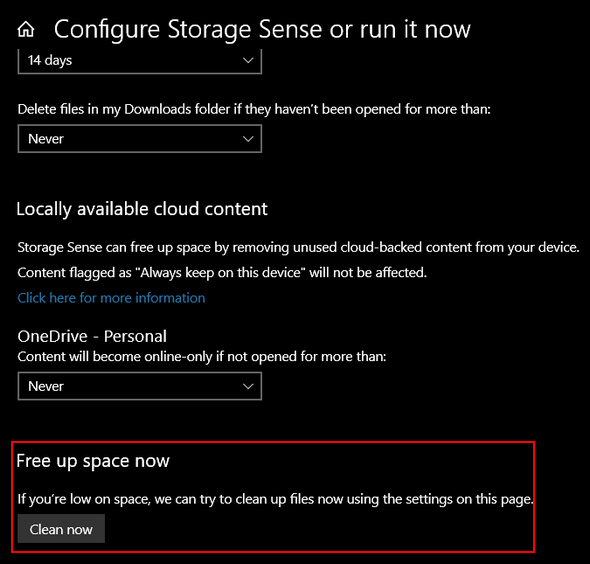
Next, under “Free up space now”, click the “Clean now” button.
That’s all there is to using Storage Sense in a basic cleanup. If you’re an advanced user and like to tinker with settings, you can fine-tune Storage Sense and customize it to your liking.
Windows 11 Storage Sense
Right-click the Start button and choose Settings from the menu. Then click on System > Storage. Yep! Just like Windows 10.
When Storage opens, click on “Storage Sense”…
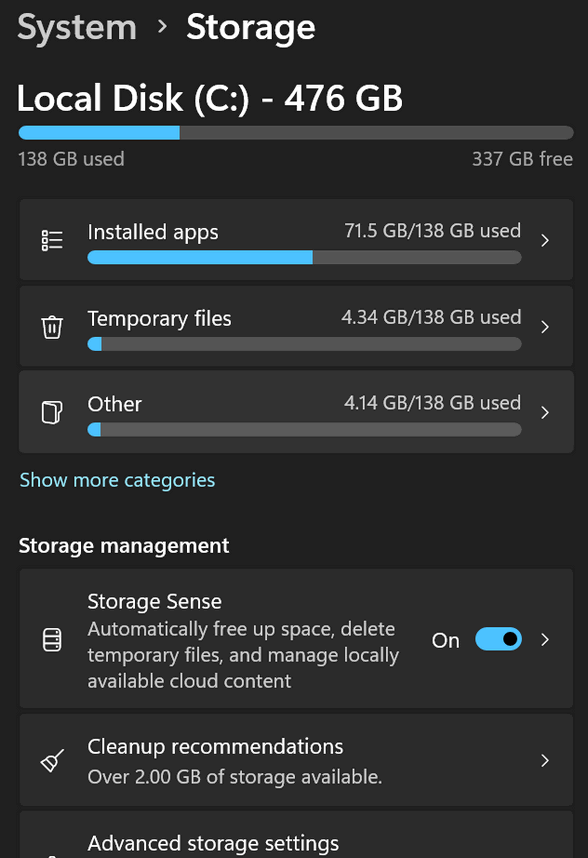
In the System > Storage > Storage Sense section, turn the switch to “On” under “Automatic user content cleanup.”
Next, click “Storage Sense”…
We recommend that you change the settings for Storage Sense as shown below:
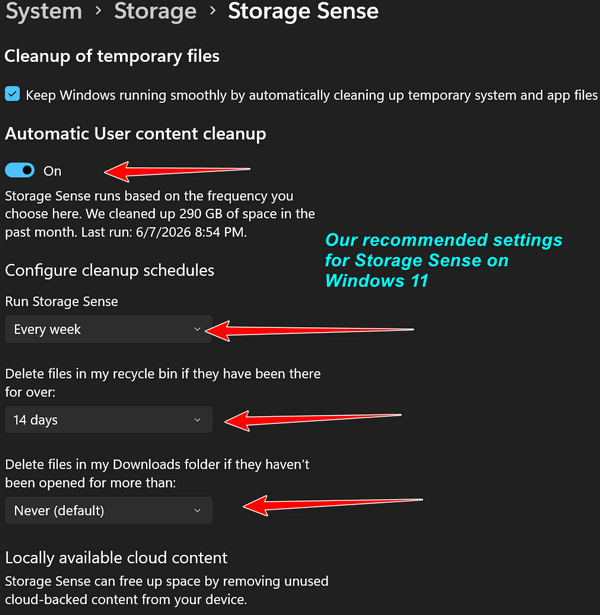
And once you get Storage Sense set to run every week and automatically clean up your recycle bin every 14 days, you can run it now. Just scroll down and click on “Run Storage Sense now”.
Now you know an easy and automatic way to clean up your Windows PC.
Storage Sense vs. Privacy Cleaners: What it Doesn’t Do
While Storage Sense is a great tool for general hard drive housekeeping, it is important to understand its limitations. **Storage Sense is not a privacy cleanup tool.** It is designed solely to free up disk space, meaning it will not clear out your deeply hidden internet browser history, wipe away tracking cookies, shred sensitive file remnants, or erase data logs from your third-party applications. If you are looking for a deep, secure cleaning to protect your personal privacy and erase your digital footprints, you will still want to use a dedicated privacy tool like BleachBit.
But for keeping your hard drive lean, clean, and free of everyday Windows clutter, Storage Sense does the job well and automatically. It truly is a “set it and forget it” Windows feature.
I still have Windows 10, but my selections are different than what shows above. I have Apps & Features and Temporary files, but also have Pictures, and Videos, but no Mail or Documents. Not sure how to proceed.
I have not had Windows 10 since last October. I was led to believe that Windows 10 was not going to change feature sets but anything is possible with Microsoft. Here’s a page that will help you.