

Right-click any folder and print a list of its contents without installing any 3rd-party software
How nice would it be if you could simply right-click any folder and be able to print a list of all the files and folders inside it? It would be so nice that Microsoft realizes how nice it would be if you could do that. So Microsoft has a little “Fix-it” for you that will add “Print Directory Listing” to your right-click menu. After you install the “Fix it” you’ll be able to print a directory listing for any folder on your computer, without having to use any 3rd-party programs.
It’s nice when Microsoft realizes they’ve left a feature out of Windows that would be very useful for many Windows users – and they “Fix it” for you.
To get your “fix” and/or to read more about adding a Print Directory Listing to your right-click menu visit this page.
http://support.microsoft.com/kb/321379
After you install the “fix” – the fix is in. You’ll have Print Directory Listing in your right-click menu when you right-click any folder.
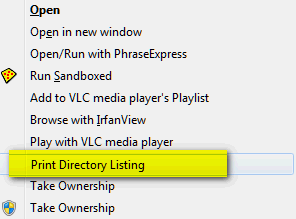
Above you can see “Print Directory Listing” in Windows right-click menu.
Thank you, thank you! I had this some time back when you first told us about this great feature. Then my old computer died, and I lost the info on how to do this. I have just ‘fixed’ my new computer, and am so glad to have this option again! You two do a great job of looking out for all of us, and we appreciate it!!
After clicking on the link, I was told that this does not apply to Windows 8.1. Appreciate all the great work you do.
I was disappointed to learn that this “Fix It” does not apply to my Windows 8.1 operating system. 🙁 Does Windows 8 simply not offer this wonderful little feature to us folks using Windows 8 or is there some setting I need to change so that I can add it to my right-click options? Thanks so much for all your wonderful tips and tricks! You make using my computer so much easier and so much more fun! God bless you folks!
Last week, in InfoAve newsletters we covered Windows 8x too.