

Turn Off Windows Fast Startup for Better PC Performance
Windows Fast Startup sounds like a good feature for your PC. Who wouldn’t want their computer to be ready to use in seconds?
However, this default Windows feature often delivers the exact opposite of what it promises, gradually draining your system’s performance. If your computer feels sluggish, turning off Fast Startup might be the easiest way to give it a permanent speed boost.
Let’s take a quick look at why Fast Startup doesn’t boost your PC’s speed or performance, and why it usually doesn’t make any noticable difference in your computer’s startup time.
First, let’s look at what Windows actually does when you click “Shut Down” with Fast Startup enabled. Windows doesn’t actually turn off. Instead, it closes your applications and logs you out, but it saves a snapshot of your Windows kernel and loaded drivers into a massive file on your hard drive called the hibernation file. The next time you press the power button, Windows reloads this saved state.
While this makes the initial boot process take less time, it introduces a major problem: it carries over all the baggage from your previous session.
Computers need complete restarts to clear out RAM, flush system caches, and terminate stubborn background processes or runaway loops. Because Fast Startup acts like a deep sleep rather than a fresh start, memory leaks and minor software glitches are preserved day after day. Over time, this accumulated system clutter causes sluggishness, delayed app launches, and random performance issues.
By disabling Fast Startup, you force Windows to perform a true, clean boot every single time you turn it on. Every driver is reloaded from scratch, the system memory is entirely wiped clean, and all background clutter is permanently cleared.
For modern computers running on Solid State Drives (SSDs), the actual difference in boot time without Fast Startup is virtually unnoticeable—usually a matter of just a few seconds. However, the performance payoff after it boots up is substantial. Your operating system will run noticeably smoother, stability will improve, and you will encounter far fewer of those mysterious performance slowdowns.
If you want better performance and a generally faster PC’s turn off Fast Startup.
> Open the Control Panel (type Control Panel in the taskbar search).
> Navigate to Power Options, and click “Choose what the power buttons do.”
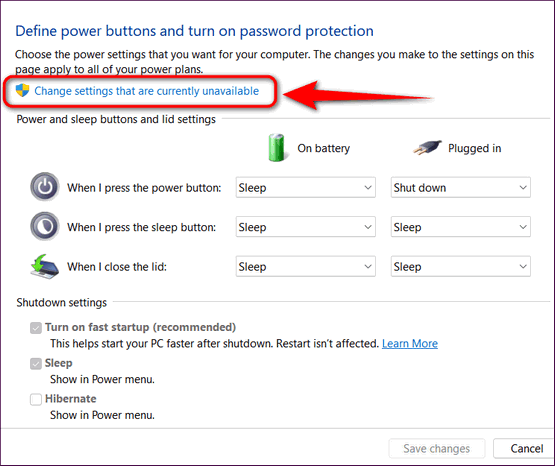
> Click the link at the top to change settings that are currently unavailable.
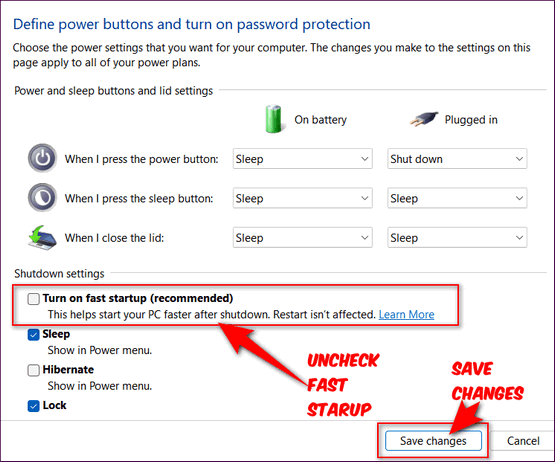
> Uncheck”Turn on fast startup,” and save your changes.
All done. Now your PC will thank you and reward you with a cleaner, faster experience every single time you restart it or power it on.
.
Thank you for this tip! I was wondering why my PC seemed to be getting slower and slower even though I restart frequently.