

The Free VPN Hidden Right inside Your Windows PC
If you watch any video online or listen to a podcast, you’ve probably been bombarded by ads for paid VPN services. They love to use scare tactics—making it sound like a hacker is waiting behind every corner to steal your identity if you don’t fork over a monthly subscription fee.
Let’s be honest, if you are sitting at home on your private, password-protected home Wi-Fi network, you generally do not need a VPN.
However, there is one place where a VPN is an absolute must: public Wi-Fi. When you connect to the open, password-free networks at the airport, a coffee shop, the grocery store, or a restaurant, your device’s connection is wide open. Anyone else sitting on that same network with a cheap piece of snooping software can intercept the data flowing out of your laptop.
If you just want to protect yourself on public Wi-Fi without buying another subscription, the tool you need is already sitting on your computer. It’s built right into Microsoft Edge.
The Microsoft Edge “Secure Network”
Maybe you don’t like and don’t use Edge and that’s fine. But one thing is for sure, every Windows 10 and Windows 11 computer comes with Edge installed. That means if you are using a Windows PC, you have access to a free VPN when you find yourself needing or wanting to use an insecure public network.
Microsoft quietly partnered with Cloudflare (one of the largest internet infrastructure and security companies in the world) to build a free VPN right into the Edge browser. It’s called Secure Network.
Every single Windows user who logs into Edge with a standard, free Microsoft account automatically gets 5 GB of free encrypted data every single month.
While 5 GB isn’t enough to stream movies all day, it is more than enough to safely check your email, log into your bank account, buy a plane ticket, or do some online shopping while sitting at a coffee shop or waiting for a flight.
How to Turn It On
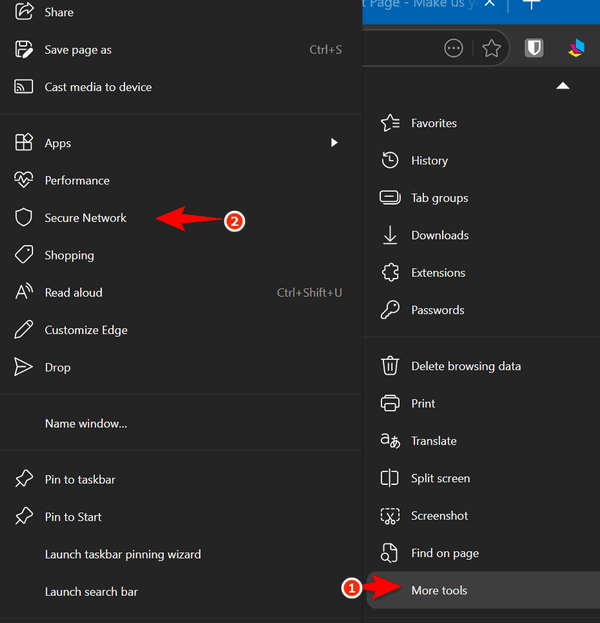
Because Microsoft hides this feature a bit, most users have no idea it exists. Here is how to find and activate it:
-
Open Microsoft Edge.
-
Click the three dots in the top right-hand corner.
-
Hover your mouse over More tools and select Secure Network from the slide-out menu. (Alternatively, you can just click the small Shield icon that appears next to your address bar).
-
Toggle the feature to On.
The “Optimized” Mode
When you turn it on, Edge defaults to an Optimized setting. This means the VPN is smart. It stays completely turned off while you are browsing safe, secure networks. But the second you connect to an open, public Wi-Fi hotspot, it automatically kicks in and encrypts your browsing data.
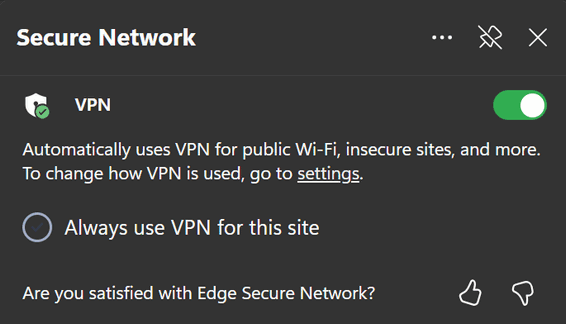
Even better, unlike commercial VPNs that pretend you are in Iceland or Japan—which often causes websites to lock you out or think you’ve been hacked—Edge routes your data through a local secure hub. Websites will still see you as being in your general region, so local news, weather, and maps still work perfectly.
It’s free, it’s already installed, and it solves the one real security headache the average browser faces on the road. Give it a try next time you take your laptop out of the house.
That’s great but I use my phone for such things. How dio I protect it? I have an Android
If you have a Google Phone, you will have a VPN in it by default, just need to turn it on.
Hi Friends, I am concerned about the fact that when I copy my password to a site, it appears in the same list as that of search sites. Why is that happening now – AI invasion? How do I stop that? I would like to know how to get rid of AI on my Microsoft 11 pc. If I delete Copilot, would that take care of the problem?
I don’t know what you’re asking. The only place you should be pasting your passwords is on secure login page on sites you trust. What are you typing your password into? This has absolutely nothing to do with Copilot or AI – this has to do with you securing your passwords by only using them on login pages of sites and companies you trust.
An inquiry from one of your older members who is now two weeks from being 96, who has been with you practically since the start, but let us say I’m a little slower these days.
Some 3 months or so ago through Cloudeight channels I had reason to update my Emsisoft as well as my Reg Organiser. I was advised that the Emsisoft would be automatically attended to, which it was. My memory could be faulty in that I recall something along the lines that the Reg Organiser update would take longer, or something to that effect.
It was only recently when I checked R O that it indicated a renewal was still overdue. Unfortunately this could well be my fault, but thought I would contact you 2 worthy hard working people as to your records in the first instance as I cannot find any reference here.
Kind regards and best wishes – Bryan
Hi Bryan. Unlike Emsisoft, Reg Organizer does not expire. However, if you want to receive updates and newer versions of Reg Organizer when they’re released you need to renew your Reg Organizer license. If you do not, the program will still work. Reg Organizer is not a security application – it’s a utility – it doesn’t provide antivirus or anti-malware protection.
You need to renew Emsisoft to stay protected, Reg Organizer keeps working: The specific version of Reg Organizer you have installed when your license expires will remain fully activated and functional. It won’t lock you out, and it won’t suddenly stop working.
If they release a major update (e.g., jumping from version 9.0 to 10.0), you won’t be able to upgrade to it without purchasing a renewal.
Watch out for accidental updates: If you accidentally download and install a newer version after your license has expired, the software will revert to the trial/unregistered mode.
If you do not renew Emsisoft and your license expires, Emsisoft protection stops until you renew your license.
Does this help answer your question(s)?
Thank you for your informed comments. This matter had been satisfied to my satisfaction.
Bryan